Choosing the wrong image format can quietly damage your site. Pages load slower, screenshots look fuzzy, logos lose their clean edges, and large photo galleries eat up storage.
If you’re comparing JPG vs PNG vs WebP, you’re really asking a bigger question: which format gives you the best mix of quality, speed, transparency, and compatibility?
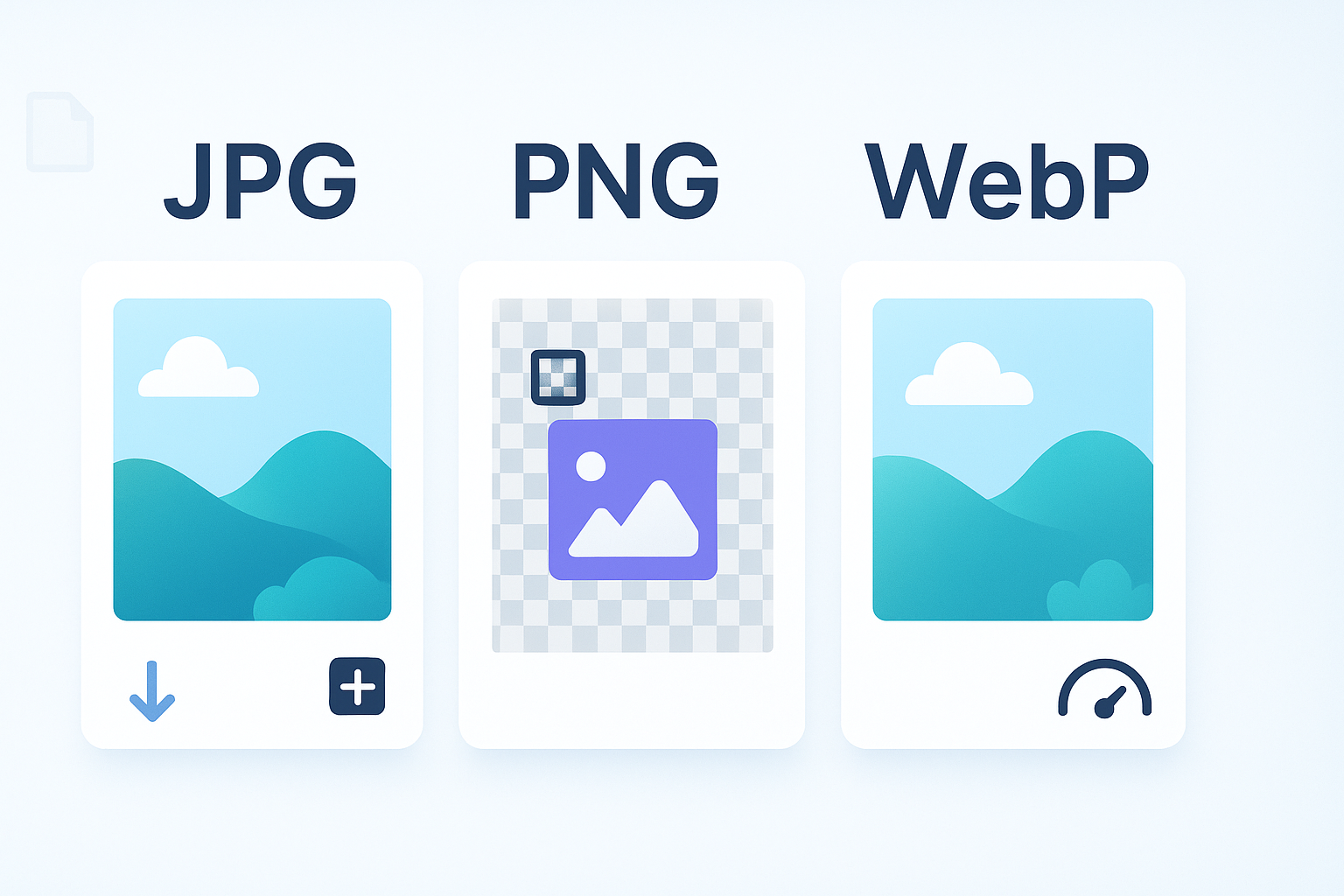
Here’s the short answer. JPG is usually best for photos. PNG is best for graphics that need transparency or crisp edges. WebP is often the best all-around choice for the web because it can keep file sizes smaller without sacrificing much quality.
But that shortcut is not enough when you’re publishing images for websites, blogs, product pages, social media, or design work. Let’s break it down clearly so you know exactly when to use each one.
JPG vs PNG vs WebP: what is the difference?
JPG, PNG, and WebP are image file formats. They store visual data in different ways, which affects image quality, compression, transparency, and loading speed. The best format depends on the type of image you are working with and where it will be used.
| Format | Best For | Compression Type | Transparency | Typical File Size |
|---|---|---|---|---|
| JPG | Photos and realistic images | Lossy | No | Small to medium |
| PNG | Logos, icons, screenshots, transparent graphics | Lossless | Yes | Medium to large |
| WebP | Modern websites, blogs, ecommerce, mixed image use | Lossy or lossless | Yes | Usually smaller than JPG and PNG |
If you need to reduce file size before uploading, an image compressor can help you shrink large graphics without making them unusable.
Suggested Image: Side-by-side comparison of the same photo saved as JPG, PNG, and WebP
When should you use JPG?
Use JPG when your image is a photograph or a detailed illustration with lots of colors, gradients, and natural texture. JPG works well because it compresses files heavily, which helps pages load faster, especially when you have many images.
JPG is the most common format for:
- Blog post featured images
- Travel and lifestyle photography
- Product photos
- Portraits
- Large image galleries
The trade-off is important. JPG uses lossy compression, which means some image data is removed to reduce file size. At reasonable quality settings, this often looks fine. But if you compress too aggressively, you will start seeing blur, artifacts, and muddy details.
Why JPG is often the default choice for photos
Photos usually contain thousands of subtle color shifts. JPG is built to handle that efficiently. A PNG version of the same photo will often be much larger with little visible benefit, especially for web use.
- Smaller files than PNG for photographs
- Wide compatibility across devices and browsers
- Good balance between quality and speed
- Easy to export from almost any design tool or CMS
If you are preparing images for a blog or online store, it’s also smart to check dimensions before exporting. A simple image resizer can prevent you from uploading oversized files that slow down your site.
When JPG is a bad choice
This is where many people struggle. They use JPG for everything, then wonder why logos look rough or screenshots become hard to read.
Avoid JPG for:
- Logos with transparent backgrounds
- Icons and line art
- Screenshots with small text
- Images that need repeated editing and resaving
Every time a JPG is repeatedly edited and saved, quality can drop further. For working files, use a format that preserves detail better during editing.
When should you use PNG?
Use PNG when clarity matters more than file size. PNG is ideal for graphics that need sharp edges, readable text, or transparency. That includes logos, interface elements, illustrations, and screenshots.
PNG uses lossless compression. That means it keeps all the image data when saved. The result is a cleaner image, especially around text, edges, and flat color areas.
| PNG Works Best For | Why It Helps |
|---|---|
| Logos | Keeps edges clean and supports transparent backgrounds |
| Screenshots | Preserves small text and interface detail |
| Icons and UI elements | Prevents blur around hard lines and shapes |
| Transparent overlays | Allows the image background to remain see-through |
Need to capture text from a screenshot before deciding how to save it? An image to text tool can help pull content from visuals for easier editing or accessibility work.
Why PNG files are often larger
PNG protects image quality, but that protection comes at a cost. File sizes are usually larger than JPG, especially for photos. On image-heavy pages, that can hurt performance if you upload full-size PNGs without optimization.
According to MDN’s image format guide, PNG is a strong option for lossless images and transparency support, but it is not always the most efficient format for photography.
When PNG makes the most sense
Choose PNG if at least one of these is true:
- You need transparency
- You need crisp text inside the image
- You are exporting a logo, chart, or diagram
- You want to avoid visual damage from lossy compression
If your graphic contains dimensions, ratios, or layout annotations, related utilities like a aspect ratio calculator can help keep the final export clean and correctly sized.
When should you use WebP?
Use WebP when you want modern web performance. WebP usually creates smaller files than JPG and PNG while still delivering solid visual quality. It also supports transparency, which makes it especially useful for websites that mix photos and graphics.
WebP was developed to solve a common problem: image-heavy pages look good, but they often load too slowly. By shrinking file size more efficiently, WebP helps improve speed without forcing major quality sacrifices.
- Supports lossy compression like JPG
- Supports lossless compression like PNG
- Supports transparency
- Often reduces bandwidth use
- Works well for websites and web apps
Google recommends modern image formats as part of page performance best practices. You can learn more from Google’s web image optimization guidance.
Why many websites prefer WebP
Now comes the important part. Speed is not just a technical issue. It affects bounce rate, user experience, mobile browsing, and even search visibility. Smaller image files can improve Core Web Vitals and reduce page load delays.
If you publish lots of content, WebP often gives the best balance of:
- Small file size
- Good quality
- Transparency support
- Strong browser support
For teams handling frequent file conversions, using a dedicated image converter can make the switch from JPG or PNG to WebP much faster.
Are there any downsides to WebP?
Yes, but they are manageable. Some older tools, plugins, or legacy workflows still prefer JPG or PNG. Also, if you share files with people who are not working on the web, WebP may feel less familiar.
For browser support details, Google’s WebP documentation explains how the format works and why it is efficient.
Which image format is best for websites?
For most websites, WebP is the best format overall. It usually offers the best mix of quality and performance. But the real answer depends on the image type. Photos often work well as JPG or WebP, while logos and transparent UI graphics are better as PNG or lossless WebP.
Here is a simple decision guide:
| Use Case | Best Format | Why |
|---|---|---|
| Blog photos | WebP or JPG | Small size with acceptable quality |
| Logos | PNG or WebP | Sharp edges and transparency |
| Screenshots | PNG | Preserves text clarity |
| Product images | WebP or JPG | Fast loading with strong visual quality |
| Transparent graphics | PNG or WebP | Supports alpha transparency |
If you’re building pages around speed and search visibility, pairing optimized images with lightweight assets matters. A practical next step is checking file size and dimensions before upload, then compressing anything oversized.
JPG vs PNG vs WebP for SEO
Image format does not directly rank a page on its own, but it strongly affects page speed, usability, and crawl efficiency. Those factors matter for SEO. A well-optimized image setup can help pages load faster and deliver a better experience on mobile devices.
Here’s what matters most for SEO:
- Fast loading images
- Correct image dimensions
- Descriptive file names
- Helpful alt text
- Modern formats where supported
- Compressed files without obvious quality loss
Google Search Central’s image SEO documentation explains that image quality, accessibility, and proper implementation all help search engines understand visual content better.
How image format affects page speed
This small detail changes everything. A page with ten oversized PNG photos can be much slower than the same page using properly compressed WebP images. That difference can affect mobile users most, especially on weaker connections.
To keep images web-ready, many publishers combine file format selection with size reduction, cropping, and scaling. If you also work with downloadable assets, tools like a PDF to JPG converter can help turn document visuals into web-friendly image files before optimizing them further.
Best image SEO practices
- Choose the right format for the image type
- Resize images to the actual display size
- Compress files before uploading
- Use descriptive file names like blue-running-shoes.webp
- Add clear alt text for accessibility and search context
- Use lazy loading where appropriate
How to choose the right image format
The best image format depends on one thing: what the image needs to do. If it needs tiny file size, use JPG or WebP. If it needs transparency or razor-sharp edges, use PNG or WebP. If it is a modern website asset, WebP is often the safest first choice.
Use this quick process:
- Ask whether the image is a photo, graphic, logo, or screenshot
- Check whether transparency is required
- Decide how important file size is for page speed
- Test visual quality after export
- Use the smallest file that still looks good
Simple rule of thumb
- Choose JPG for standard photos
- Choose PNG for sharp graphics and transparency
- Choose WebP for most web publishing needs
If you are cleaning up image-heavy workflows, related utilities such as an Base64 to image converter can also help developers and content teams extract or restore embedded image assets during site work.
Suggested Infographic: Decision tree showing when to pick JPG, PNG, or WebP
Common mistakes people make with image formats
Most image problems come from using the right format in the wrong situation. A beautiful photo saved as PNG becomes unnecessarily heavy. A logo saved as JPG gains ugly edges. A massive WebP file still loads slowly if it was never resized.
- Using PNG for all photos
- Using JPG for logos and screenshots
- Uploading original camera-size images to a website
- Ignoring compression settings
- Converting formats without checking visual quality
- Forgetting transparent background needs
What experienced professionals do differently
They do not ask for one format that works everywhere. They match the format to the purpose. Then they test the result on real pages, not just inside a design tool.
A strong workflow often looks like this:
- Edit from a high-quality source file
- Export in the most suitable format
- Resize to actual use dimensions
- Compress the final version
- Preview on desktop and mobile
If you handle visual content in multiple file types, an JPG to PDF converter can also help turn image batches into shareable documents for reviews, approvals, or archives.
JPG vs PNG vs WebP: quick pros and cons
If you want a faster summary, this table gives the practical strengths and weaknesses of each format in one place.
| Format | Pros | Cons |
|---|---|---|
| JPG | Small files, great for photos, widely supported | No transparency, quality loss from compression |
| PNG | Sharp details, transparency, lossless quality | Larger files, not ideal for many photos |
| WebP | Very efficient, supports transparency, great for web | Less familiar in older workflows and legacy tools |
Frequently asked questions
1. Is WebP better than JPG?
For most websites, yes. WebP usually delivers smaller file sizes than JPG at similar visual quality, which helps pages load faster. That said, JPG is still a solid choice for photos when WebP is not supported in your workflow or platform. If speed matters and your site supports it, WebP is often the smarter default.
2. Is PNG better quality than JPG?
PNG often looks better for graphics, text, logos, and screenshots because it uses lossless compression. JPG can introduce blur or compression artifacts, especially around sharp edges. For photos, though, PNG may not look noticeably better to the average viewer, even though the file size is much larger. Better quality depends on the type of image.
3. Should I use PNG or JPG for screenshots?
Use PNG for screenshots in most cases. Screenshots often contain text, interface elements, straight lines, and areas of flat color. PNG preserves those details cleanly, while JPG may make small text look softer or noisy. If file size becomes a problem, you can test WebP too, but PNG remains the safer choice for clarity.
4. Which format is best for logos?
PNG or WebP is usually best for logos, especially when you need a transparent background. Logos rely on clean edges and simple shapes, so JPG is not ideal because it can create visible artifacts. If your site supports WebP well, it can be a good modern option. If you need broad compatibility and transparency, PNG is still very reliable.
5. Does image format affect SEO?
Yes, indirectly. The file format influences image size, load speed, and user experience. Smaller, well-optimized images can improve page performance, especially on mobile. Search engines care about pages that load quickly and serve users well. Format alone will not boost rankings, but poor image choices can absolutely hurt performance and usability.
6. Why are PNG files so large?
PNG files are often larger because they use lossless compression. That means they preserve all image information instead of discarding some of it like JPG does. This is great for screenshots, logos, and graphics with text, but not very efficient for photos. If a PNG file is too large for web use, consider converting it to WebP when possible.
7. Can WebP replace both JPG and PNG?
In many web projects, yes. WebP supports both lossy and lossless compression, and it also supports transparency. That means it can handle many of the jobs traditionally split between JPG and PNG. Still, some workflows, software tools, or client handoff processes may still prefer older formats, so complete replacement depends on your setup.
8. Which format loads fastest?
WebP usually loads fastest because it often produces the smallest file sizes for comparable quality. JPG also loads quickly for photos when compressed well. PNG is often slower on photo-heavy pages because files tend to be larger. Still, format is only part of the equation. Oversized dimensions and poor compression can make any format slow.
9. Is JPG good for printing?
JPG can be fine for printing if the image is high resolution and saved at high quality. For professional print work, though, many designers prefer formats that preserve more data during editing. For standard everyday printing, JPG usually works well enough. For logos, text-heavy graphics, and editable assets, PNG or source design files may be better choices.
10. How do I reduce image size without losing too much quality?
Start by resizing the image to the exact dimensions you need. Then compress it using the right format. Photos usually do well as JPG or WebP. Graphics and screenshots often do better as PNG or lossless WebP. The goal is simple: use the smallest file that still looks clean to a real viewer on the actual device.
Final verdict: which image format is best?
If you want one practical answer, here it is. WebP is usually the best image format for modern websites. JPG is still excellent for standard photos. PNG is the right choice for logos, screenshots, and transparent graphics.
The best results come from choosing the format based on the job, not from forcing one format onto every image. That is what keeps pages fast, visuals sharp, and users happy.
If you’re optimizing images before publishing, start with the basics: resize large files, compress them properly, and convert them when needed. Tools like an image compressor, image resizer, or image converter can make that process much easier.