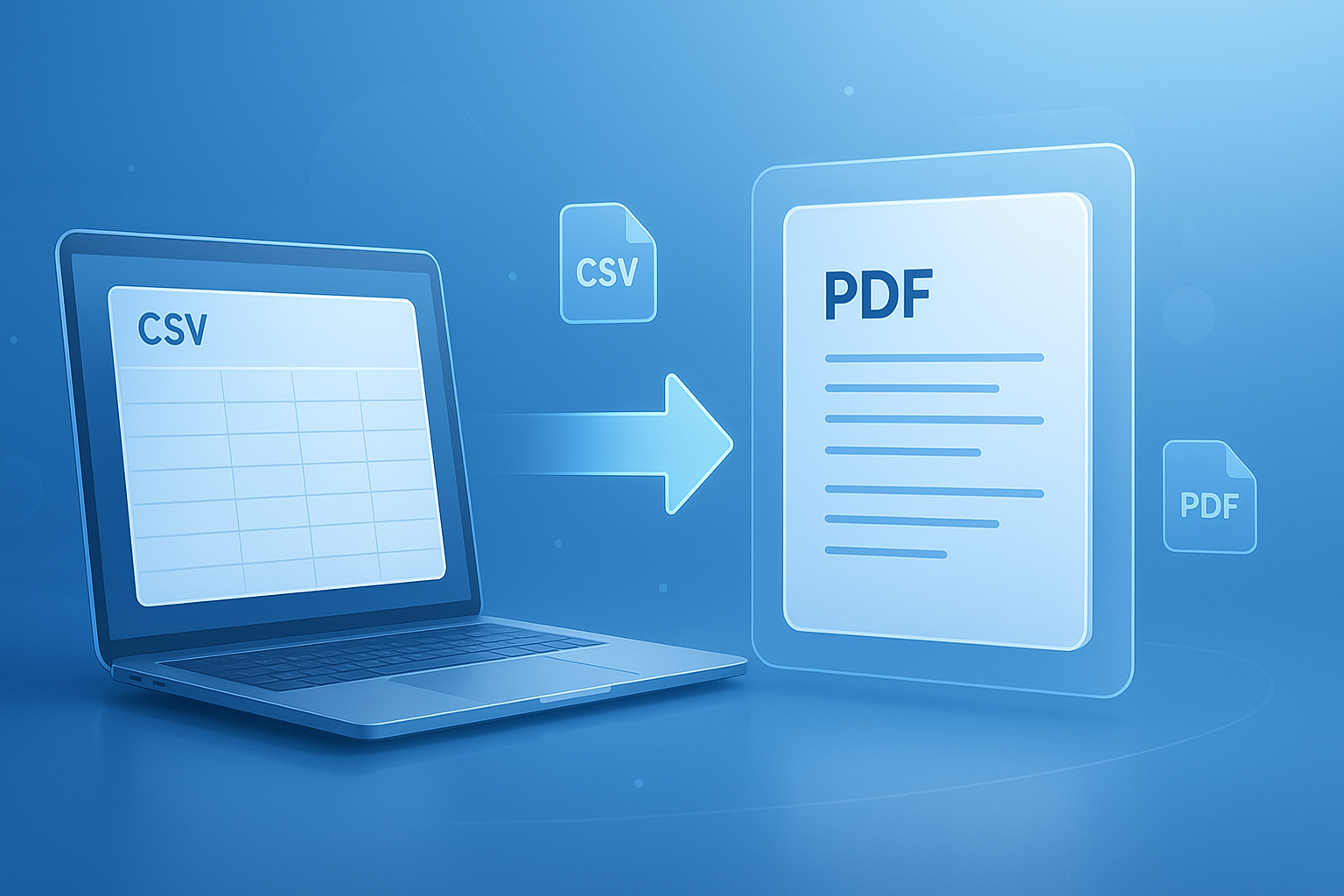
Ever opened a CSV file and realized it looks fine in a spreadsheet, but terrible when you need to share it with clients, managers, or legal teams? That’s the moment a good csv to pdf converter becomes useful.
CSV files are built for raw data. PDF files are built for presentation, sharing, and consistency. If you need a file that looks the same on every device, prints cleanly, or can be attached to reports without breaking formatting, converting CSV to PDF is often the fastest fix.
This guide explains how a csv to pdf converter works, when you should use one, what to watch out for, and how to get a clean result without wasting time. You’ll also see practical examples, common mistakes, and a simple workflow professionals can use in 2026.
Suggested Image: Technology concept showing spreadsheet data transforming into a polished PDF report on desktop and mobile screens
What is a CSV to PDF converter?
A csv to pdf converter is a tool that takes data stored in a comma-separated values file and turns it into a PDF document that is easier to view, share, print, or archive. CSV files store plain-text table data. PDFs preserve layout and appearance across devices.
Here’s the simple difference:
- CSV is best for editing, importing, sorting, and data exchange
- PDF is best for sharing, presenting, printing, and preserving formatting
If you work with reports, invoices, exports from business software, customer records, or analytics tables, you may also find a JSON to CSV converter useful before moving that structured data into a final PDF-friendly format.
Why convert CSV to PDF instead of sharing the spreadsheet?
Most people convert CSV to PDF for one reason: control. A CSV file can look different depending on the app, separators, encoding, or column widths. A PDF gives you a fixed version that others can read without changing anything.
Here’s why professionals often prefer PDF:
- It opens consistently on almost any device
- It’s easier for non-technical readers to review
- It prints cleanly for meetings, signatures, or records
- It prevents accidental edits to the shared version
- It works better for formal documentation and archiving
According to Adobe’s PDF overview, PDF was designed to preserve document fidelity across systems. That’s exactly why it’s often preferred over raw data files for communication.
Here’s the problem. A plain CSV rarely looks presentation-ready on its own. If your exported file also includes messy text, unusual characters, or inconsistent spacing, cleaning the text first with a text cleaner tool can save time before conversion.
How a CSV to PDF converter usually works
Most tools follow the same general process. They read the rows and columns inside your CSV, turn them into a tabular layout, and export that structure as a PDF document. The difference between tools is how much control they give you over formatting.
- Upload or paste the CSV data
- The converter detects rows, columns, and separators
- You preview the table layout
- You adjust formatting if the tool supports it
- The tool generates a downloadable PDF
Some advanced tools also allow:
- Custom page size
- Landscape or portrait orientation
- Font adjustments
- Margin controls
- Header row emphasis
- Multi-page table handling
For technical users working across multiple file types, tools like a XML to JSON converter can also help normalize data before exporting it into shareable formats.
When using a CSV to PDF converter makes the most sense
A csv to pdf converter is most useful when the data no longer needs editing and is ready to be reviewed, shared, submitted, or stored. In other words, PDF is the handoff format, not the working format.
Common use cases include:
- Sending sales exports to stakeholders
- Turning finance records into printable reports
- Sharing customer lists internally in read-only form
- Creating records for audits or compliance workflows
- Exporting system logs or tabular summaries for documentation
- Submitting supporting data with proposals or project reports
If your workflow includes web-based data, a HTML to PDF converter may be a better fit when layout and visual branding matter more than raw spreadsheet structure.
CSV vs PDF: which format should you use?
The answer depends on what happens next. If someone needs to sort, filter, calculate, or import the data, keep the CSV. If they only need to read, print, sign off, or archive it, PDF is usually better.
| Format | Best For | Main Limitation |
|---|---|---|
| CSV | Data exchange, analysis, imports, editing | Not presentation-friendly and can open inconsistently |
| Sharing, printing, archiving, fixed presentation | Harder to edit or reuse as structured data |
Microsoft’s documentation on working with spreadsheet exports and file formats is helpful if your data is coming from Excel or similar tools and you need to maintain compatibility.
What to check before you convert a CSV file to PDF
This small detail changes everything. Most conversion issues are not caused by the PDF step. They start inside the CSV itself. Bad separators, broken encoding, or inconsistent columns can produce ugly or unreadable PDFs.
Before converting, check these items:
- Column alignment: Make sure each row has the same number of fields
- Delimiter accuracy: Confirm whether the file uses commas, semicolons, or tabs
- Encoding: UTF-8 is usually the safest option for special characters
- Header clarity: Rename vague field titles before exporting
- Long text fields: Watch for columns that may wrap badly in PDF
- Empty rows: Remove unused rows that add awkward blank pages
If you need help cleaning source content, a remove duplicate lines tool can be handy for repetitive exports, logs, or merged text-based data before final formatting.
Step-by-step: how to convert CSV to PDF cleanly
The fastest method is not always the best method. If you want a PDF that actually looks professional, spend a minute preparing the data first. That often matters more than the converter itself.
- Open and inspect the CSV
Look for broken rows, merged values, or encoding issues. - Clean the data
Shorten long labels, remove unnecessary columns, and fix inconsistent values. - Choose a converter
Use a tool that shows a preview and supports proper table rendering. - Set page orientation
Wide tables usually need landscape mode. - Review page breaks
Check whether rows split awkwardly across pages. - Export to PDF
Download the file and inspect it on desktop and mobile if others will view it there. - Store the original CSV separately
Keep the editable source in case you need to regenerate the PDF later.
Suggested Screenshot: CSV preview with column headers, formatting controls, and PDF export button
Best practices for a professional-looking PDF
A CSV to PDF converter can only work with the data it receives. If the spreadsheet is cluttered, the PDF will be cluttered too. Clean structure and readable formatting make a bigger difference than most people expect.
Keep only the columns readers need
Readers rarely need every export field. Remove technical IDs, raw timestamps, or internal notes unless they serve a real purpose in the final document.
Use clear column names
Change labels like cust_id or amt_net_1 into names people can understand quickly. This matters even more when the PDF is going to clients or executives.
Choose the right page orientation
Portrait works for narrow tables. Landscape is better for wider datasets. This simple choice can prevent cut-off columns and cramped text.
Think about printed output
If people may print the file, test how the table looks on standard page sizes. The ISO paper size standard is useful background if you work internationally with A4 and other formats.
Preserve numeric readability
Large numbers, percentages, and dates should be formatted consistently before export. If your report includes percentages or ratios, a related utility like the percentage calculator can help verify the final figures before you publish them.
Common problems after conversion and how to fix them
This is where many people struggle. The file converts successfully, but the PDF still looks wrong. Usually the fix is simple once you know what to look for.
| Problem | Likely Cause | Fix |
|---|---|---|
| Columns shifted | Wrong delimiter or inconsistent rows | Recheck separators and row structure |
| Special characters display incorrectly | Encoding mismatch | Use UTF-8 and test before export |
| Text cut off | Table too wide for page | Switch to landscape or remove columns |
| Too many pages | Excessive rows, spacing, or long text fields | Trim content and adjust layout |
| Numbers look inconsistent | Mixed formatting in source file | Standardize number and date formats first |
For developers or analysts handling encoded content in data pipelines, the Base64 to Image Converter can also help when exported datasets include embedded assets or transformed media references.
Is it safe to use an online CSV to PDF converter?
It can be safe, but only if the data is appropriate for web-based processing and you trust the tool. Sensitive business records, customer lists, payroll files, and regulated data deserve extra caution.
Here’s what experienced professionals do differently:
- They avoid uploading confidential files unless the workflow allows it
- They review the site’s privacy terms and retention policies
- They prefer HTTPS-secured tools
- They remove unnecessary personal data before upload
- They use local or offline workflows for highly sensitive files
The FTC’s business privacy and security guidance offers a practical baseline for evaluating online file-handling risks. If your organization handles personal data, also review your internal compliance requirements before using any web tool.
Online converter vs spreadsheet export vs script-based workflow
The best method depends on volume, sensitivity, and how much formatting control you need. A simple online csv to pdf converter works well for quick jobs. Repeated business workflows may need something more structured.
| Method | Best For | Trade-Off |
|---|---|---|
| Online converter | Fast one-off conversions | Less control and possible privacy concerns |
| Spreadsheet app export | Manual formatting and visual cleanup | Slower for repeated tasks |
| Script or automation workflow | Recurring reports and larger datasets | Requires setup and technical skill |
If your broader workflow includes creating polished content from raw files, a Markdown to HTML converter can help transform documentation or reporting notes before packaging final deliverables.
Real-world examples of CSV to PDF conversion
Abstract explanations are helpful, but workflows make more sense when you see them in context. Below are a few real situations where converting CSV to PDF solves an everyday business problem.
Sales reporting
A manager exports monthly revenue by region as CSV. The raw file is useful for analysis, but leadership only needs a stable report. The manager removes unnecessary internal columns, formats revenue figures, and exports a PDF for a board packet.
Operations logs
An operations team exports issue logs from a platform that only provides CSV. They convert the filtered file into PDF so it can be attached to a status summary and shared without accidental edits.
Client deliverables
A consultant sends performance metrics to a client. The CSV contains valid data, but the client expects a clean, readable report. Converting to PDF makes the file more accessible and professional.
Compliance records
An internal team stores the original CSV as the source file, then generates a PDF version for documentation and review trails. This preserves both editability and presentation quality.
How to get better results with large CSV files
Large files are where quick conversions often break down. Too many rows, too many columns, or very long text fields can produce unreadable PDFs. The solution is usually to reduce complexity before export.
- Filter the data to the date range or team that matters
- Split very large datasets into separate PDFs
- Summarize detail rows when a high-level report will do
- Use shorter field labels where possible
- Move notes or comments into a separate appendix
If you need to validate file size for related assets before sharing documentation, the image size calculator can help when reports include screenshots, charts, or exported visuals alongside the PDF.
Frequently asked questions
Can a CSV to PDF converter keep my spreadsheet formatting?
Usually not in the same way a spreadsheet file does, because CSV itself does not store visual formatting such as fonts, colors, formulas, or merged cells. It mainly stores raw text values separated into columns. A converter can create a neat table layout, but it cannot restore formatting that was never inside the CSV. If appearance matters, clean and format the data before export or use a spreadsheet app to prepare the final view.
What is the fastest way to convert CSV to PDF?
The fastest method is often an online converter or a spreadsheet application’s export feature. For a one-time job, upload the CSV, preview the table, and export the PDF. For recurring business reports, using a repeatable workflow inside Excel, Google Sheets, or an automated script saves more time over the long run. Speed matters, but review the final layout before sending it to anyone important.
Are online CSV to PDF converters free?
Many are free for basic conversions, especially for smaller files and simple table exports. Some tools charge for advanced features such as batch conversion, formatting controls, watermark removal, larger file handling, or business usage rights. Free tools are fine for general tasks, but if the file is important, check whether the tool limits quality, page count, or download access before relying on it.
Will converting CSV to PDF change the data values?
The values should remain the same if the CSV is parsed correctly, but display problems can happen. Common issues include date reformatting, dropped leading zeros, broken special characters, and shifted columns caused by delimiter mismatches. That’s why it’s smart to inspect the source file first and compare a few rows after conversion. For account numbers, postal codes, or IDs, this review step is especially important.
Is PDF better than CSV for archiving?
PDF is better for preserving a human-readable version of the information exactly as it was shared. CSV is better for preserving the raw data in a reusable, machine-friendly format. In many professional settings, the best approach is to keep both. Store the CSV as the source record and the PDF as the presentation or review copy. That gives you editability, traceability, and a clean version for future reference.
How do I convert a wide CSV table without cutting off columns?
Start by removing columns readers do not need. Then switch the page to landscape orientation if your converter supports it. Reduce very long header names, standardize cell content, and split the report if the table is still too wide. In some cases, it is better to create two focused PDFs instead of forcing one huge table into an unreadable layout. The goal is readability, not squeezing in every field.
Can I use a CSV to PDF converter for confidential business records?
Only if the tool and your organization’s policies allow it. For public or non-sensitive data, an online tool may be fine. For payroll, customer data, legal records, or regulated information, extra caution is necessary. Review privacy terms, security practices, and retention policies. If there is any doubt, use a local conversion method in a trusted spreadsheet app or internal system instead of uploading the file to a third-party website.
What should I do if the PDF shows strange symbols or broken characters?
This usually points to a text encoding issue. Save the CSV in UTF-8 if possible, then re-run the conversion. Also check for hidden characters from copied data, inconsistent separators, or legacy exports from older systems. If the converter allows you to choose encoding, select UTF-8 first. This is a common fix for accented letters, currency signs, and multilingual datasets that do not display correctly in the final PDF.
Final thoughts
A good csv to pdf converter solves a simple but important problem: it turns raw spreadsheet data into a file that is easier to read, share, print, and archive. The converter matters, but the quality of your source file matters even more.
If you remember three things, make them these: clean the CSV first, choose the right layout for the table, and review the PDF before sending it. That small workflow prevents most formatting issues.
For your next step, start with the file you already have and trim it down to what the reader actually needs. If your workflow includes related formats, tools like the HTML to PDF converter, JSON to CSV converter, text cleaner tool, and Markdown to HTML converter can help you prepare cleaner, more usable documents from start to finish.