Ever tried to open a site in your browser, only to wonder whether the problem is your network, the server, or something in between? That’s exactly where an online ping website tool becomes useful. It gives you a quick way to test whether a domain or server can be reached and how fast it responds.
For developers, this is often the first sanity check before digging into logs, DNS settings, or uptime monitoring. It’s simple, but it can save a lot of time when a site feels slow or appears offline.
In this guide, you’ll learn how an online ping website tool works, when to use it, what the results mean, and what to do next if the response looks wrong. You’ll also see the limits of ping, because this small detail changes everything when you’re troubleshooting real web issues.
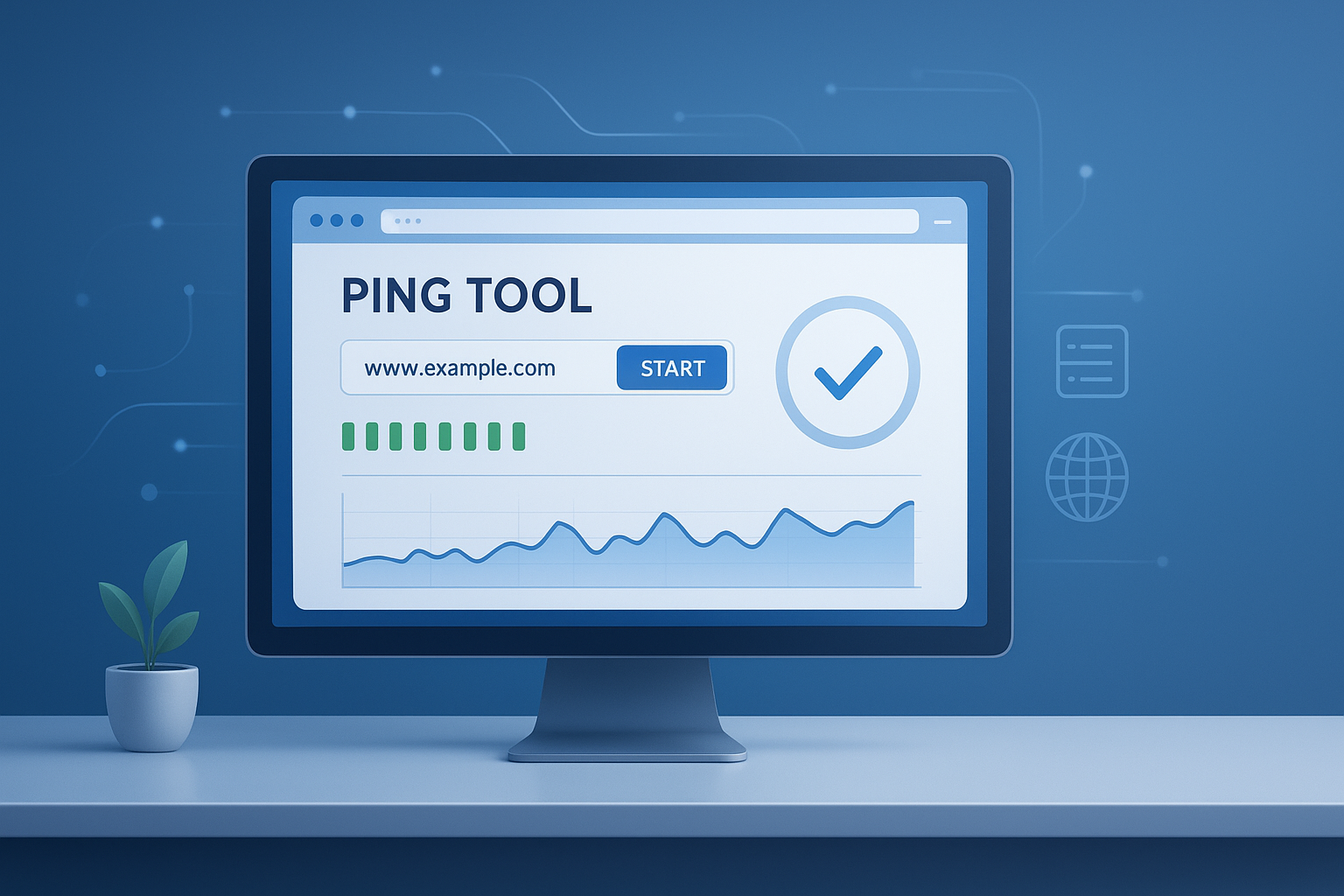
Suggested Image: Technology concept showing website monitoring dashboard with ping response times and network status
What is an online ping website tool?
An online ping website tool sends a network request to a hostname or server and reports whether it responds, along with the time it takes. In plain terms, it helps you check reachability and basic network responsiveness without using the command line.
Most tools work by sending ICMP echo requests, although some web-based checkers may test reachability from remote servers rather than directly from your own device. That matters because results can differ by location, firewall rules, and hosting setup.
Developers often use ping tools for quick checks before moving on to more specific diagnostics such as DNS lookup, HTTP status testing, or traceroute analysis. If you’re validating a domain before deeper checks, a related utility like an domain age checker can also help give context around site history and ownership maturity.
- Checks whether a host can be reached
- Measures round-trip response time
- Helps spot packet loss or timeout issues
- Works as an early troubleshooting step
How does ping work?
Ping works by sending a small packet to a target host and waiting for a reply. If the host answers, the tool records how long the trip took. If there is no reply, the request may have timed out, been blocked, or failed due to a network issue.
The classic ping command relies on ICMP, explained by MDN. ICMP is not the same as an HTTP request. So a server can fail a ping test and still load in a browser, or respond to ping while the website itself is broken.
Here’s the part many people miss: ping checks network-level reachability, not full website health. For example, if a web server is misconfigured, returning 500 errors, or stuck behind an overloaded reverse proxy, ping alone won’t reveal that.
What ping results usually show
- Host: The domain or IP tested
- Response time: Usually measured in milliseconds
- Packet loss: How many requests never got a reply
- Timeout: No response within the expected period
| Ping Result | What It Usually Means |
|---|---|
| Low response time | The host is reachable and the network path is relatively fast |
| High response time | The connection works, but latency may affect performance |
| Packet loss | Requests are being dropped due to congestion, filtering, or instability |
| Timeout | The server may be offline, blocked, or refusing ICMP replies |
When should developers use an online ping website tool?
Use an online ping website tool when you need a fast first check before deeper debugging. It’s especially useful when a website appears down, slow, or inconsistent across locations.
Here are common real-world use cases:
- A client says the website is down, but your own browser still loads it
- You deployed DNS changes and want to confirm the host is reachable
- You suspect packet loss or unstable routing
- You want to compare how a site responds from another network or region
- You need a quick browser-based alternative to terminal commands
If you’re also auditing page quality after confirming reachability, tools like a word counter can help with content length checks, while a grammar checker is useful when tightening technical documentation or status-page updates.
How to use an online ping website tool step by step
Using an online ping website tool is straightforward. The key is entering the correct host and knowing how to interpret the output rather than focusing on a single number.
- Open the tool. Start with the web-based ping checker interface.
- Enter the domain or hostname. Use a clean value such as
example.comor a specific subdomain likeapi.example.com. - Run the test. The tool sends one or more requests and waits for replies.
- Review the response time. Lower latency usually means faster network communication.
- Check for timeouts or packet loss. These often point to filtering or instability.
- Repeat if needed. Test more than once if results are inconsistent.
That’s the basic workflow. If your target includes unusual characters or query strings copied from logs, it can help to clean the input first with a developer utility such as a URL encoder decoder.
Example scenario
Suppose your SaaS dashboard is loading slowly for European users. A ping test from a remote tool shows normal reachability but unusually high latency from one region. That doesn’t prove the app is broken, but it tells you the problem may involve network distance, routing, or provider-level congestion rather than frontend code.
Suggested Screenshot: Online ping test result showing hostname, latency, timeout, and packet loss fields
What counts as a good ping response time?
A good ping response time depends on where the server is, where the test is running from, and what you’re building. For most web checks, lower is better, but context matters more than any single threshold.
| Latency Range | Typical Interpretation |
|---|---|
| Under 20 ms | Excellent for nearby hosts or the same region |
| 20 to 50 ms | Very good for most web applications |
| 50 to 100 ms | Usually acceptable, especially across regions |
| 100 to 200 ms | May feel slow in real-time apps, still usable for general browsing |
| Over 200 ms | Often a sign to investigate distance, routing, or congestion |
Remember that page speed and ping are not the same thing. A site with excellent ping can still be slow because of large images, heavy scripts, or poor caching. If you’re optimizing assets after a network check, an Image Compressor can reduce transfer weight for browser performance work.
Google’s broader performance guidance in Google Search documentation and user-focused metrics in Web Vitals are useful if your investigation moves from reachability to user experience.
Ping vs uptime check vs HTTP check
These tools are related, but they answer different questions. Ping asks whether a host replies at the network level. An uptime monitor asks whether a service stays available over time. An HTTP check asks whether the web server responds correctly to browser-style requests.
| Tool Type | Best For | What It Cannot Tell You |
|---|---|---|
| Ping | Basic reachability and latency | Whether the website content loads correctly |
| Uptime monitor | Availability over time | Detailed routing problems or exact network path issues |
| HTTP check | Status codes, redirects, server responses | Low-level ICMP filtering or packet behavior |
This distinction is supported by practical HTTP behavior documented in MDN’s HTTP status reference. If you’re reviewing a URL path or redirect chain before running those checks, a URL parser can make the structure easier to inspect.
Why a website may fail a ping test but still work
A failed ping does not always mean a website is down. Many modern hosts block ICMP traffic for security, abuse prevention, or infrastructure policy reasons. The site may still serve normal web traffic through ports 80 or 443.
Here’s why that happens:
- Firewall rules block ICMP echo requests
- CDNs or load balancers do not reply to ping
- Hosting providers disable ping responses by default
- The site is available only through HTTP or HTTPS checks
- Rate limiting temporarily suppresses replies
This is why experienced developers do not stop at ping. They test DNS resolution, TLS negotiation, status codes, and application logs. If the issue involves DNS records or standards-based formatting, resources from the RFC Editor and IANA domain documentation are helpful references.
Common mistakes when using an online ping website tool
Most wrong conclusions come from assuming ping tells the whole story. It doesn’t. It’s one signal, not a full diagnosis.
- Testing the wrong host: The root domain may behave differently from a subdomain like
cdn.example.comorapi.example.com. - Ignoring location: A ping run from another country can look very different from your users’ actual experience.
- Confusing network speed with page speed: Fast ICMP response does not guarantee fast rendering.
- Treating a timeout as proof of downtime: ICMP may simply be blocked.
- Running one test only: Intermittent loss is easier to spot across multiple attempts.
If you document findings for your team, clarity matters. A text case converter can help standardize technical headings in reports, and a Markdown to HTML tool is useful when publishing incident notes to internal dashboards.
Best practices for getting more useful ping results
If you want reliable troubleshooting insight, combine ping with a few smart habits. The goal is not just to get a result, but to get one you can trust.
- Test multiple times. A single spike may be noise. Repeated checks reveal patterns.
- Test the exact subdomain in question. Different services may live on different hosts.
- Compare locations. Remote testing helps when users report regional issues.
- Pair ping with DNS and HTTP checks. This creates a fuller picture.
- Record time and context. Note whether the app was deploying, scaling, or under traffic load.
- Watch for packet loss, not just latency. Small loss percentages can still hurt real applications.
For deeper network troubleshooting on your own machine, platform documentation from Microsoft Learn ping command reference is a solid companion to online tools.
Suggested Infographic: Troubleshooting flow from ping test to DNS check to HTTP response validation
A simple workflow developers can follow in 2026
If a site appears unavailable, don’t jump straight into code changes. Start with a layered check. This is faster, cleaner, and usually prevents wasted debugging time.
- Run an online ping website tool to test reachability
- Verify DNS resolution and whether the hostname points to the expected target
- Check HTTP and HTTPS responses for status codes or redirect loops
- Review uptime logs, deployment history, and CDN status
- Inspect application logs only after infrastructure basics are confirmed
This workflow is especially useful for freelance developers, small SaaS teams, and DevOps generalists who need quick answers before escalating an incident.
Frequently Asked Questions
1. Is an online ping website tool accurate enough for real troubleshooting?
Yes, for an initial reachability check it is very useful. It can quickly tell you whether a host responds and how much latency is involved. But it should not be treated as a complete diagnostic tool. Ping cannot confirm whether pages load properly, APIs return valid responses, or SSL certificates work. Use it as the first step, then follow with DNS, HTTP, and application-level testing.
2. Can I ping a full URL instead of a domain name?
Usually, no. Ping tools work with hostnames or IP addresses, not full URLs that include paths, parameters, or fragments. For example, example.com is valid, but https://example.com/login?redirect=1 is not the right input for a ping test. If you need to inspect a full URL, clean it first and separate the hostname from the path before testing.
3. Why does my website open in a browser even though ping fails?
That typically means the server or network is blocking ICMP requests. Many hosting providers, CDNs, and firewalls allow web traffic while refusing ping replies. In that case, the website may still be fully functional for users. This is common and not automatically a problem. To confirm actual availability, run an HTTP or HTTPS check and inspect status codes instead of relying on ping alone.
4. What is more important: low ping or zero packet loss?
Both matter, but packet loss is often the more serious issue. A connection with slightly higher latency can still be stable and usable. A connection with dropped packets may feel unreliable, cause API retries, and break real-time communication. For standard websites, moderate latency is usually acceptable. For gaming, VoIP, or live dashboards, packet loss and jitter become much more important than the lowest raw ping number.
5. Are online ping tools safe to use?
In general, yes, when you use a reputable site. You are typically submitting a public hostname for a basic network test. Still, avoid entering internal-only infrastructure names, private IP ranges, or confidential staging hosts on public tools. For sensitive environments, use your own terminal, VPN-based monitoring, or internal observability tools. Public diagnostic tools are best for public domains and non-confidential checks.
6. Can an online ping website tool help with SEO?
Not directly, but it can support technical website reliability, which affects user experience. A reachable, stable website is a basic requirement before search engines or visitors can access your content. Ping won’t measure Core Web Vitals, crawlability, or indexation status. Still, it helps identify whether availability issues might be causing larger technical SEO problems, especially during outages or regional downtime.
7. How often should I run ping tests on a production site?
For manual troubleshooting, run them whenever users report outages, latency spikes, or inconsistent availability. For ongoing monitoring, automated uptime and network checks are more useful than occasional manual pings. Many teams use ping occasionally during incidents but rely on proper observability platforms for continuous monitoring. The right frequency depends on how critical the service is and how much downtime your users can tolerate.
8. What should I use after a ping test if I still can’t find the issue?
Move one layer deeper. Check DNS resolution, then test HTTP and HTTPS responses, and finally review server logs, CDN logs, or cloud metrics. If the site loads slowly, inspect frontend performance, image sizes, and caching. If the site appears unreachable only in certain regions, compare network paths and edge routing. Ping is an opening check, not the final answer.
Conclusion
An online ping website tool is one of the fastest ways to check whether a server is reachable and how responsive it is at the network level. For developers, that makes it an excellent first step when a site seems down, slow, or unstable.
Just remember what ping can and cannot do. It can reveal latency, timeouts, and packet loss. It cannot prove that a website is fully working for users. The best approach is to combine ping with DNS, HTTP, and performance checks.
If you want to continue the workflow, useful next steps include reviewing URLs with a URL parser, cleaning request strings with a URL encoder decoder, optimizing assets with an Image Compressor, and preparing clear incident updates with a Markdown to HTML tool. Start with the simple check, then troubleshoot with depth.