Ever opened a perfectly styled web page, hit print, and ended up with a broken PDF? Missing fonts, cut-off sections, strange page breaks, or buttons that make no sense on paper. That’s exactly why an html to pdf converter matters.
Developers use HTML to generate invoices, reports, contracts, tickets, dashboards, and downloadable documents every day. But converting browser-friendly markup into a reliable PDF is not as simple as saving a page. Layout rules change. Print styles matter. JavaScript timing matters. Even the rendering engine changes the result.
This guide explains how an html to pdf converter works, when to use one, what methods are available, and how to avoid the mistakes that lead to messy exports. If you build PDF features for users, clients, or internal systems, this will help you choose the right approach faster.
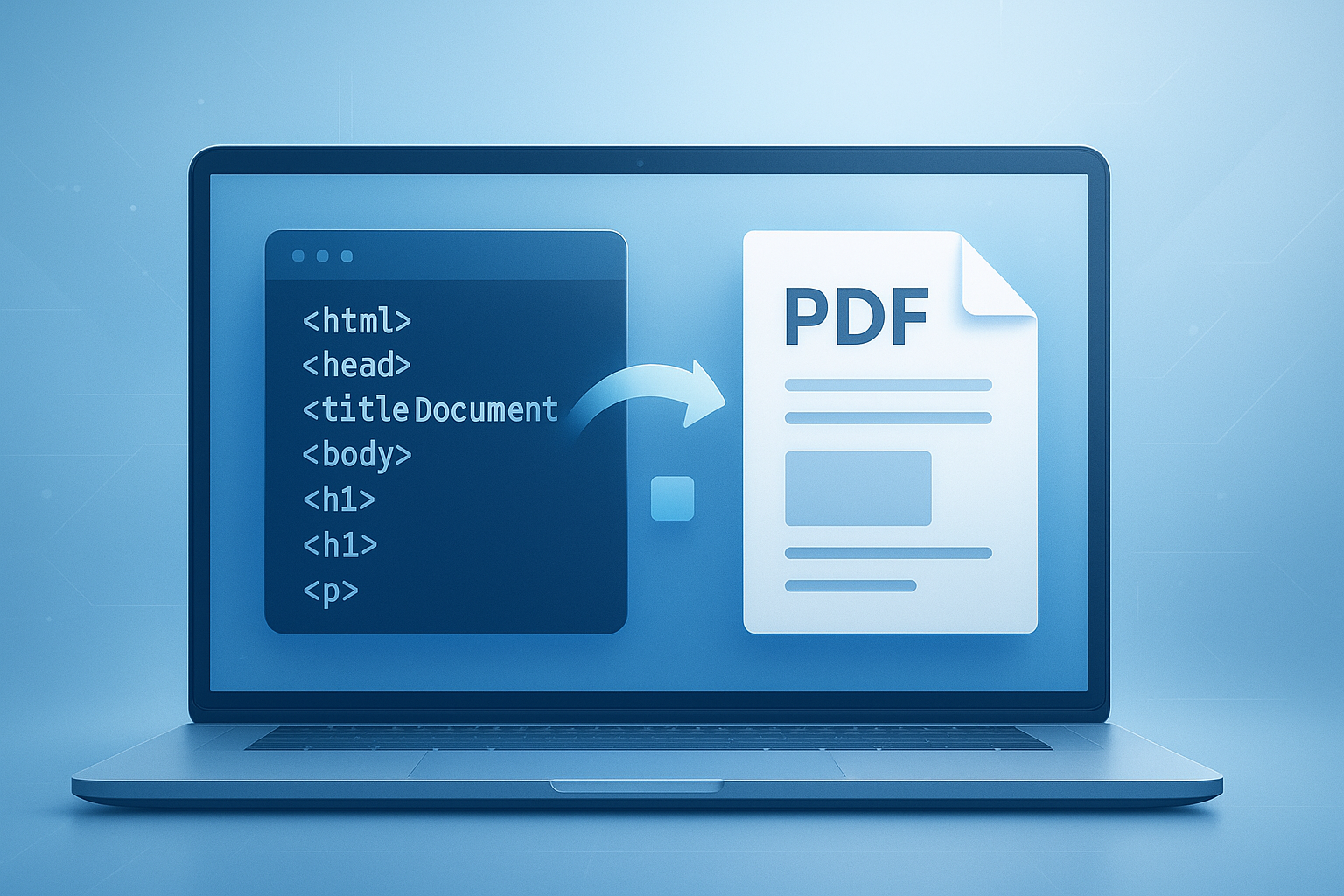
Suggested Image: Technology concept showing HTML code transforming into a PDF document on a developer screen
What is an HTML to PDF converter?
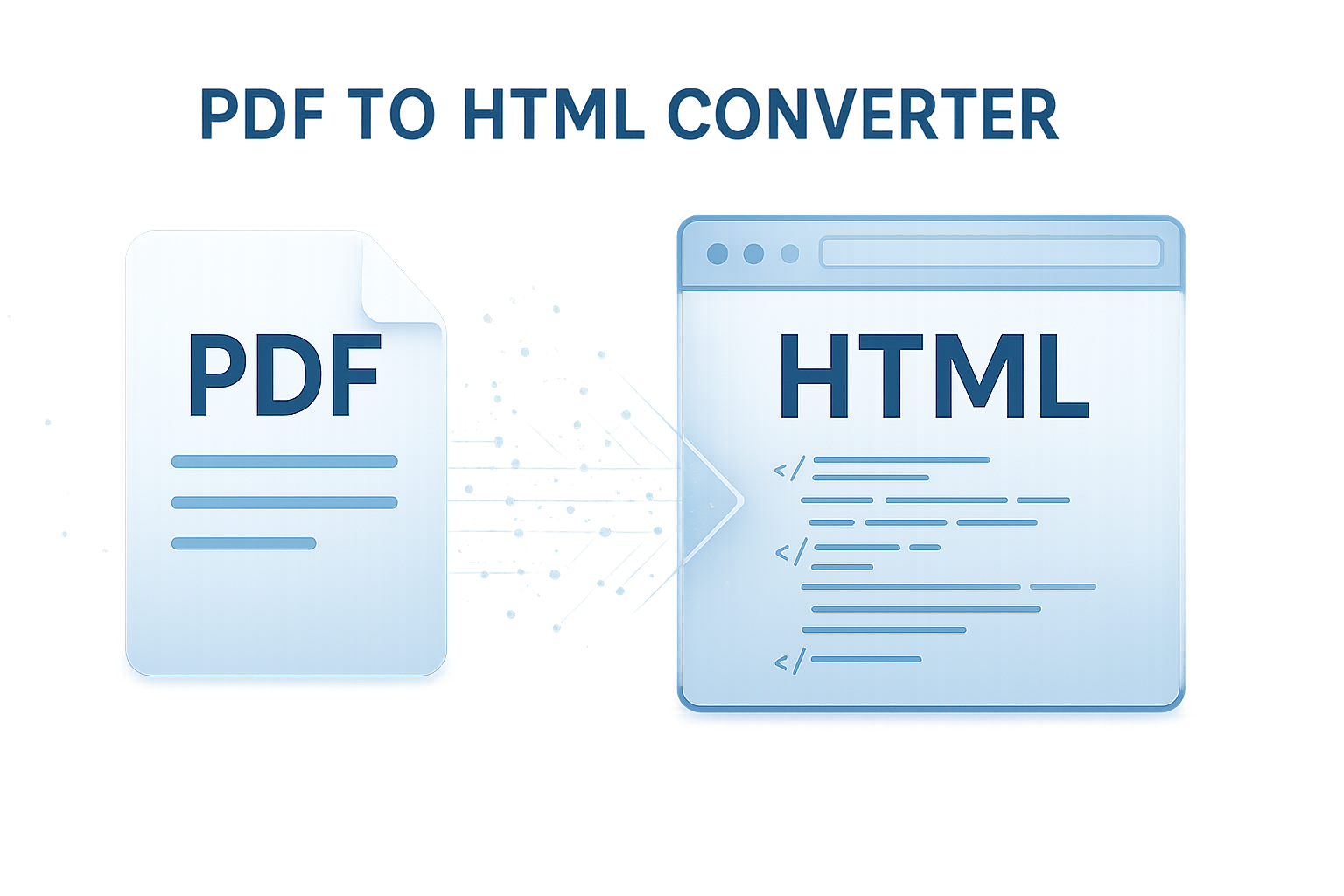
An html to pdf converter is a tool or library that turns HTML, CSS, and sometimes JavaScript into a PDF file. It takes content designed for the web and renders it into a fixed-layout document suitable for printing, downloading, archiving, or sharing.
In practice, that means a converter may process:
- Raw HTML code
- A live web page URL
- CSS stylesheets, including print styles
- Images, SVGs, and web fonts
- JavaScript-rendered content
This is useful when you need a final document that looks consistent across devices. PDFs are predictable. A browser page is not.
If you’re cleaning up generated markup before export, a quick HTML Minifier can help reduce unnecessary code and make debugging easier.
How does an HTML to PDF converter work?
Most converters follow the same basic workflow: render the HTML, apply styles, calculate page layout, and then write the output as a PDF. The details vary by engine, and that’s where quality differences appear.
- Input is loaded
The converter receives either HTML markup, a template, or a URL.
- Styles are applied
CSS files, inline styles, and print-specific rules shape the visual layout.
- JavaScript may run
If the page depends on client-side rendering, the converter may wait for scripts to finish before capturing the page.
- Layout is paginated
The engine decides where pages start and stop, how headers and footers repeat, and whether elements should break across pages.
- PDF instructions are generated
Text, images, vectors, spacing, and metadata are compiled into a final PDF file.
Now comes the important part. Not every converter actually “renders a web page” in the same way.
Three common conversion approaches
| Approach | How it works | Best for | Limitations |
|---|---|---|---|
| Browser-based rendering | Uses a real browser engine such as Chromium | Modern layouts, JavaScript-heavy pages | Heavier resource usage |
| HTML/CSS parsing libraries | Parses markup and maps it into PDF output directly | Controlled templates, simple reports | May not support full modern CSS |
| Print-to-PDF tools | Captures a rendered page through print APIs | Quick exports, user-triggered downloads | Less control over advanced workflows |
For standards-based print behavior, the W3C CSS Paged Media specification is worth reviewing. It explains the print layout concepts many converters try to support.
When should developers use an html to pdf converter?
An html to pdf converter makes sense when you already have content in web format and need a polished, shareable document. It saves time because your templates, styling logic, and data-binding system can often be reused.
Common developer use cases include:
- Invoices and receipts
- Sales reports and analytics exports
- Shipping labels and packing slips
- Employee documents and HR forms
- Certificates and event passes
- Contracts and proposals
- Medical, legal, or educational records
- User-generated page exports
Here’s the problem. HTML is flexible and responsive by design. PDF is rigid and page-based. If your output needs exact placement, legal consistency, or print reliability, conversion quality matters far more than convenience.
When exporting dashboards or visual summaries, image weight can affect final PDF size. In those cases, an Image Compressor can help optimize embedded assets before generation.
Browser rendering vs PDF libraries: which is better?
The answer depends on one thing: how complex your layout is. If your pages rely on modern CSS, fonts, charts, or JavaScript, browser-based rendering usually produces better results. If your template is simple and highly structured, a dedicated PDF library may be faster and easier to manage.
Browser-based tools
These use engines like Chromium to render the page almost the same way a user would see it in a browser. Popular workflows often rely on headless browser automation.
Advantages:
- Strong support for modern HTML and CSS
- Better handling of JavaScript-rendered content
- Closer visual match to the web version
- Good choice for React, Vue, or server-rendered apps
Trade-offs:
- Higher memory and CPU usage
- More infrastructure overhead in production
- Page timing issues if content loads asynchronously
For browser automation and PDF creation capabilities, see the Puppeteer documentation.
Dedicated PDF libraries
These tools parse HTML or generate PDFs from structured code rather than relying on a full browser engine.
Advantages:
- Lighter deployment in some environments
- Better for fixed, repeatable templates
- Can offer stronger low-level PDF control
- Useful when browser rendering is not practical
Trade-offs:
- Inconsistent support for advanced CSS
- May struggle with responsive designs repurposed for print
- Sometimes requires layout adjustments specific to the library
| Need | Better choice |
|---|---|
| Convert a styled web app screen into PDF | Browser-based rendering |
| Generate simple invoices at scale | Dedicated PDF library or lightweight converter |
| Support advanced CSS layout | Browser-based rendering |
| Precise programmatic PDF control | Dedicated PDF library |
What makes HTML-to-PDF output fail?
Most broken PDFs come from a mismatch between screen design and print behavior. Developers often test pages in a browser viewport, then assume a PDF engine will preserve everything exactly. It won’t.
This is where many people struggle. The usual failure points are predictable:
- No print stylesheet: screen layouts rarely translate well to pages
- Uncontrolled page breaks: tables, cards, and sections split awkwardly
- Late-loading content: charts, images, or data render after PDF capture starts
- Font issues: custom fonts may not embed correctly
- Large images: oversized assets increase file size and slow rendering
- Unsupported CSS: some engines ignore grid, flex, or advanced print rules
- Interactive elements: dropdowns, buttons, and sticky UI parts don’t belong in print output
When testing generated markup or embedded strings, tools like a JSON Formatter can also help verify data payloads feeding your PDF templates.
Common examples of bad output
- An invoice line item table breaks in the middle of a row
- A chart loads in the browser but appears blank in the PDF
- The header overlaps content on page two and beyond
- A font fallback changes spacing and pushes content onto extra pages
- A mobile-first layout creates narrow columns inside a letter-size document
Best practices for reliable PDF generation
If you want consistent output in 2026 and beyond, treat PDF creation as a print layout task, not a screenshot task. The more intentional your template is, the fewer production surprises you’ll have.
- Create print-specific styles
Use dedicated CSS for page size, margins, typography, spacing, and hidden UI elements. Review MDN’s guide to printing with CSS for implementation details.
- Use layout patterns that print well
Simple grids, clear sections, stable widths, and predictable spacing usually outperform highly interactive layouts.
- Control page breaks intentionally
Prevent tables, headings, and image blocks from splitting in awkward places.
- Wait for content to finish rendering
Make sure data fetches, client-side charts, and web fonts load before conversion begins.
- Embed or host fonts reliably
Minor font changes can alter line wrapping, pagination, and alignment.
- Optimize media assets
Compress images and avoid serving oversized graphics when a smaller version will do.
- Test with real data
Short and long names, large tables, and edge-case values reveal layout problems quickly.
- Use templates made for paper sizes
Design for A4 or Letter from the start instead of adapting a responsive screen at the end.
If your PDF includes code snippets, logs, or escaped markup, a HTML Formatter can make template cleanup much easier during development.
Suggested Screenshot: Example of a print stylesheet preview showing hidden navigation and stable page spacing
How to prepare HTML for PDF conversion
Before choosing a tool, prepare the HTML so conversion becomes predictable. A clean template often matters more than the converter itself.
Recommended template structure
- A fixed content width suited to the target page size
- A clear header, body, and footer structure
- Tables designed for print, not for infinite scrolling
- Minimal sticky, fixed, or animated UI behavior
- Fallbacks for missing data and long text strings
Useful print CSS ideas
- Hide navigation, filters, and action buttons
- Set page margins deliberately
- Reduce oversized whitespace
- Prevent widows and orphans where supported
- Use high-contrast colors for legibility
- Make links readable if the document may be printed
For accessibility and semantic structure, the MDN HTML documentation is a strong reference. Better semantic HTML often leads to cleaner templates and easier maintenance.
Step-by-step workflow developers can follow
A practical html to pdf converter workflow starts with a stable template and ends with testing under real production conditions. Skip either part, and output quality usually drops fast.
- Define the document type
Invoice, report, statement, certificate, or contract. Each has different layout and compliance needs.
- Choose the page format
Pick A4, Letter, or a custom size based on user and regional needs.
- Build a print-first HTML template
Use semantic sections, clear tables, and consistent spacing.
- Add print CSS
Set margins, page-break rules, and hidden elements for non-print UI.
- Render data server-side or ensure client-side readiness
Do not start PDF generation until all data and assets are present.
- Generate the PDF
Run your converter using either browser rendering or a PDF library.
- Test edge cases
Long names, many pages, missing values, large charts, and different locales.
- Measure performance
Track render time, memory usage, and final file size.
If the workflow also involves encoded content or query parameters, you may find an URL Encoder Decoder useful when debugging values passed into generation endpoints.
HTML to PDF converter use cases by project type
Different applications need different conversion strategies. A SaaS invoice export is not the same as a multi-page compliance report or a user-facing webpage download feature.
| Project type | Typical PDF needs | Recommended approach |
|---|---|---|
| Billing platform | Invoices, receipts, statements | Stable server-side templates with print CSS |
| Analytics dashboard | Charts, summaries, branded reports | Browser-based rendering with render wait logic |
| HR or legal system | Contracts, forms, signed records | Precise pagination and strong template control |
| E-commerce platform | Packing slips, return forms, order summaries | Fast, lightweight generation for repetitive layouts |
Security and privacy considerations
PDF generation often handles sensitive information, especially in finance, healthcare, HR, and legal systems. The converter isn’t just a formatting tool. It can become a document-processing risk if implemented carelessly.
- Sanitize user-provided HTML and template variables
- Restrict remote asset loading where possible
- Avoid exposing internal URLs to rendering engines
- Store generated PDFs securely and expire access links
- Apply least-privilege access to generation services
- Log failures without leaking sensitive document content
For broader application security guidance, the OWASP Top 10 is a useful baseline. If your PDFs may surface in search, also review Google Search guidance on helpful content so exported documents don’t create low-value indexable duplicates.
If you need to inspect generated hashes or integrity values during secure file workflows, a SHA256 Generator can be handy for validation tasks.
Common mistakes developers should avoid
The fastest way to improve PDF quality is to stop repeating the same avoidable errors. Most of them come from treating PDF generation as an afterthought.
- Using the mobile layout for printed documents
- Relying entirely on screenshots instead of real text when selectable text matters
- Ignoring font loading behavior
- Skipping test cases with long or multilingual content
- Embedding oversized images without compression
- Forgetting legal requirements such as page numbering or immutable records where applicable
- Testing only on localhost and not in production-like infrastructure
Here’s what experienced professionals do differently. They build one template for the screen and another version, or at least another stylesheet, for the PDF. That small detail changes everything.
Frequently asked questions
1. Is an html to pdf converter better than taking a screenshot of a web page?
Usually, yes. A proper converter preserves selectable text, better print structure, smaller file sizes in many cases, and more professional pagination. Screenshots can be useful for visual snapshots, but they create image-based PDFs that are harder to search, copy, scale, and access. For invoices, contracts, reports, and other business documents, true HTML-to-PDF generation is the stronger option.
2. Can HTML, CSS, and JavaScript all be converted into a PDF?
Yes, but support depends on the rendering engine. Browser-based converters handle JavaScript much better because they can render the page after scripts run. Simpler libraries may support HTML and CSS well enough for fixed templates but struggle with dynamic front-end behavior. If your page depends on charts, API-loaded data, or client-side frameworks, test timing and rendering carefully before deployment.
3. Why does my PDF look different from my browser page?
Because browsers display responsive, scrollable screens while PDFs are fixed pages. Page size, print margins, asset loading, font embedding, and unsupported CSS can all change the layout. The fix is usually to create print-specific CSS, simplify unstable layout patterns, and test the document with real data on the same infrastructure used in production.
4. What is the best html to pdf converter approach for modern web apps?
For modern apps with complex CSS and JavaScript, browser-based rendering is often the safest choice. It tends to match the visual output users already see. For simple templates such as invoices or certificates, lightweight PDF libraries can still work well and may use fewer resources. The best option depends on layout complexity, performance needs, and how much control you need over pagination.
5. Are HTML to PDF converters safe for sensitive documents?
They can be, but only if implemented securely. Sanitize input, avoid untrusted HTML, lock down remote asset access, protect storage and download URLs, and limit service permissions. Sensitive PDFs should be generated in controlled environments with logging, access restrictions, and clear retention policies. The security risk is usually not the PDF format itself, but the surrounding generation and storage workflow.
6. Do I need special CSS for PDF generation?
In most cases, yes. Screen styles rarely produce the best printed result. Print CSS helps control page size, margins, hidden interface elements, typography, and page breaks. Without it, the converter may try to force a responsive layout into a fixed document, which often leads to clipping, overflow, and awkward pagination. Even a small print stylesheet can improve output significantly.
7. Can I generate PDFs on the client side instead of the server?
Yes, for lighter use cases. Client-side generation can work for simple documents or user-triggered exports. But server-side generation is often better when you need consistency, security, queueing, branding control, or access to protected data. It also avoids differences caused by user devices and browser environments. For business-critical PDFs, server-side workflows are usually more reliable.
8. How can I reduce PDF file size without hurting quality?
Start by optimizing images, limiting unnecessary fonts, avoiding bloated HTML, and removing hidden UI that does not belong in the document. Use vector graphics where practical and keep print assets close to their actual display size. Large photos and duplicated branding elements often create the biggest size increases. Testing several sample outputs will show where most of the file weight comes from.
Final thoughts
An html to pdf converter is most useful when you treat PDF generation as a document design problem, not just a technical export feature. The right approach depends on your layout complexity, rendering needs, performance limits, and security requirements.
If your pages are dynamic and visually rich, browser-based rendering is often the better fit. If your documents are repeatable and structured, a simpler library may be all you need. Either way, print CSS, font handling, asset optimization, and edge-case testing make the difference between unreliable output and production-ready PDFs.
As a next step, review one of your existing export templates and test it with long data, real images, and print-specific styles. If you want to keep improving your workflow, related tools like the Base64 Encoder Decoder, CSS Minifier, JavaScript Minifier, and developer resources tools collection can help streamline the assets and code behind your PDF generation process.