
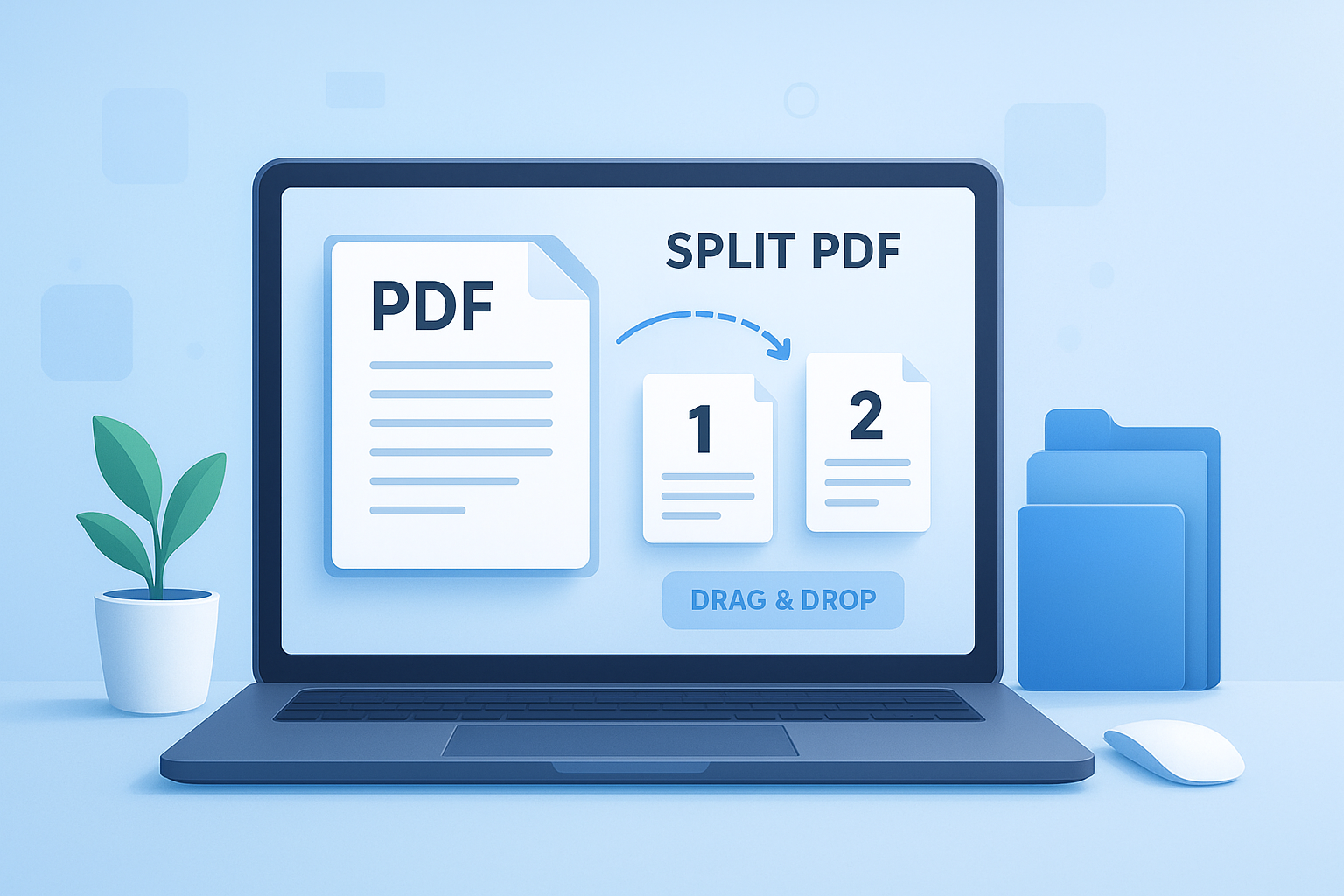
Need to pull just a few pages out of a long document? A good split PDF tool lets you separate pages online in minutes, without printing, rescanning, or editing the whole file by hand.
This comes up more often than people expect. Maybe you only need the signature page from a contract. Maybe a teacher wants to send one chapter instead of the full workbook. Or maybe a scanned PDF includes extra pages you no longer want to keep.
Here’s the useful part: splitting a PDF is usually much easier than editing one. Once you know what to look for, you can extract a single page, break one large file into smaller parts, or save page ranges as new PDFs while keeping the original layout intact.
In this guide, you’ll learn how a split PDF tool works, when to use it, the safest way to separate pages online, and how to avoid the mistakes that cause missing pages or messy file organization.
Suggested Image: Modern illustration of a large PDF document being separated into smaller files by page range
What is a split PDF tool?
A split PDF tool is a file utility that separates one PDF into smaller PDF files. You can use it to extract specific pages, divide a document by page ranges, or split every page into its own file.
Instead of recreating the document, the tool works with the existing PDF structure. That means text, images, layout, and formatting usually stay the same in the new output files.
- Extract one page from a PDF
- Save selected page ranges as a new file
- Remove unwanted sections by splitting and keeping only what you need
- Break large PDFs into smaller, easier-to-share files
- Organize reports, contracts, forms, or scanned records
If you also work with mixed file types, pairing PDF tasks with a simple Image Compressor can help when a document contains large images that need to be shared separately.
When should you separate pages from a PDF?
You should use a split PDF tool when the full document is more than you need. The goal is usually to improve sharing, file size, privacy, or organization.
Here are some common real-world situations:
- You need to email only pages 3 to 5 of a proposal
- A scanned document includes blank pages that should not be sent
- You want to separate invoices from a larger monthly PDF bundle
- You need one chapter from a study guide instead of the full book
- A contract contains sensitive sections that should stay private
- You want to upload a smaller file to a portal with size limits
This is where many people struggle. They try to screenshot pages or print them as images. That often lowers quality and makes text harder to search. Splitting the PDF directly is usually the better option.
If your file size is still too large after splitting, a related workflow may involve converting values or planning storage more carefully with practical utilities like the Data Storage Converter.
How to use a split PDF tool online
Most online tools follow the same basic process: upload the file, choose the pages you want, create the new file, and download it. The exact layout may vary, but the steps are straightforward for beginners.
- Upload your PDF
Choose the file from your device. Some tools also support drag and drop. - Select the split method
Pick whether you want a single page, a page range, or multiple custom sections. - Enter page numbers
For example, you might choose page 2, pages 4 to 7, or split every page into separate files. - Run the split action
The tool creates new PDF files based on your selection. - Download the result
Save the new PDF to your device and check that the correct pages are included.
Before uploading any file, it is smart to understand trusted handling practices for documents and cloud sharing. If privacy matters, review file security guidance from the Federal Trade Commission’s personal information security tips.
Suggested Screenshot: Split PDF interface showing page thumbnails, page range selection, and download button
Ways to split a PDF
Not every split method does the same thing. The best option depends on whether you want a few pages, logical sections, or many separate files.
Split by page range
This is the most common option. You choose a start page and an end page, such as pages 10 to 15, and save that section as a new PDF.
Best for:
- Chapters
- Contract sections
- Report excerpts
- School assignments
Extract individual pages
This method pulls one or more standalone pages from the original file. The rest of the document is ignored.
Best for:
- Signature pages
- Forms
- Receipts
- ID pages in scanned packets
Split every page into its own PDF
Each page becomes a separate file. That can be helpful, but it also creates many downloads, so use it when you really need page-by-page output.
Best for:
- Archiving
- Page sorting
- Independent review of individual pages
Split into custom sections
Some tools let you define several page ranges in one pass, such as 1 to 3, 4 to 8, and 9 to 12. This saves time when one large PDF contains multiple separate documents.
Best for:
- Invoice bundles
- Case files
- Scanned packet cleanup
- Multi-part reports
| Split method | Best use case | Main benefit |
|---|---|---|
| Page range | Extracting a section | Fast and simple |
| Individual pages | Saving just a page or two | Precise output |
| Every page separately | Detailed page management | Maximum flexibility |
| Custom sections | Multiple documents in one file | Saves time on large bundles |
When you need to clean up document visuals before reusing pages elsewhere, tools like the Resize Image to 20KB utility can be useful for related submission requirements.
Benefits of using an online split PDF tool
An online split PDF tool is convenient because it removes the need for desktop software. For most everyday tasks, that makes the process faster and easier, especially on shared or low-powered devices.
- No installation needed: Works in a browser
- Quick for simple tasks: Good for one-time edits
- Beginner-friendly: Usually just upload, select, and download
- Works across devices: Laptop, tablet, or phone
- Helps with file organization: Easier to store and share smaller PDFs
Now comes the important part. Convenience is not the same as safety. If your PDF includes private records, legal documents, financial information, or health data, always think about where the file is being uploaded and how long it is stored.
For general digital document practices, the National Institute of Standards and Technology is a reliable source for broader cybersecurity standards and guidance.
Is it safe to split PDF files online?
It can be safe to use an online split PDF tool, but only if you use a trustworthy service and apply basic document security habits. The biggest risk is uploading sensitive data without checking how the file is processed or stored.
Here’s what to review before using any online PDF tool:
- Whether the site uses HTTPS encryption
- Whether uploaded files are deleted automatically
- Whether the provider explains file retention clearly
- Whether account creation is required
- Whether the file contains private or regulated information
If the PDF includes personal identifiers, medical data, banking details, or confidential business records, be more cautious. Security and privacy expectations may vary by document type. For health-related privacy standards, HHS HIPAA guidance helps explain when special protection is required.
Simple safety checklist
- Use reputable tools only
- Avoid public Wi-Fi when uploading sensitive files
- Check the downloaded file immediately
- Delete local temporary files if needed
- Rename outputs clearly so you don’t share the wrong version
If you manage files often, even simple organization habits matter. Utilities such as the Random String Generator can help create neutral file identifiers for internal workflows where naming privacy matters.
Common mistakes people make when splitting PDFs
The process is simple, but small errors can create confusion fast. Most problems happen before or after the split, not during it.
- Choosing the wrong page numbers: This happens often when cover pages shift the count
- Forgetting to review the output: Always open the new file before sending it
- Sending the original by mistake: Rename split files immediately
- Breaking a document too aggressively: Too many tiny files can become harder to manage
- Ignoring file permissions: Some PDFs may be restricted from editing or extraction
Here’s what experienced professionals do differently. They decide the final purpose before splitting. Is the goal email sharing, archiving, redaction prep, or easier printing? That single decision affects how many files you create and how you name them.
If your workflow includes browser-based documentation or technical notes, the HTML Viewer can also help with adjacent content tasks when you need to inspect source-style content outside a PDF format.
Split PDF vs extract PDF pages: what’s the difference?
People often use these terms as if they mean the same thing, but they are slightly different. Splitting usually means dividing a document into parts. Extracting means pulling selected pages out as a new file.
| Action | What it does | Example |
|---|---|---|
| Split PDF | Divides one PDF into smaller PDFs | Turn a 30-page file into three 10-page files |
| Extract pages | Copies selected pages into a new PDF | Save pages 4 and 5 only |
The answer depends on one thing: do you need the whole document broken up, or only a few pages saved separately? If it’s the second case, extraction is usually the cleaner option.
How to keep split files organized
Once you start separating pages, file management becomes the next challenge. Good naming and folder structure save time and prevent wrong-file mistakes.
Use clear file names
Instead of naming files “document-final-new2.pdf,” use names that describe the contents.
- Contract-pages-1-4.pdf
- Invoice-March-pages-5-7.pdf
- Student-record-form-only.pdf
- Report-section-summary.pdf
Create folders by purpose
- To Send
- Archived Originals
- Edited PDFs
- Reviewed Copies
Keep the original file untouched
Always store the full source document separately. If you need to create more versions later, starting from the original reduces errors.
This small detail changes everything. Having one “master” version keeps your workflow clean, especially when documents are revised over time.
For productivity-focused workflows, related pages like the Productivity Tools category can support the broader task of organizing digital work more efficiently.
What to do if the PDF is scanned or image-based
A scanned PDF can still be split, but it behaves differently from a text-based PDF. The pages are often saved as images, which can make files larger and limit searchability.
In most cases, you can still separate pages normally. But keep these points in mind:
- Scanned PDFs may produce larger output files
- Text may not be selectable unless OCR has been applied
- Page previews may load more slowly
- Image quality can affect readability after sharing
If you need searchable text, you may need OCR. Adobe explains this concept clearly in its documentation on editing scanned PDFs and OCR.
When scans include oversized image pages, file prep tools such as the Image Resizer may help in related document workflows before pages are rebuilt into a final PDF elsewhere.
Can you split a PDF on mobile?
Yes, many modern tools work on mobile browsers. The main limitation is screen size, not the PDF operation itself. On a phone, page thumbnails can be harder to preview accurately.
For better results on mobile:
- Zoom in before selecting page numbers
- Double-check page order after upload
- Use page ranges instead of tapping many individual pages
- Download immediately and confirm the output
According to MDN Web Docs, browser behavior can differ slightly across devices, so if uploads or downloads seem inconsistent, trying another supported browser is often a quick fix.
Best practices for beginners in 2026
If you are new to PDF editing, the easiest path is to keep the task small and predictable. A split PDF tool works best when you know exactly which pages you need before you upload anything.
- Open the original PDF first and note the page numbers
- Decide whether you need a range or single-page extraction
- Save the new file with a clear name right away
- Check formatting, signatures, and orientation after download
- Keep the original untouched in a separate folder
For accessibility and document quality, understanding the PDF format itself can also help. The ISO PDF standard overview is useful if you want background on how PDFs are structured as a document format.
Suggested Infographic: Beginner workflow showing upload, select pages, split, rename, verify, and store
Frequently asked questions
Can I split a PDF without losing formatting?
Yes. In most cases, a split PDF tool keeps the original formatting, including text placement, images, margins, and page orientation. That is one reason splitting is better than taking screenshots or reprinting pages as images. Still, you should always open the downloaded file and verify that fonts, page order, and embedded graphics appear correctly, especially if the original document came from a scan or a complex export.
Is there a free way to separate PDF pages online?
Yes, many online tools offer basic PDF splitting for free. Free options usually support standard tasks like extracting one page or saving a page range. Some may limit file size, daily usage, or advanced features. Before using a free service, check whether it explains upload security, storage duration, and deletion policies. Free can be useful, but privacy and reliability matter more than cost if the file contains sensitive content.
What page numbers should I enter if the PDF has a cover page?
Use the page numbers shown inside the PDF tool, not necessarily the printed numbering on the document itself. For example, a report may label its first content page as “1,” but the PDF viewer may count the front cover as page 1. That means the content you want may actually start on page 2 in the tool. Always preview the exact pages before splitting to avoid extracting the wrong section.
Can I split a password-protected PDF?
Sometimes, but it depends on the permissions set on the file. If you know the password and the document allows editing or extraction, you may be able to split it after unlocking. If restrictions block modifications, the tool may refuse the action. This is common with protected contracts, licensed materials, and secured business files. Never try to bypass permissions unless you are authorized to work with the document.
Should I split a large PDF before emailing it?
Usually yes, if the recipient only needs part of the document or if the full file is too large for email limits. Splitting can reduce clutter, improve privacy, and make the attachment easier to review. However, if the reader needs the full context, splitting may create confusion. A better approach is to send only the relevant section and give it a clear file name so the recipient immediately knows what it contains.
What is better: splitting a PDF or converting pages to images?
Splitting the PDF is usually better when you want to preserve document quality, selectable text, and clean printing. Converting pages to images can be useful for presentations or web graphics, but it often increases friction for reading and searching. Images may also blur when resized. If your goal is document sharing, archiving, or professional communication, keeping the content in PDF format is generally the smarter choice.
Can I split a scanned PDF into separate pages?
Yes. A scanned PDF can still be divided into single pages or smaller page ranges. The main difference is that each page may behave like an image rather than editable text. This can lead to larger file sizes and slower previews. If you need searchable text after splitting, you may also need OCR processing. For simple page separation, though, scanned PDFs usually work fine in standard split tools.
How do I know if an online PDF tool is trustworthy?
Start with the basics: check for HTTPS, clear privacy information, and a plain explanation of how uploaded files are handled. Trusted tools usually say whether files are deleted automatically and whether they are stored temporarily. Avoid services that make sensitive actions unclear. If the file contains personal, medical, legal, or financial details, be extra cautious and use only tools with transparent security practices and a professional reputation.
Final thoughts
A reliable split PDF tool makes it easy to separate pages online, trim oversized documents, and share only what matters. For beginners, the biggest wins come from choosing the right split method, checking page numbers carefully, and reviewing the new file before sending it anywhere.
If you’re ready to make your PDF workflow cleaner, start with one simple task: extract a small page range and save it with a clear file name. Then build from there.
Related FreeToolr resources can help with the next steps too, including the PDF Document Guides section, the Image Compressor, the Image Resizer, and the Productivity Tools category for better file organization and everyday document handling.



