
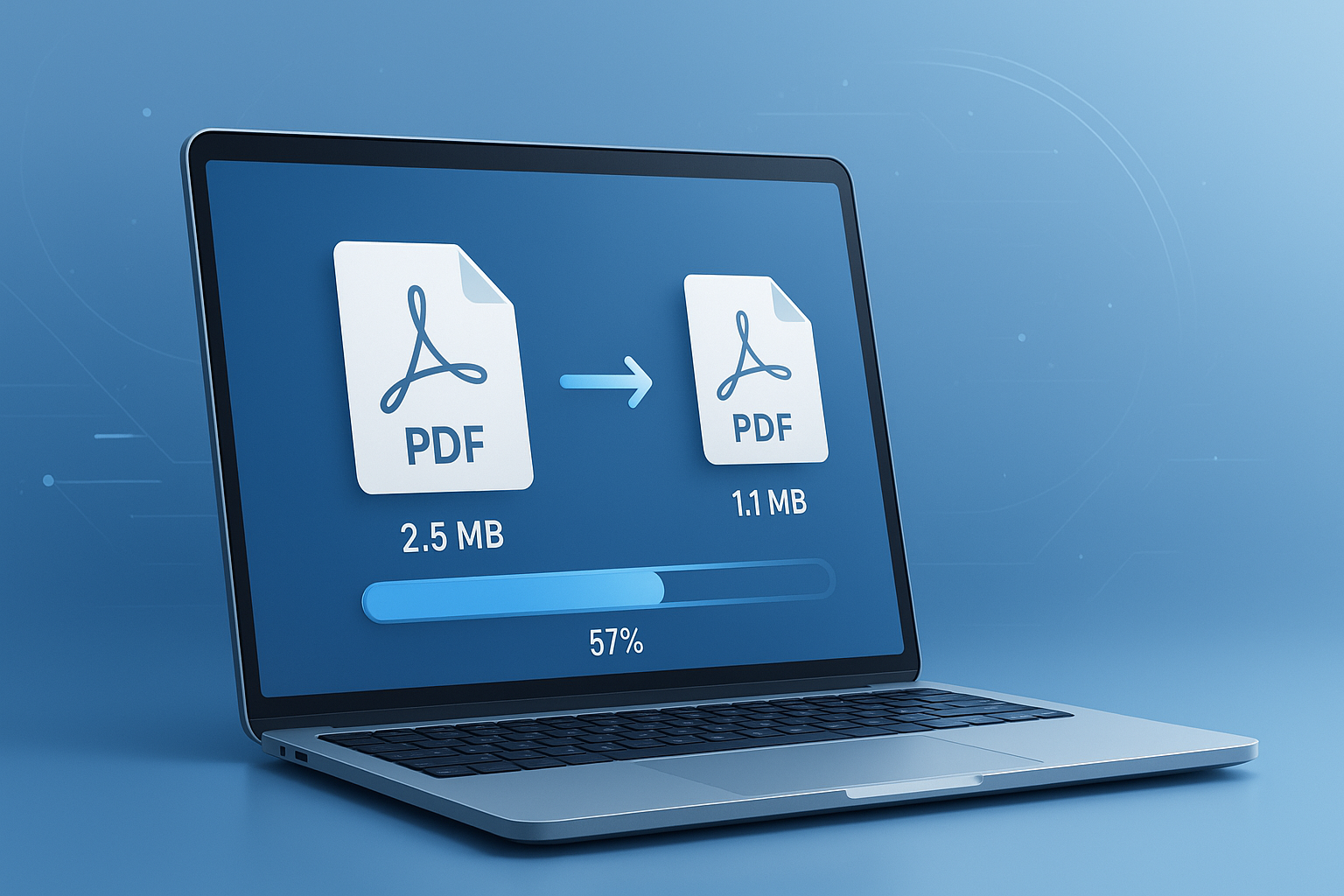
Need to compress PDF files fast without turning them into blurry, hard-to-read documents? That’s the challenge most professionals run into when a file is too large for email, client portals, form uploads, or cloud storage limits.
It usually happens at the worst time. A contract won’t upload. A report takes forever to send. A scanned document looks fine on your screen, but the file size is far bigger than it should be.
The good news is that PDF compression is simple when you know what affects file size and what settings matter. In this guide, you’ll learn how to reduce PDF size without unnecessary quality loss, when compression works best, what mistakes to avoid, and how to choose the right approach for business documents, scanned files, presentations, and forms.
Suggested Image: Technology concept showing PDF file optimization, cloud upload, and document size reduction
What does it mean to compress PDF files?
To compress PDF means reducing the file’s storage size while keeping the document usable. In most cases, this is done by optimizing images, removing unnecessary metadata, simplifying embedded objects, and rewriting the file more efficiently.
A smaller PDF is easier to:
- Upload to websites with file size limits
- Share by email or messaging tools
- Store in cloud systems and document archives
- Open faster on slower devices or networks
- Manage across teams and workflows
Compression does not always mean visible quality loss. Many PDFs can be reduced significantly with little or no noticeable change, especially if they contain oversized images, duplicated resources, or inefficient scans.
Why PDF files become so large
Most oversized PDFs are not caused by the text itself. The real issue is usually unoptimized images, high-resolution scans, embedded fonts, layered design elements, or repeated assets that were never cleaned up before export.
Here’s what typically increases PDF size:
- High-resolution images: Photos saved for print often use much more data than needed for screen viewing.
- Scanned pages: Office scanners frequently create image-heavy PDFs with poor compression settings.
- Embedded fonts: Multiple or full font families can add noticeable weight.
- Annotations and hidden data: Comments, form history, layers, and metadata can remain inside the file.
- Export settings: PDFs created from design or office software may prioritize quality over size.
If you also work with image-heavy documents before creating a PDF, reducing image size first with an Image Compressor can make the final PDF much lighter.
When should you compress a PDF?
You should compress a PDF when the file is too large for its intended use, but still needs to stay readable and professional. The best time is before sending, uploading, archiving, or publishing the document.
Common situations include:
- Submitting resumes, proposals, or legal forms
- Sharing reports with clients or internal teams
- Uploading assignments, applications, or compliance documents
- Saving storage space in document-heavy businesses
- Improving download speed on websites
For web publishing workflows, it also helps to keep page assets efficient. If your PDF is supported by visuals on a landing page, file optimization and clean markup both matter. Mozilla’s MDN Web Docs is a strong reference for web performance and file handling basics.
How to compress PDF without losing quality
The best way to compress PDF files without obvious quality loss is to reduce what users do not notice first. That usually means targeting image resolution, unused data, and export inefficiencies before touching readable text or critical diagrams.
- Start with the document type. A scanned invoice, a design portfolio, and a text-based contract need different compression levels.
- Lower oversized image resolution. Screen reading rarely needs print-level image quality.
- Use balanced compression settings. Medium compression often gives the best result for professional use.
- Remove unnecessary metadata and embedded extras. Hidden structure can make files larger than expected.
- Test readability after compression. Zoom in on text, signatures, charts, and fine lines.
- Keep the original version. Always save a master copy before creating a smaller shareable file.
This is where many people struggle. They compress too aggressively on the first pass. A better method is to test gradually, especially for documents that include logos, charts, highlighted markup, or scanned signatures.
If your PDF contains screenshots or exported media from design work, checking dimensions with an Image Size Finder can help you spot visual assets that are much larger than necessary.
Best compression approach by PDF type
Not all PDFs should be treated the same. The right settings depend on whether the file is mostly text, mostly scans, or visually rich content like brochures or slide decks.
| PDF Type | Best Compression Strategy | What to Watch For |
|---|---|---|
| Text documents | Remove metadata, optimize fonts, light image compression | Keep small text sharp |
| Scanned files | Reduce scan resolution, use grayscale where possible, apply image optimization | Avoid making text unreadable |
| Presentations | Compress photos and exported slide images | Charts and brand visuals may soften |
| Forms and contracts | Light compression only | Preserve signature areas and field clarity |
| Design portfolios | Selective image optimization with quality checks page by page | Color shifts and detail loss |
Suggested Infographic: Best compression settings by PDF type
What actually gets reduced during PDF compression?
When you compress PDF files, the software usually targets components that add weight but do not always add value. Understanding those parts helps you decide how much reduction is safe.
- Images: Resolution may be lowered, recompressed, or converted to more space-efficient formats.
- Fonts: Unused characters may be removed through font subsetting.
- Metadata: Author details, edit history, and production information can sometimes be stripped out.
- Embedded objects: Duplicate resources, attachments, or hidden layers may be cleaned up.
- Document structure: Some tools rewrite internal storage more efficiently.
For PDF-heavy document workflows, this kind of cleanup works similarly to how code minification removes unnecessary bulk from a website. Google’s Google Search Central documentation explains why efficient file delivery matters for better user experience online.
How much can you reduce a PDF file size?
The answer depends on one thing: what is inside the file. A text-only PDF may shrink just a little, while a large scanned file or image-heavy presentation can sometimes be reduced dramatically.
| Original File Type | Typical Reduction Potential | Reason |
|---|---|---|
| Text-heavy PDF | Low to moderate | Text already stores efficiently |
| Scanned multi-page PDF | Moderate to high | Large image layers create excess size |
| Slide deck exported to PDF | Moderate to high | Images and design assets dominate the file |
| CAD or graphic PDF | Low to moderate | Precision content limits safe compression |
If you need to share a PDF through channels with hard upload restrictions, it can help to check or convert related assets first using tools like a MB to KB Converter so you know your target size before compressing.
Common mistakes that ruin PDF quality
Most bad compression results come from speed, not from the tool itself. People often pick the smallest possible file size without checking whether the document still works for its real purpose.
- Using maximum compression on scanned text: This can make letters fuzzy and hard to extract with OCR.
- Compressing the same file repeatedly: Every new pass can degrade images further.
- Ignoring the output use case: A file meant for print should not be compressed like a file meant for email.
- Not reviewing every page: Some pages compress well, while diagrams and signatures may not.
- Replacing the master file: Always keep the original uncompressed version.
Here’s what experienced professionals do differently. They compress once, compare visually, and save multiple versions for different uses, such as archive, internal review, and external sharing.
How to choose the right compression level
The best compression level depends on readability, not just megabytes. A useful PDF is one that opens easily, uploads fast, and still looks trustworthy when someone zooms in or prints a page.
Use light compression when:
- The PDF contains contracts, invoices, or signed documents
- You need sharp small text
- The file may be printed later
- It includes charts, engineering details, or medical records
Use medium compression when:
- You are sharing standard business reports
- The PDF mixes text and images
- You need a better size without visible damage
- The content is mainly viewed on screen
Use stronger compression when:
- The file is only for quick digital review
- The PDF is built from large photos or scans
- You need to meet a strict upload limit
- Minor image softness is acceptable
If you prepare documents from design files or screenshots, converting assets to a better format first can improve results. A PNG to JPG Converter may help reduce image weight before those graphics ever reach the PDF.
PDF compression for email, upload forms, and cloud storage
Different sharing channels create different compression priorities. Email usually needs smaller files quickly. Upload forms often have strict limits. Cloud storage benefits from consistency and long-term space savings.
Here’s a practical way to think about it:
- Email: Aim for a file small enough to send without bounce issues or delays.
- Website or portal upload: Check the exact maximum size first, then compress to fit comfortably below it.
- Cloud storage: Focus on preserving readability while reducing cumulative storage usage across many documents.
- Team collaboration: Keep version names clear so compressed copies do not replace working originals.
Microsoft also provides useful guidance on file handling, storage, and document workflows through Microsoft Learn, especially for teams using office ecosystems.
Security and privacy considerations before you compress PDF files
Before uploading any document to a web-based compression tool, check whether the file contains confidential, legal, financial, or personal data. Compression is about size reduction, but privacy should come first.
Review these points before you proceed:
- Does the PDF contain customer data, medical information, or employee records?
- Are there embedded comments, hidden layers, or metadata that should be removed?
- Are you working under industry compliance rules or internal IT policies?
- Do you need local processing instead of browser-based processing?
The Federal Trade Commission regularly publishes practical business guidance related to data protection and privacy. For regulated environments, your internal security policy should always override convenience.
Practical workflow for professionals in 2026
The fastest way to compress PDF files well is to build a repeatable workflow. That saves time, protects quality, and reduces last-minute upload problems across teams.
- Create the best original file possible. Avoid bloated scans and unnecessary export settings.
- Review image-heavy pages first. These usually drive most of the file size.
- Compress a copy, not the original. Keep a master version for records and re-edits.
- Check key pages at 100% and 200% zoom. Test text, signatures, charts, and logos.
- Name versions clearly. Example: Report-Full.pdf, Report-Compressed.pdf, Report-Upload.pdf
- Store only what you need. Archive the master and share the optimized version.
If you regularly work with dimensions, cropped visuals, or upload assets, related utilities like the Aspect Ratio Calculator can help keep images consistent before they are added to PDFs.
Suggested Screenshot: Example workflow showing original PDF, compressed version, and quality check at zoom level
Compress PDF vs other document optimization methods
Compression is only one part of keeping documents efficient. Sometimes the better fix is to improve the source images, re-export the file properly, or split an oversized PDF into smaller sections.
| Method | Best For | Main Tradeoff |
|---|---|---|
| PDF compression | Fast file size reduction | Possible visual loss if overdone |
| Re-export from source | Best quality control | Requires original editable file |
| Optimize images before PDF creation | Image-heavy documents | Extra preparation step |
| Split large PDF into parts | Forms, reports, records | Less convenient as one file |
For technical document structure and long-term PDF use, the ISO organization is the authoritative standards body behind widely used document standards, including PDF-related formats.
Frequently asked questions
1. Will compressing a PDF make it blurry?
It can, but it does not have to. Blurriness usually appears when image resolution is reduced too aggressively or when a scanned PDF is compressed beyond what the text can tolerate. For contracts, reports, and forms, light to medium compression is usually safer. Always zoom in on small text, signatures, and charts before sharing the file.
2. What is the best file size for emailing a PDF?
There is no universal number because email systems differ, but smaller is generally better for smooth delivery. If the document is only for reading on screen, compress it enough to send comfortably while keeping it legible. If the PDF contains high-detail pages, create a separate compressed email version and keep the original for archive or print use.
3. Why is my scanned PDF much larger than a text-based PDF?
A scanned PDF is usually built from page images rather than lightweight text characters. Every page may behave like a full image, which increases file size quickly. Scan settings, color mode, and resolution all matter. Grayscale scanning and sensible resolution choices often reduce size dramatically before compression even starts.
4. Is it safe to compress confidential PDF files online?
That depends on the content and your organization’s privacy requirements. If a PDF contains legal documents, personal information, health records, or financial data, review your company’s security policy first. In many cases, local processing is the safer option. Also remember that PDFs may contain metadata, comments, or hidden content that should be removed before sharing.
5. Can I compress a PDF more than once?
You can, but it is rarely the best approach. Recompressing the same already-compressed file can cause cumulative image degradation and weaker readability. A better method is to return to the original file and create a new compressed version with the right settings. This preserves quality and gives you more control over the final result.
6. What kind of PDFs compress the most?
Scanned files, photo-heavy presentations, brochures, and exported slide decks often show the biggest size reductions because images take up most of the space. Text-heavy PDFs usually shrink less because they are already efficient. If your file includes many large pictures, optimizing those source images first often improves results more than compression alone.
7. Should I compress a PDF before uploading it to a website?
Yes, in most cases. Smaller PDFs upload faster, download faster, and create a better user experience. That matters for users on mobile devices or slower connections. Just make sure the document remains readable and professional. If the PDF is part of a public-facing page, also think about page speed, accessibility, and clear file labeling.
8. What should I do if compression does not reduce the file size much?
That usually means the PDF is already fairly optimized or the file’s content does not offer much reduction potential. In that case, re-exporting from the original source, reducing image dimensions beforehand, or splitting the document into smaller sections may work better. Check whether embedded fonts, scans, or oversized graphics are still driving the file size.
Final thoughts
If you need to compress PDF files effectively, focus on the real goal: a document that is small enough to share and still clear enough to trust. The best results come from matching compression strength to the document type, checking quality carefully, and keeping the original untouched.
As a next step, review the pages that contain the largest images or scans, then create a compressed copy and test it before sending. If you often prepare document assets, related tools like the Image Compressor, Image Size Finder, PNG to JPG Converter, and MB to KB Converter can help you reduce file size earlier in the workflow and avoid oversized PDFs in the first place.



