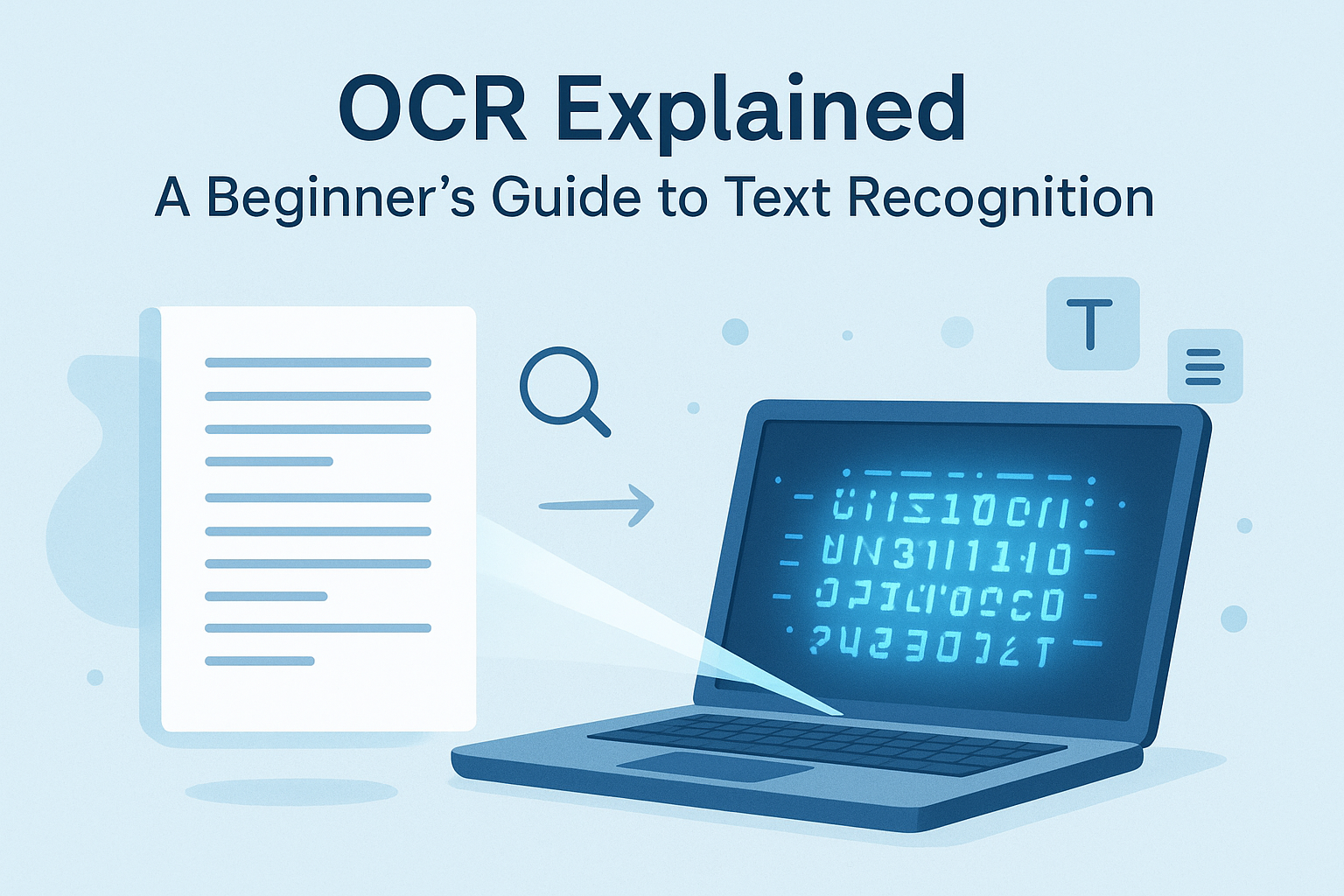
Ever copied text from a scanned PDF and ended up with a mess of random characters, broken lines, or text you could not select at all? That is usually the moment people first run into OCR.
OCR, short for optical character recognition, is the technology that turns text inside images, scans, and screenshots into editable, searchable words. It sounds technical, but the idea is simple: software looks at letters in a picture and converts them into digital text.
This matters more than most beginners realize. OCR saves time, reduces manual typing, makes documents searchable, and helps businesses organize paper records. It also powers everyday tasks like scanning receipts, reading screenshots, and converting printed pages into editable files.
In this beginner’s guide, you will learn what OCR is, how it works, where it is used, what affects accuracy, and how to get better results from your scans and images.
What is OCR?
OCR is a technology that reads text from an image or scanned document and converts it into machine-readable text. In plain English, it helps a computer recognize letters and numbers in a picture so you can search, copy, edit, or store the content more easily.
OCR is commonly used with:
- Scanned paper documents
- Photos of receipts and invoices
- PDF files made from images
- Screenshots containing text
- Printed forms and books
- ID cards, passports, and license plates
If you often work with document images, reducing file size before uploading can help. A tool like Image Compressor is useful when you need faster sharing or smoother processing.
Suggested Image: Before-and-after example of a scanned page converted into editable text
What does OCR stand for, and why is it useful?
OCR stands for optical character recognition. It is useful because it removes the need to retype printed text manually, which saves time and lowers the chance of human error.
Here is why people use OCR every day:
- To search inside scanned PDFs
- To extract text from receipts, forms, and invoices
- To digitize paper records
- To make archives easier to organize
- To improve accessibility for screen readers
- To automate document workflows
For a basic technical background on how computers handle document content, the MDN Web Docs library is a reliable starting point.
How does OCR work?
OCR works by analyzing an image, identifying shapes that look like letters or numbers, and converting those shapes into digital text. Modern OCR often uses pattern recognition, language models, and AI-based image analysis to improve results.
The basic OCR process
- Image capture: The document is scanned or photographed.
- Preprocessing: The software sharpens the image, removes noise, fixes tilt, and improves contrast.
- Text detection: The system locates blocks, lines, and characters.
- Character recognition: It matches shapes to letters, numbers, and symbols.
- Post-processing: It checks spelling, formatting, and context to improve accuracy.
Here is the problem. OCR accuracy depends heavily on image quality. If the scan is blurry, dark, crooked, or compressed too aggressively, the output can suffer. If you are adjusting dimensions before scanning or uploading, a tool like Image Resizer can help prepare images for more consistent recognition.
Simple example
Imagine you photograph a printed invoice. To you, it is obviously text. To a computer, it starts as a grid of pixels. OCR examines those pixels, identifies letter shapes such as A, B, 5, or $, and reconstructs the invoice as editable text.
OCR vs manual typing: what is the difference?
OCR automates text capture, while manual typing depends on a person reading and re-entering content. The best choice depends on document quality, volume, and the level of accuracy you need.
| Method | Best For | Main Advantage | Main Drawback |
|---|---|---|---|
| OCR | Large batches of printed documents | Fast and scalable | May make errors on poor scans |
| Manual Typing | Short documents or hard-to-read text | Can be very accurate with review | Slow and labor-intensive |
Now comes the important part. OCR is usually the better first step, but it still needs review when documents are critical, such as legal records, tax paperwork, or medical forms.
Where is OCR used in real life?
OCR is everywhere. It supports routine office tasks, large-scale archival projects, banking workflows, educational access, and mobile scanning apps.
Common OCR use cases include:
- Business: invoices, contracts, purchase orders, forms
- Finance: receipts, account statements, expense reports
- Healthcare: patient records, insurance forms, prescriptions
- Education: digitized textbooks, notes, exam papers
- Government: archives, IDs, application forms
- Personal use: scanning mail, old letters, printed recipes
If you are handling invoices or expense documents, a tool like Percentage Calculator can help when checking discounts, tax rates, or margin-related figures extracted from scanned records.
For a broad overview of accessibility and digitization benefits, the W3C Web Accessibility Initiative offers useful guidance.
What types of files can OCR read?
OCR can process many file types, but image-based documents work best. The key is whether the text is captured as pixels rather than already stored as selectable text.
- JPG and JPEG
- PNG
- TIFF
- BMP
- Scanned PDF files
- Photos taken on a phone camera
This is where many people struggle. Not every PDF needs OCR. Some PDFs already contain searchable text. If you can highlight and copy the text normally, OCR may not be necessary.
When preparing screenshots or visual snippets for OCR, converting them into cleaner file formats may help. If needed, Image to Base64 can also be useful in web or development workflows where image data needs to be embedded or transferred.
What affects OCR accuracy?
OCR accuracy depends on image quality, text clarity, layout complexity, and the ability of the OCR engine to understand the language and font style. Good input produces better output. Poor input creates more cleanup work.
Main factors that improve or reduce OCR results
- Resolution: Higher resolution usually means cleaner recognition
- Lighting: Dark shadows and glare can distort letters
- Alignment: Skewed pages are harder to process
- Font style: Decorative or handwritten text is more difficult
- Contrast: Clear black text on a white background works best
- Language settings: OCR performs better when the correct language is selected
- Compression artifacts: Heavy compression can break fine letter details
| Factor | Better Result | Worse Result |
|---|---|---|
| Resolution | 300 DPI or higher scans | Low-resolution phone images |
| Page alignment | Straight and flat pages | Tilted or curved pages |
| Background | Clean background | Shadows, patterns, glare |
| Font | Standard printed text | Handwriting or stylized fonts |
If file size, dimensions, and quality need balancing, combining tools such as Image Converter with sensible scan settings can improve workflows before OCR starts.
Can OCR read handwriting?
Yes, sometimes, but handwriting is much harder than printed text. Standard OCR is strongest with clean, typed documents. Handwritten text usually requires more advanced handwriting recognition models, and accuracy can vary widely.
Here is the simple rule:
- Printed text: usually reliable
- Neat block handwriting: sometimes usable
- Cursive or messy notes: often inconsistent
The answer depends on one thing: how consistent the writing is. If each letter is clear and spaced well, recognition improves. If not, manual review becomes essential.
How to use OCR effectively as a beginner
Beginners get better OCR results when they focus on preparation first. A clean scan often matters more than the software itself.
Step-by-step OCR workflow
- Choose the right document. Start with a printed page, not handwriting.
- Scan or photograph carefully. Use even light and keep the page flat.
- Use sufficient resolution. Around 300 DPI is a common baseline for scans.
- Crop extra background. Remove shadows, fingers, and desk edges.
- Improve readability. Increase contrast if the text looks faded.
- Run OCR. Process the image or PDF through your preferred tool or app.
- Review the output. Check names, totals, symbols, and dates.
- Save in a useful format. TXT, DOCX, searchable PDF, or structured data.
If you are working with dimensions from scanned plans, printed specs, or product labels, a practical tool like Unit Converter can help convert extracted numbers into the format you need.
Suggested Screenshot: Example of a clean document scan beside OCR text output
What are the benefits of OCR?
OCR saves time, improves organization, and helps turn static documents into usable digital information. That is why it remains essential for both personal tasks and business workflows.
- Faster data entry: less manual typing
- Searchable documents: easier to find specific words or numbers
- Better storage: easier digital archiving
- Improved accessibility: text can work with screen readers
- Workflow automation: forms and invoices can feed other systems
- Reduced admin work: teams spend less time on repetitive tasks
Google also emphasizes structured, readable document content in many search and content workflows. For technical best practices, see the Google Search Central documentation.
What are the limitations of OCR?
OCR is powerful, but it is not perfect. It can misread similar-looking characters, struggle with poor image quality, and break formatting in complex layouts.
Common OCR limitations include:
- Confusing 0 with O, or 1 with l
- Struggling with tables, stamps, and signatures
- Misreading handwritten notes
- Losing columns in multi-column documents
- Missing small text in low-resolution images
- Producing errors in legal or technical documents with special symbols
Here is what experienced professionals do differently. They treat OCR as the first draft, not the final version. They always verify important fields such as names, dates, totals, addresses, and account numbers.
OCR and searchable PDFs: what is the connection?
A searchable PDF is often the result of OCR being applied to a scanned document. The original page still looks like an image, but the software adds a text layer underneath, making the document searchable and selectable.
This is useful when you want to:
- Search long reports for keywords
- Copy text from archived scans
- Index documents in document management systems
- Improve accessibility
If you plan to extract figures from scanned reports, percentages and ratios often need quick checking after OCR. That is where a tool like Fraction Calculator can help when printed values include ratios, measurements, or divided quantities.
Best practices for better OCR results
The best OCR results come from clean source materials, proper scan settings, and careful review. Small improvements in preparation often make a big difference in recognition quality.
- Scan at 300 DPI or higher when possible
- Use high contrast between text and background
- Keep pages straight and flat
- Avoid shadows and glare in phone photos
- Use the correct language setting
- Separate pages with mixed layouts when possible
- Check output manually for critical documents
- Store clean originals in case reprocessing is needed
If you are organizing extracted files, shortening long labels and filenames can also make workflows easier. A tool such as Word Counter can help when checking document length, text volume, or metadata content after extraction.
Common OCR mistakes beginners make
Most OCR problems are not caused by the software alone. They usually start with poor source files, skipped review, or unrealistic expectations.
- Using blurry camera shots
Text that looks readable to the eye may still be too soft for OCR. - Ignoring skewed pages
Even slight tilt can reduce line and character detection. - Expecting perfect formatting
OCR often captures text better than layout. - Skipping manual checks
Critical data always needs review. - Using OCR on text that is already selectable
This adds extra steps with no real benefit. - Trying to OCR handwriting first
Printed text is a much better starting point.
Suggested Infographic: 5 scanning mistakes that reduce OCR accuracy
OCR, AI, and text recognition: are they the same?
OCR and AI-based text recognition are related, but not identical. Traditional OCR focuses on recognizing printed characters. Modern AI systems do more, including document understanding, handwriting analysis, and layout detection.
| Technology | Main Purpose | Strength |
|---|---|---|
| Traditional OCR | Convert printed text from images into editable text | Fast, efficient, reliable on clean scans |
| AI document recognition | Understand text, layout, fields, handwriting, and context | Better with complex documents |
Microsoft explains many modern document and AI processing concepts through Microsoft Learn, which is useful if you want to go beyond beginner-level OCR.
Frequently asked questions about OCR
1. Is OCR accurate enough for important documents?
OCR can be very accurate on clean, printed documents, especially when scans are straight, sharp, and high contrast. That said, it should not be trusted blindly for anything important. Legal papers, invoices, tax records, and medical files should always be reviewed by a person after OCR. Think of it as a strong assistant, not a final authority.
2. Does OCR work on photos taken with a phone?
Yes, OCR often works well on phone photos if the image is clear. Good lighting, a flat document, minimal shadows, and a straight angle all improve results. Many OCR errors happen because the page was curved, blurry, or poorly lit. If you use a phone, take an extra second to align the shot properly. That small step can improve recognition a lot.
3. Can OCR convert scanned PDFs into editable Word documents?
Yes, that is one of the most common OCR uses. If the PDF is image-based, OCR can detect the printed text and turn it into editable content. The text usually converts well, but formatting may need cleanup, especially with tables, columns, and forms. For simple documents, the results are often good. For complex layouts, some manual editing is still normal.
4. What is the best scan resolution for OCR?
Around 300 DPI is a common starting point for OCR because it balances clarity and file size. Lower resolutions may still work for large, clean text, but small print often becomes unreliable. Very high resolutions can help in some cases, though file sizes also increase. For beginners, 300 DPI is a practical default for printed pages, receipts, and standard office documents.
5. Why does OCR confuse letters and numbers?
Some characters look very similar, especially in old prints, scanned copies, or certain fonts. Common examples include O and 0, l and 1, or S and 5. Low image quality makes this problem worse. Smudges, noise, and faded ink also increase confusion. This is why reviewing names, dates, codes, account numbers, and totals is always a smart final step after OCR processing.
6. Can OCR read handwritten notes?
Sometimes, but standard OCR is not built for messy handwriting. Neat block letters may produce usable results, while cursive writing or rushed notes often lead to errors. Some advanced systems use handwriting recognition instead of basic OCR, but even then, quality varies. If you are just starting out, use OCR first on printed text. It is a much more reliable way to learn the process.
7. Is OCR free to use?
Some OCR tools are free, while others are paid or included in scanning apps, PDF software, and business platforms. Free options are fine for occasional use, especially for short documents and personal files. Paid tools may offer better handling of batches, languages, forms, and advanced layouts. Cost usually depends on volume, file complexity, and whether you need automation or integration with other systems.
8. Does OCR help with accessibility?
Yes, OCR can improve accessibility by turning image-based text into machine-readable text. That makes content easier to search, copy, and use with screen readers. Scanned books, forms, and archived documents become more usable when OCR adds a text layer. It does not solve every accessibility issue, but it is an important step for making visual documents more accessible to a wider range of users.
9. How do I know if a PDF already has text and does not need OCR?
Try selecting or searching for words inside the PDF. If you can highlight text and copy it normally, the document likely already contains a text layer. In that case, OCR may be unnecessary. If the page behaves like a flat image and search does nothing, OCR is probably needed. This quick test can save time and prevent extra conversion steps that add no real value.
10. What should I check after running OCR?
Start with the parts that matter most: names, dates, totals, addresses, headings, and identification numbers. Then check whether paragraphs, columns, and tables stayed in the right order. If the document includes symbols, formulas, or special characters, review those carefully too. OCR is often strong at capturing plain text, but formatting and exact character matching can still fail in subtle ways.
Final thoughts
OCR is much easier to understand once you see it for what it is: a practical way to turn printed text in images and scans into usable digital content. For beginners, the biggest lesson is simple. Better input leads to better output.
If you start with clean scans, review the results, and use OCR on the right kinds of documents, it can save a huge amount of time. And when your workflow involves preparing images, checking extracted numbers, or organizing text afterward, related tools like Image Cropper and other FreeToolr utilities can help you finish the job more efficiently.
Use OCR for what it does best: speeding up text extraction from printed documents. Then apply a quick human review to make sure the final result is accurate and useful.