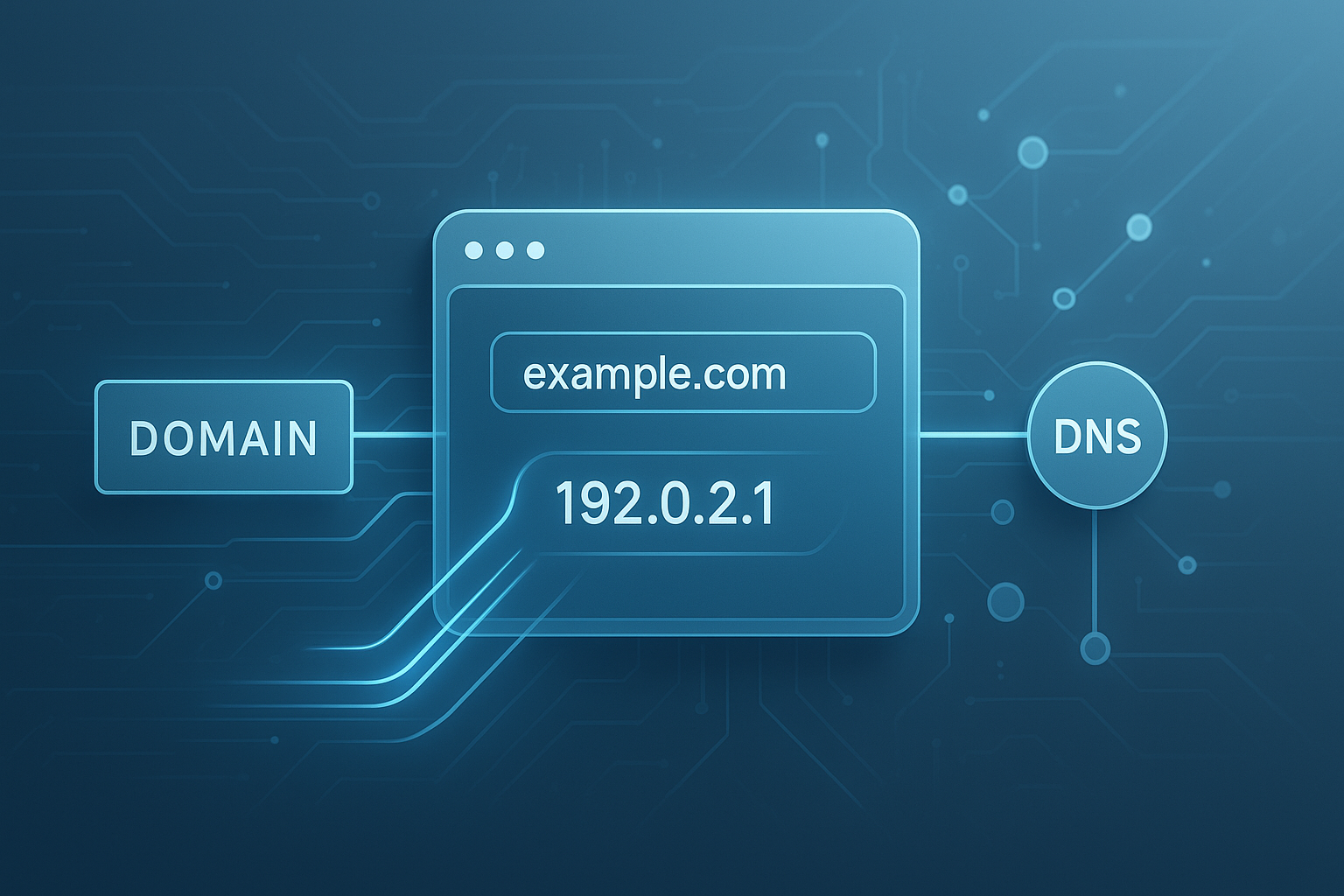
Have you ever typed a website name into a browser and wondered what machine actually answers the request? That simple question leads straight to a domain to IP lookup, one of the most practical ways to understand how the web works behind the scenes.
For beginners, this can sound technical. It doesn’t have to be. A domain is the name people remember. An IP address is the numeric location computers use to connect. Knowing how to move from one to the other helps with troubleshooting, security checks, hosting research, and basic networking tasks.
In this guide, you’ll learn what a domain to IP lookup is, how it works, when it matters, what results mean, and the easiest ways to find a website’s IP address accurately in 2026. You’ll also see common mistakes, privacy limits, and practical examples you can use right away.
Suggested Image: Technology concept graphic showing a domain name translating into a server IP address
What is a domain to IP lookup?
A domain to IP lookup is the process of finding the IP address connected to a website’s domain name. In simple terms, it translates a readable web address like example.com into a numeric address such as 93.184.216.34 so computers know where to connect.
This process depends on the Domain Name System, or DNS. DNS acts like the internet’s address directory. Instead of remembering long number strings, people use names. DNS then matches those names to IP addresses.
Here is the basic idea:
- Domain name: Human-friendly name, such as
google.com - IP address: Machine-friendly address, such as an IPv4 or IPv6 number
- DNS record: The stored mapping that links the domain and address
If you’re learning how internet systems connect, understanding this lookup process goes well with other utility tasks like checking data formats, cleaning URLs, or reviewing encoded strings using tools such as the URL Encoder Decoder.
Why a domain to IP lookup matters
A domain to IP lookup is useful because it helps you identify where a website points, verify network configuration, and troubleshoot access issues. For many users, it’s the fastest way to confirm whether a domain is resolving properly.
Let’s look at why people actually use it:
- Website troubleshooting: See whether DNS is resolving to the expected server
- Hosting research: Check if multiple domains point to the same IP
- Security checks: Investigate suspicious domains or confirm routing behavior
- Server migration validation: Confirm updated DNS records after moving hosting
- Network testing: Compare local results with public DNS output
For site owners, this often connects to broader performance checks. If you’re reviewing how a website is presented in search, a related step may be checking metadata with tools like the Meta Tag Checker.
How domain names become IP addresses
When you visit a website, your device does not magically know where to go. It asks DNS servers to find the matching IP address. That answer may come from a cached result or from a fresh DNS lookup across several DNS layers.
Here is the simplified path:
- You enter a domain name in a browser.
- Your device checks its local cache.
- If it’s not there, it asks a recursive DNS resolver.
- The resolver may query root, TLD, and authoritative DNS servers.
- The authoritative server returns the correct DNS record.
- Your device receives the IP address and connects to the server.
This system is defined by internet standards maintained through organizations like the Internet Corporation for Assigned Names and Numbers (ICANN) and technical protocol references from the Internet Assigned Numbers Authority (IANA).
What DNS records are involved?
Several DNS records can affect what you see in a domain to IP lookup. The most common are A records for IPv4 and AAAA records for IPv6. Some domains also use CNAME records, which point one domain name to another name rather than directly to an IP.
- A record: Points a domain to an IPv4 address
- AAAA record: Points a domain to an IPv6 address
- CNAME record: Alias that points to another hostname
- MX record: Mail routing, not website IP lookup
- NS record: Nameserver information
If you’re working with raw network strings or system output, utility tools such as the Text to Binary can help when learning how technical data is represented at a lower level.
How to perform a domain to IP lookup
You can perform a domain to IP lookup with an online tool, command line utilities, or DNS query services. For beginners, an online lookup tool is usually the easiest and fastest option because it requires no setup and shows results clearly.
Here are the simplest methods.
Method 1: Use an online domain to IP lookup tool
This is the most beginner-friendly approach. You enter the domain, run the lookup, and review the result.
- Open a domain to IP lookup tool.
- Enter the full domain name, such as
example.com. - Run the search.
- Review the returned IPv4 or IPv6 address.
- Compare results if needed using different DNS services.
This method is ideal when you need quick answers without using terminal commands.
Method 2: Use command line tools
If you’re comfortable with your computer’s terminal or command prompt, built-in tools can do the job quickly. Common commands include nslookup, ping, and dig.
nslookup example.comping example.comdig example.com
The exact output varies by operating system. For DNS-focused analysis, dig usually gives the clearest detail.
For web developers who also inspect source or encoded assets during troubleshooting, the HTML Viewer can be useful alongside DNS checks.
Method 3: Use public DNS tools
Public DNS diagnostic platforms can help verify how domains resolve globally. This is valuable when a site works in one location but not another, or after DNS changes during a migration.
Good technical references include the Google Public DNS documentation and Microsoft Learn for networking concepts and command usage.
What your lookup result actually means
A successful domain to IP lookup shows the address your DNS query resolved to at that moment. That does not always mean one domain equals one server. Many modern websites use load balancers, CDNs, reverse proxies, or cloud platforms that change what IP you see.
This is where many people get confused. The returned IP may be:
- The origin server IP
- A CDN edge server IP
- A reverse proxy IP
- One result from several rotating IP addresses
- An IPv4 result while the site also supports IPv6
For example, a large website may resolve to different IP addresses based on your location. That is normal. Content delivery networks route users to the nearest edge location for speed and reliability.
| Lookup Result Type | What It Usually Means |
|---|---|
| Single IPv4 address | Direct A record or one visible public endpoint |
| Single IPv6 address | AAAA record for modern network support |
| Multiple IP addresses | Load balancing, failover, geographic routing, or CDN use |
| CNAME then IP | The domain aliases another hostname before resolving |
| No result | DNS issue, typo, missing record, propagation delay, or private access limits |
IPv4 vs IPv6 in domain to IP lookup
A domain to IP lookup may return IPv4, IPv6, or both. IPv4 uses shorter dotted numbers, while IPv6 uses longer hexadecimal addresses designed to support far more devices and modern network growth.
Most beginners recognize IPv4 because it looks familiar, such as 192.0.2.1. IPv6 looks more complex, like 2001:0db8::1. Both can be correct for the same domain.
| Feature | IPv4 | IPv6 |
|---|---|---|
| Format | Four decimal groups | Hexadecimal groups separated by colons |
| Example | 203.0.113.10 | 2001:db8::10 |
| DNS Record | A | AAAA |
| Common Today | Still widely used | Increasingly important |
If you want background on internet addressing and protocol standards, the MDN Web Docs on HTTP and networking is a strong starting point.
Common reasons a domain may return multiple IP addresses
Multiple IP addresses are common and usually not a problem. A domain can point to several addresses to improve speed, reliability, traffic distribution, and regional delivery.
Here are the most common reasons:
- Load balancing: Traffic is split across several servers
- CDN routing: Users connect to different edge locations
- Failover setup: Backup servers are ready if one goes down
- Dual stack support: The domain has both IPv4 and IPv6 addresses
- Round-robin DNS: DNS rotates between multiple address records
Now comes the important part. If you’re trying to identify the true hosting server, a domain to IP lookup may show only the public-facing infrastructure, not the original backend system. That’s especially common with cloud hosting and protected web applications.
When the IP address you find is not the real origin server
A lookup does not always reveal the actual server hosting the website content. Many websites sit behind services that mask the origin infrastructure. In that case, the IP you see belongs to an intermediary service rather than the site’s own server.
This happens with:
- Content delivery networks
- Reverse proxies
- Web application firewalls
- DDoS protection services
- Managed cloud platforms
That limitation is important for security and privacy. A public DNS lookup should not be treated as a guaranteed way to uncover hidden infrastructure. It only shows what the domain is publicly configured to expose.
Security best practices from providers such as Google Cloud security documentation explain why public-facing endpoints and origin systems are often separated.
Practical uses for beginners
For beginners, a domain to IP lookup is most helpful when something is not working as expected. It gives you a basic but powerful way to confirm whether a domain points where it should.
Here are a few real-world examples:
You moved your website to a new host
You updated your DNS records, but the site still loads the old version. A lookup helps confirm whether the domain now points to the new IP or if DNS propagation is still in progress.
Your website won’t load
If the domain fails to resolve, the problem may be DNS-related rather than a browser issue. A lookup can quickly show whether the domain currently has valid A or AAAA records.
You want to compare several domains
If multiple websites resolve to the same IP, they may share hosting infrastructure. That can be useful during server planning or basic technical research.
You need to validate technical setup before launch
Checking the IP, metadata, and page assets together gives a fuller picture. In that workflow, tools like the JSON Beautifier can help if your app or API responses need structured review during deployment checks.
Suggested Screenshot: Example of a domain lookup result showing domain, IPv4 address, and DNS resolution status
Common mistakes people make during a domain to IP lookup
Most lookup problems come from small details, not big technical failures. A typo, missing subdomain, cached DNS response, or misunderstanding of CDN behavior can lead to wrong conclusions.
- Checking the wrong hostname:
www.example.commay not resolve the same way asexample.com - Ignoring propagation time: DNS changes may take hours to spread
- Assuming one IP means one server: Shared hosting and proxies complicate this
- Using cached results only: Local systems may still hold old DNS records
- Expecting MX or NS records to show website IPs: Those serve different purposes
- Forgetting IPv6: Some tools show only IPv4 unless you check both
Here’s what experienced professionals do differently: they compare results from more than one DNS source, check both root and subdomain variants, and interpret the answer in context rather than treating one result as the whole story.
Best practices for accurate lookup results
To get reliable results from a domain to IP lookup, use the exact hostname, check both IPv4 and IPv6, and verify with more than one tool or DNS resolver. This reduces the chance of being misled by caching or location-based routing.
- Enter the domain carefully, including any needed subdomain
- Check both A and AAAA records
- Compare browser results with command line output
- Test with a public DNS resolver if local results look outdated
- Wait and recheck after DNS changes
- Remember that CDNs and proxies may mask the origin server
If you’re auditing a website more broadly, technical checks often extend beyond DNS. For example, page asset optimization matters too, and the Image Compressor can help reduce heavy images after infrastructure issues are resolved.
Domain to IP lookup vs reverse IP lookup
A domain to IP lookup starts with a domain name and finds the IP. A reverse IP lookup starts with an IP address and tries to identify domains hosted on it. They solve different problems.
| Lookup Type | Starts With | Main Purpose |
|---|---|---|
| Domain to IP lookup | Domain name | Find where a website resolves |
| Reverse IP lookup | IP address | Find domains associated with that IP |
If your goal is basic troubleshooting, start with domain to IP lookup. If your goal is hosting research, reverse IP analysis may be the next step.
How domain to IP lookup supports SEO and technical site health
A domain to IP lookup is not a direct ranking factor, but it can support SEO by helping diagnose crawl access issues, migration errors, and DNS misconfigurations that affect how search engines reach your site.
Search engines need consistent access to your pages. If DNS is broken, your content can disappear from search temporarily or fail to update after deployment. During migrations, checking DNS is one of the simplest ways to catch errors early.
Useful related resources include the Google Search Central documentation for crawling and site changes. Once your DNS works correctly, reviewing snippets and page structure matters too, which is where the Word Counter can help refine titles, headings, and content length before publishing.
Frequently asked questions
1. Is a domain to IP lookup always accurate?
It is usually accurate for the public DNS answer available at the time of the query, but the result may not tell the whole story. Caching, CDN routing, load balancing, and location-based DNS can all affect what you see. For the best picture, compare results from more than one resolver and check again if the domain was recently updated.
2. Can one domain have more than one IP address?
Yes. Many domains resolve to multiple IP addresses. This is common for performance and reliability reasons. A website may use several servers, a content delivery network, or both IPv4 and IPv6 records. Seeing multiple IPs is often normal and does not mean anything is broken.
3. Why does my lookup show a different IP than someone else’s?
The most common reasons are DNS caching, geographic routing, and CDN behavior. Different DNS resolvers may return different edge locations depending on where the request comes from. If the site was recently moved, propagation delays can also cause mixed results for a while.
4. Is it legal to look up a website’s IP address?
In general, yes. Public DNS information is meant to be publicly resolvable so devices can reach websites. A domain to IP lookup simply checks that public mapping. What matters is how the information is used afterward. Routine troubleshooting and research are normal; intrusive or harmful actions are not.
5. Why does a domain return no IP address?
This can happen if the domain was typed incorrectly, the DNS records are missing, the domain has expired, the nameservers are misconfigured, or the DNS change has not fully propagated yet. In some cases, the website may rely on a setup that is not publicly reachable in the way you expect.
6. What’s the difference between DNS lookup and domain to IP lookup?
A domain to IP lookup is one type of DNS lookup. DNS lookups can return many record types, including A, AAAA, MX, NS, TXT, and CNAME records. Domain to IP lookup specifically focuses on finding the IP address associated with a domain name.
7. Do I need to know command line tools to do this?
No. Beginners can use an online lookup tool without touching the command line. Terminal tools such as nslookup or dig become useful when you want deeper troubleshooting details, but they are not required for basic IP discovery.
8. Can a domain to IP lookup reveal the actual hosting company?
Sometimes, but not always. If the site points directly to a hosting server, the IP may help identify the provider. But many websites sit behind CDNs, reverse proxies, or security services, which means the visible IP may belong to an intermediary network instead of the original host.
Final thoughts
A domain to IP lookup is a simple tool with real practical value. It shows how a website name connects to the network, helps verify DNS setup, and gives beginners a clearer view of what happens behind a browser address bar.
The key takeaway is this: the result is useful, but context matters. A returned IP may reflect a direct server, a CDN edge node, or a proxy layer. For accurate interpretation, check the right hostname, compare more than one source, and remember that DNS changes take time.
As your next step, try a domain to IP lookup on your own website or a public domain you know well. Then expand your technical check with the Base64 Encoder Decoder for encoded data review, the Case Converter for content cleanup, and the PDF to Word tool if you need to extract technical notes from documentation into an editable format.