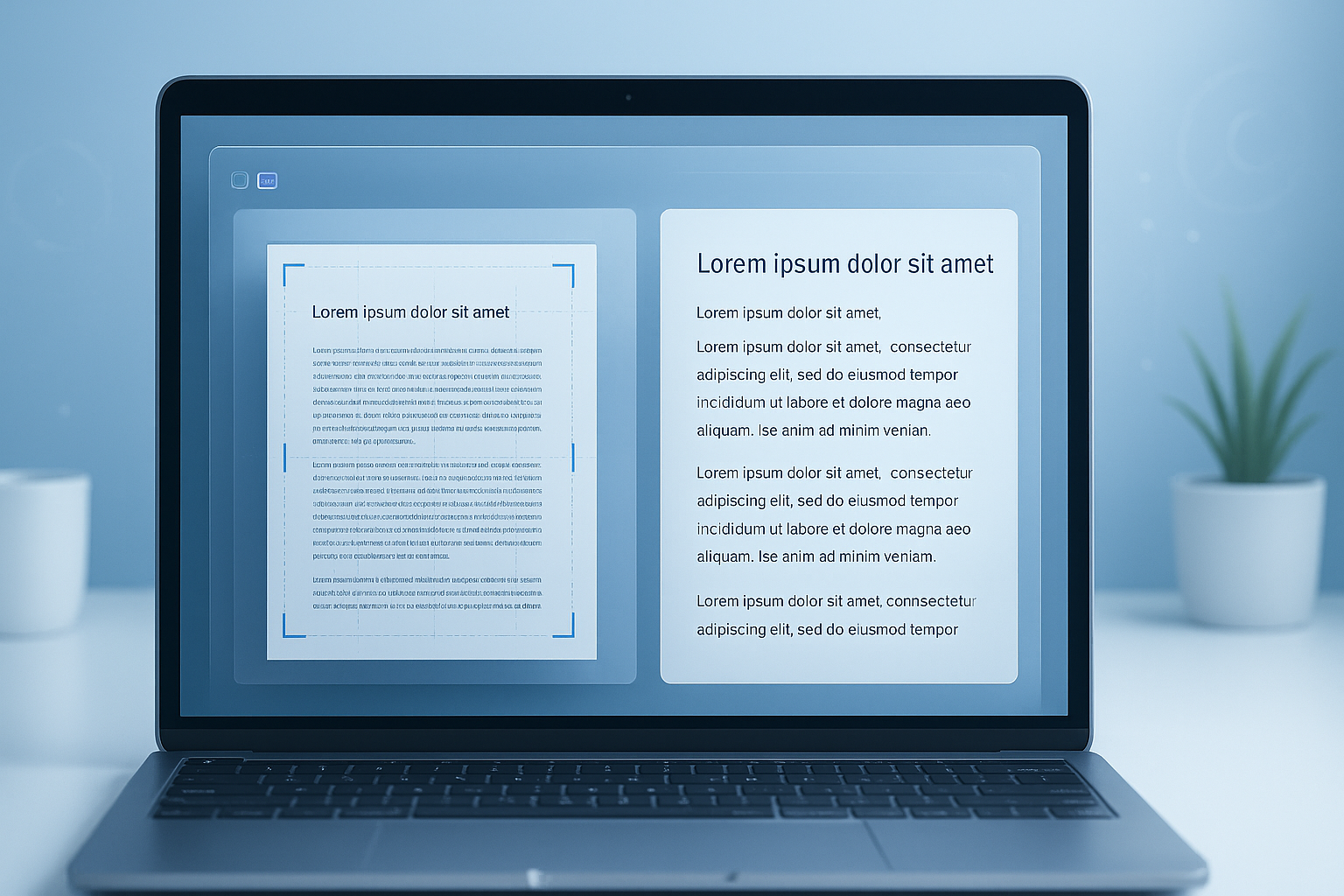
Have you ever snapped a photo of a receipt, handwritten note, or printed page and then realized you still had to type everything manually? That’s exactly the problem an OCR image to text converter is designed to solve.
OCR turns text inside an image into selectable, searchable, and editable words. It sounds simple, but the quality of the result depends on several details: image clarity, layout, language, fonts, and the OCR engine behind the tool.
This guide explains how OCR works, when to use it, where it struggles, and how beginners can get much better results with a few practical fixes. If you want fast and accurate text extraction in 2025, this is the part that matters.
Suggested Image: Technology concept showing a scanned document transforming into editable digital text
What is an OCR image to text converter?
An OCR image to text converter is a tool that reads text from an image and converts it into machine-readable text. OCR stands for Optical Character Recognition. Instead of treating a photo or scan as a flat picture, the tool identifies letters, words, and structure so you can copy, search, edit, or store the content.
Common input files include:
- JPG or JPEG photos
- PNG screenshots
- Scanned documents
- Receipts and invoices
- Business cards
- Printed books or forms
Once text is extracted, many people clean it up, archive it, or convert it into other formats. If your image file is too large before upload, a tool like Image Compressor can help reduce file size without making the process harder.
How OCR works behind the scenes
At a basic level, OCR analyzes an image, detects text regions, recognizes characters, and outputs readable text. The better the image and layout, the better the extraction.
Here’s the typical OCR workflow:
- Image preprocessing: The tool improves contrast, sharpness, and alignment.
- Text detection: It finds where text appears in the image.
- Character recognition: It identifies letters, numbers, and symbols.
- Language modeling: It predicts likely words based on context.
- Output formatting: It returns plain text or keeps some layout structure.
This is why OCR often works well on clean printed pages but can struggle with curved photos, shadows, handwriting, or decorative fonts. For a technical overview of file and image behavior on the web, MDN image format documentation is a useful reference.
Why people use OCR image to text converters
The biggest benefit is speed. OCR removes the need to retype text by hand and makes information searchable. For students, developers, office teams, and small businesses, that can save a surprising amount of time.
Typical use cases include:
- Extracting text from scanned contracts
- Digitizing class notes and printed worksheets
- Capturing invoice or receipt details for bookkeeping
- Copying text from screenshots
- Turning archived paper records into searchable files
- Reading labels, IDs, forms, or reports on mobile
If you later need to organize extracted data or create reports, the developer resources category can help with related tools and utilities.
Best situations for OCR and when it falls short
OCR works best when the image is sharp, text is printed clearly, and the layout is not overly complex. It becomes less reliable when the content is messy, stylized, or photographed at poor angles.
| Situation | OCR Performance | Why |
|---|---|---|
| Flat scan of printed document | Excellent | Clear lines, strong contrast, predictable layout |
| Phone photo in good lighting | Good | Usually readable if centered and sharp |
| Screenshot with small text | Good to fair | Depends on resolution and font sharpness |
| Handwritten notes | Fair to poor | Letter shapes vary too much |
| Curved book page or wrinkled receipt | Fair | Distortion changes letter geometry |
| Decorative or script font | Poor | Characters are hard to distinguish |
How to get more accurate text extraction
This is where many people struggle. They assume OCR accuracy depends only on the software. In reality, the quality of the source image often makes the biggest difference.
1. Start with a clean image
Use even lighting, avoid shadows, and keep the camera steady. If possible, place the document on a flat surface and shoot from directly above. Crooked photos lower recognition accuracy.
2. Increase readability before upload
Text should be sharp and high contrast. Dark text on a light background is easiest for OCR. If the image dimensions are awkward, a quick pass through an Image Resizer can make the file easier to manage while preserving clarity.
3. Remove unnecessary background clutter
Tables, logos, folds, stamps, and shadows can confuse recognition. Crop the image tightly around the text whenever possible.
4. Use the right file format
PNG often preserves crisp text better than heavily compressed JPG files. If you’re working with scans, lossless or lightly compressed images generally produce cleaner OCR output.
5. Proofread the result
Even strong OCR can confuse similar characters such as:
- O and 0
- I and l
- S and 5
- B and 8
- rn and m
If you’re handling code snippets or structured technical text, checking spacing and punctuation matters even more. Tools like JSON Formatter can help validate copied output if the extracted content includes data structures.
OCR vs manual typing vs voice dictation
OCR is not always the best option. The right method depends on the source and the level of accuracy you need. For a clean printed page, OCR is usually faster. For messy handwriting, manual typing may still win.
| Method | Best For | Main Limitation |
|---|---|---|
| OCR | Printed text in photos, scans, screenshots | Needs a readable image |
| Manual typing | Small amounts of text, poor-quality images | Slow and repetitive |
| Voice dictation | Reading text aloud into a device | Can introduce hearing and punctuation errors |
Common OCR mistakes beginners make
Most OCR errors are preventable. The tool gets blamed, but the real issue is often how the image was captured or prepared.
- Uploading blurry photos: OCR can’t recover details that aren’t visible.
- Ignoring page angle: Slanted text lowers character recognition accuracy.
- Using low-contrast copies: Light gray text on a gray background causes missed words.
- Expecting perfect formatting: OCR often captures text better than layout.
- Skipping review: Names, figures, totals, and IDs should always be checked manually.
- Processing oversized files blindly: Very large images may be slower and harder to handle than optimally prepared ones.
When extracted text includes URLs or web references, a quick check with a URL Encoder Decoder can help catch broken characters or malformed links.
Real-world examples of OCR image to text conversion
Let’s break this down with practical scenarios. OCR becomes easier to understand when you see how people actually use it.
Student scanning class materials
A student photographs printed notes from a lecture handout. OCR converts the image into text so the notes can be searched later by topic or copied into a study document.
Freelancer processing receipts
A freelancer uses OCR to pull merchant names, dates, and totals from receipt photos. That text can then be placed into a spreadsheet or accounting workflow for tax time.
Developer extracting text from screenshots
A developer captures an error message in a screenshot and uses OCR to extract the exact text. That makes it easier to search documentation, build a bug report, or compare outputs. If the text includes markup or scripts, HTML Minifier may help tidy related code assets afterward.
Office team digitizing archives
A small office scans old paper records and uses OCR so the files become searchable by client name, invoice number, or date, instead of sitting as image-only records.
Suggested Screenshot: Example workflow showing receipt image upload, text detection, and extracted editable output
What affects OCR accuracy the most?
The answer depends on one thing: how readable the original text is to a machine. OCR tools don’t “understand” text the way humans do. They look for patterns, shapes, spacing, and probabilities.
The biggest factors are:
- Resolution: Tiny or pixelated text is harder to recognize.
- Contrast: Strong separation between text and background helps a lot.
- Alignment: Straight text performs better than rotated text.
- Language support: OCR works better when the selected language matches the document.
- Font style: Standard fonts are easier to read than artistic ones.
- Noise: Smudges, blur, compression artifacts, and shadows reduce accuracy.
For background on accessibility and text readability in digital content, the W3C Web Accessibility Initiative offers strong guidance that overlaps with OCR-friendly design principles.
Is OCR safe for sensitive documents?
OCR can be safe, but only if you pay attention to where your files are processed and stored. This small detail changes everything. Some tools process files locally, while others upload them to cloud servers.
Before using any OCR tool for contracts, IDs, medical forms, or financial records, check:
- Whether files are uploaded or processed in-browser
- Whether uploads are stored temporarily or permanently
- Whether the site offers HTTPS encryption
- Whether there is a privacy policy or retention policy
- Whether you can remove metadata or unnecessary pages before upload
For general online privacy and data handling awareness, the FTC’s privacy guidance is a practical place to start.
How OCR helps with SEO, research, and productivity
OCR is not just an admin tool. It can also support content workflows, research, documentation, and technical organization. That matters if you work with screenshots, scanned references, or printed source material.
- SEO research: Extract text from screenshots of SERP features or competitor-free reference materials you personally own.
- Content drafting: Turn printed notes into editable copy faster.
- Data cleanup: Convert image-based tables into editable text before organizing them.
- Accessibility: Searchable text is easier to index and reuse than image-only files.
- Knowledge management: OCR makes archives and scanned PDFs easier to find later.
If you’re building content from extracted notes, a tool like Word Counter can help shape drafts by length, while Google’s helpful content guidance is useful for keeping the final copy people-first.
Best practices for using an OCR image to text converter in 2025
OCR tools are improving, especially with AI-assisted recognition, but the winning process is still simple: prepare the image well, extract carefully, and verify important details. The technology works best when you treat it as a smart assistant, not a perfect replacement for review.
- Use the clearest source image you can get.
- Choose printed text over handwritten text when possible.
- Crop tightly around the text area.
- Keep file size manageable without destroying clarity.
- Review numbers, names, dates, and totals manually.
- Store sensitive results securely.
- Use extracted text in searchable systems, not just copied notes.
If you’re preparing documents for web publishing after extraction, Text Case Converter can help normalize headings and formatting.
Frequently asked questions
1. Can an OCR image to text converter read handwriting?
Sometimes, but results are mixed. OCR works best on printed text with regular shapes and spacing. Handwriting varies a lot, which makes recognition less reliable. Neat block letters may produce usable output, while fast cursive often creates major errors. If the handwritten content is important, expect to proofread heavily or type it manually after extraction.
2. What image format is best for OCR?
PNG is often a strong choice because it preserves text edges well and avoids some compression artifacts. JPG can still work fine, especially for photos, but too much compression may blur letters. The best format depends on the source. If you’re capturing screenshots, PNG is usually ideal. For document photos, use whichever format keeps the text sharp and readable.
3. Is OCR accurate enough for legal or financial documents?
It can be useful for drafting, indexing, and search, but not for blind trust. Important documents should always be reviewed by a person after OCR extraction. Small errors in names, totals, dates, account numbers, or clauses can cause serious problems. OCR is excellent for speeding up workflows, but final verification still matters for high-stakes records.
4. Do I need internet access to use OCR?
That depends on the tool. Some OCR tools run in the browser or on your device, while others upload files to a remote server for processing. If privacy or offline use matters, check how the tool handles files before uploading anything sensitive. This is especially important for IDs, contracts, healthcare records, and internal business documents.
5. Why does OCR copy the text but lose the layout?
Because text recognition and layout reconstruction are different tasks. OCR may extract the words correctly while struggling to preserve columns, tables, line breaks, or spacing. Complex designs, forms, and mixed-content pages make this harder. If the exact layout matters, expect some cleanup after extraction or use a workflow designed for document structure, not just plain text output.
6. Can OCR extract text from screenshots?
Yes, and this is one of the easiest OCR use cases. Screenshots usually contain high-contrast digital text, which OCR handles well. The biggest issues come from very small fonts, cropped content, or blurry screen captures. If the screenshot is sharp and the text size is readable, OCR often performs better here than it does on camera photos.
7. Is a free OCR image to text converter good enough for beginners?
For basic tasks, usually yes. Free tools are often enough for receipts, printed notes, screenshots, and simple documents. The key is setting realistic expectations. You may still need to correct formatting or a few characters. Beginners benefit most by learning how to improve the image before upload, because that often matters more than paying for a premium OCR plan.
8. What should I check after OCR finishes?
Start with the details that are easiest to misread and most costly to get wrong. Check names, dates, prices, invoice numbers, addresses, URLs, and email addresses. Then review line breaks and punctuation if you plan to publish or reuse the content. A fast verification pass can catch the kinds of OCR mistakes that create confusion later.
Conclusion
An OCR image to text converter is one of the simplest ways to turn static images into usable information. When the source image is clean and the text is printed clearly, OCR can save time, improve searchability, and make document workflows much easier.
The practical takeaway is straightforward: don’t just upload any image and hope for perfect results. Improve the image first, extract the text, then review the important parts. That process is what leads to dependable output.
If you want to keep refining your workflow, useful next steps include trying Image Compressor for file prep, Image Resizer for cleaner dimensions, Word Counter for editing extracted text, and developer resources for related productivity tools.