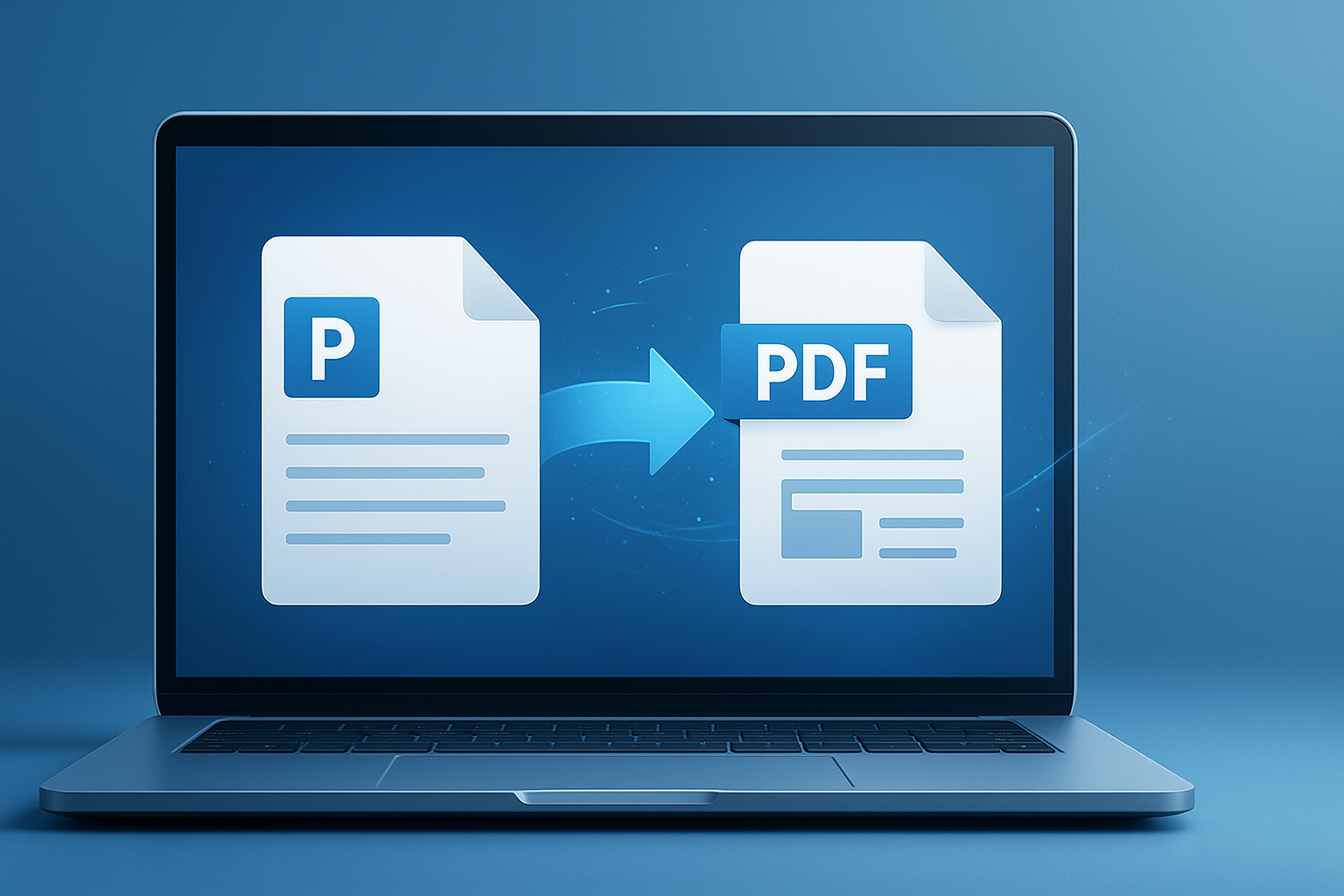
Need to send images as one clean document instead of a pile of separate files? That’s exactly where a png to pdf converter becomes useful. Whether you’re submitting homework, sharing design drafts, sending receipts, or organizing screenshots, turning PNG images into a PDF makes everything easier to store, print, and share.
Many beginners assume this is complicated. It isn’t. The real challenge is knowing when PDF is the better format, how the conversion works, and what settings matter if you want pages to look sharp instead of stretched or blurry.
In this guide, you’ll learn what a PNG to PDF converter does, why people use it, how to convert images step by step, and which mistakes to avoid. If you’re also preparing images before converting them, tools like an Image Compressor can help reduce file size without making your document hard to read.
Suggested Image: Technology concept showing PNG image files being combined into a single PDF document
What is a PNG to PDF converter?
A PNG to PDF converter is a tool that changes one or more PNG image files into a PDF document. Instead of sending images separately, you combine them into a single file that is easier to open, print, archive, and share across devices.
PNG stands for Portable Network Graphics. It is commonly used for screenshots, graphics, transparent images, and digital artwork. PDF, short for Portable Document Format, was designed to preserve layout and display consistently across systems. Adobe provides the official background on the format through its PDF format overview.
Here’s the simple idea:
- PNG is best for individual high-quality images
- PDF is better for packaging pages into one document
- A converter bridges the gap between image format and document format
This is especially helpful when your recipient expects one file instead of several attachments.
Why convert PNG images to PDF?
People usually convert PNG files to PDF for convenience, not complexity. A PDF is easier to manage when you have multiple pages, want consistent printing, or need a more professional format for school, business, or records.
Let’s look at the most common reasons:
- Better organization: Combine several images into one file
- Easier sharing: Send one attachment instead of many
- Print-friendly layout: PDFs are widely supported by printers and office software
- Cleaner presentation: Great for reports, invoices, scanned notes, and portfolios
- Consistent viewing: PDF layout stays stable across devices
If you frequently work with file sizes, image dimensions, or storage limits, tools like the File Size Calculator can help you estimate how large your final document may become.
PNG vs PDF: what’s the difference?
PNG and PDF solve different problems. PNG focuses on image quality and transparency. PDF focuses on document structure, distribution, and layout consistency. Choosing the right one depends on what you’re trying to do.
| Format | Best For | Strengths | Limitations |
|---|---|---|---|
| PNG | Single images, screenshots, graphics | Sharp quality, supports transparency, ideal for digital use | Not ideal for multi-page documents or formal sharing |
| Documents, printing, archiving, sharing sets of pages | Multi-page support, stable formatting, broad compatibility | Less flexible for direct image editing |
If your image is the final version and you only need one graphic, PNG may be enough. If you’re building a document, PDF is usually the better choice.
How does a png to pdf converter work?
A png to pdf converter takes your image data and places it into a PDF page layout. If you upload multiple PNG files, the tool usually creates one page per image, though some tools also let you merge several images onto a single page.
Behind the scenes, the converter typically handles these steps:
- Reads the PNG file dimensions and pixel data
- Places the image onto a PDF page
- Applies page size, margins, orientation, and scaling rules
- Packages all selected pages into one downloadable PDF
That sounds technical, but the user experience is usually simple. The main decisions are page order, orientation, and whether you want to fit or fill the page.
For a technical view of image formats used on the web, MDN’s image format documentation is a reliable reference.
How to convert PNG to PDF step by step
Most online tools follow the same workflow. If you understand the basic steps once, you’ll be able to use almost any converter confidently.
- Choose your PNG files. Select one image or multiple images you want to combine.
- Upload them to the converter. Wait for the files to load fully before moving on.
- Arrange the order. This matters if you are creating a multi-page PDF.
- Select page settings. Choose portrait or landscape, page size, margins, and fit options.
- Convert the files. The tool creates a PDF version of your uploaded images.
- Download and review. Open the PDF and check alignment, cropping, and clarity.
Before converting, it can help to optimize oversized images. If your PNGs are very large, using an Image Resizer may give you a smaller and more manageable PDF without affecting readability for normal use.
Suggested Screenshot: Example interface showing PNG upload, image order, and PDF download button
When should you use a PNG to PDF converter?
The best time to use a PNG to PDF converter is when your images need to behave like a document. That usually means you want structure, page order, easier printing, or smoother sharing.
Common real-world uses
- School assignments: Submit scans, handwritten notes, or diagrams in one file
- Office work: Turn screenshots, receipts, forms, or reports into a shareable PDF
- Design reviews: Package mockups or visual drafts into a clean presentation
- Personal records: Store bills, confirmations, or event tickets as one document
- Client communication: Send multiple visuals in a format that looks more polished
If you are working with screen dimensions, social graphics, or web assets before converting, a Aspect Ratio Calculator can help you avoid awkward cropping and inconsistent page layouts.
Single image vs multiple images: what changes?
Converting one PNG is straightforward. Converting multiple PNGs introduces page order, file size, spacing, and consistency issues. This is where many people struggle, especially when the images have different dimensions.
| Scenario | What to Watch For | Best Practice |
|---|---|---|
| One PNG to one PDF page | Cropping, oversized borders | Match page orientation to image shape |
| Several PNGs into one PDF | Wrong order, inconsistent scaling | Rename files clearly and arrange before converting |
| Different image sizes mixed together | Uneven page appearance | Resize or standardize dimensions first |
For document-heavy workflows, you may also want to explore PDF document guides for related tips on handling, formatting, and managing PDF files more efficiently.
What settings matter most during conversion?
If you want the PDF to look neat and readable, a few settings matter more than the rest. Most problems come from ignoring orientation, page size, image scaling, or margins.
1. Page orientation
Choose portrait for tall images and landscape for wide ones. If you pick the wrong orientation, the converter may shrink the image too much or leave large empty spaces.
2. Page size
Common options include A4 and Letter. The right choice depends on where the document will be used. You can compare paper standards at the ISO paper size standard reference and with common software documentation from vendors such as Microsoft.
3. Fit vs fill
Fit keeps the whole image visible, but may add white space. Fill covers more of the page, but can crop edges. For receipts, scans, and notes, fit is usually safer.
4. Margins
Small margins work well for full-page visuals. Slightly wider margins can improve printing and readability for scanned pages.
5. Image order
This small detail changes everything. If the pages appear in the wrong sequence, the PDF becomes harder to use immediately.
How to keep good image quality without creating a huge PDF
You don’t always need the highest possible PNG resolution. A PDF made from very large images can become difficult to email, upload, or store. The goal is readable quality, not unnecessary weight.
Here’s what experienced professionals do differently:
- Reduce dimensions if the original image is far larger than the page
- Compress images before conversion when visual perfection is not essential
- Use consistent resolutions across pages
- Test the final PDF on mobile and desktop devices
- Keep text-based screenshots sharp enough to zoom in comfortably
For example, a full-resolution design export may be useful for editing, but a client review PDF often does not need that same size. If you are resizing digital graphics and need pixel-based calculations, a Pixels to Inches Converter can help you choose dimensions that make sense for print or screen viewing.
Google’s own guidance on delivering fast, efficient pages also reinforces the value of optimized assets in general. See Google Search Central documentation for broader best practices around accessible, efficient web content.
Common mistakes beginners make
Most conversion problems are preventable. The tool usually works fine. The issue is often the source image, wrong settings, or skipping a quick final check before sharing the PDF.
- Uploading screenshots with unreadable text: If the source is blurry, the PDF will be blurry too.
- Ignoring file order: Multi-page PDFs can become confusing fast.
- Mixing very different dimensions: Pages may look inconsistent.
- Choosing fill when fit is needed: Important edges can be cropped.
- Sending oversized PDFs: Email limits may block delivery.
- Not checking print layout: What looks fine on screen may clip on paper.
If your images include measurements, mockups, or printed assets, even small size changes matter. That’s where related tools such as a Unit Converter become useful for checking document dimensions and page planning.
Is it safe to use an online PNG to PDF converter?
It can be safe, but the answer depends on what kind of images you’re converting. For everyday screenshots or public visuals, online tools are often fine. For private, financial, legal, or personal documents, you should be more careful.
Before uploading files, ask these questions:
- Does the tool use a secure connection?
- Does it explain whether files are deleted after processing?
- Are you uploading sensitive information such as IDs, contracts, or bank records?
- Would a local desktop method be safer for this file?
General online privacy advice from the Federal Trade Commission is worth reviewing if you regularly handle personal data online.
As a rule:
- Use online converters for low-risk files
- Use offline methods for sensitive documents
- Always review privacy and deletion practices before uploading
Online converter vs offline method: which is better?
Neither option is always best. Online converters are faster and easier for beginners. Offline methods offer more privacy and can be better for confidential files or large batches.
| Method | Best For | Pros | Cons |
|---|---|---|---|
| Online PNG to PDF converter | Quick tasks, occasional use, beginners | Fast, simple, no installation needed | May raise privacy concerns for sensitive files |
| Offline conversion | Private documents, frequent use, large batches | Better control, often more private | May require built-in software or extra steps |
Best practices for a clean, professional PDF
If you want the final document to look intentional instead of thrown together, a few simple habits make a big difference. These aren’t advanced tricks. They’re practical checks that save time later.
- Sort files before uploading. Name them clearly, such as page-1, page-2, page-3.
- Standardize image size. Similar dimensions produce a more consistent PDF.
- Use the correct orientation. Match portrait or landscape to the image format.
- Preview before sending. Check readability, margins, and page order.
- Compress when needed. A smaller PDF is easier to email and archive.
- Keep originals. Save the PNG files in case you need to revise the document later.
Suggested Infographic: PNG to PDF workflow from file selection to final preview
Frequently asked questions
1. Does converting PNG to PDF reduce image quality?
Not always. The result depends on the converter, your original image quality, and whether compression is applied. If the PNG is already sharp, many converters preserve that quality well. Problems usually appear when images are resized too aggressively, compressed heavily, or placed on pages with the wrong aspect ratio. For best results, start with a clear image and preview the final PDF before sharing it.
2. Can I convert multiple PNG files into one PDF?
Yes. That is one of the main reasons people use a PNG to PDF converter. Most tools let you upload several PNG files and combine them into a single multi-page PDF. The important part is arranging the images in the correct order before converting. If the tool allows drag-and-drop sorting, use it. Also check whether every image becomes its own page or whether layout settings combine them differently.
3. Is a PNG to PDF converter free to use?
Many online converters are free for basic use, especially for small files and occasional tasks. Some may limit upload size, number of files, or advanced settings. If you only need simple image-to-document conversion, a free tool is often enough. If you convert files often, handle large batches, or need stronger privacy controls, an offline or premium option may be worth considering.
4. What is the best page size for converting PNG to PDF?
The best page size depends on how the file will be used. A4 is common in many countries, while Letter is common in the United States and Canada. For digital sharing only, the exact paper size matters less than readability and layout balance. If you expect someone to print the document, choose the standard most familiar to your audience and preview the result to avoid awkward scaling.
5. Can I print a PNG directly without converting it to PDF?
Yes, you can print a PNG directly in many cases. But direct printing is less useful when you have several images, need page order, or want a document that opens consistently on other devices. Converting PNG files to PDF gives you more control over presentation and usually makes the printing process smoother, especially for multi-page submissions or official-looking documents.
6. Is it safe to upload personal documents to an online converter?
It depends on the sensitivity of the file and the policies of the tool you use. For public or low-risk images, online tools are usually acceptable. For IDs, legal documents, medical records, financial paperwork, or anything confidential, offline conversion is the safer option. Always check whether the service uses HTTPS, explains file deletion timing, and provides a clear privacy policy before uploading anything sensitive.
7. Why does my PDF have large white borders around the image?
This usually happens when the image shape does not match the page shape, or when the converter is set to fit the image inside the page. A tall image on a wide page, or a wide image on a tall page, often creates empty space. Try changing the orientation, adjusting margins, or resizing the image beforehand. In some tools, switching from fit to fill can reduce borders, but be careful about cropping.
8. Should I compress PNG files before converting them to PDF?
In many cases, yes. If your images are extremely large, compressing or resizing them first can create a much smaller PDF that is easier to send and store. The key is balance. You want the file small enough to handle comfortably, but still clear enough to read. For screenshots, forms, and notes, moderate compression often works well. For detailed artwork or high-resolution proofs, preserve more of the original quality.
Final thoughts
A png to pdf converter is one of those tools that solves a simple but common problem: turning separate images into a document people can actually use. For beginners, the easiest path is to focus on three things: image quality, page order, and page settings. Get those right, and the final PDF will usually look clean and professional.
If you’re preparing files before conversion, the next practical step is to optimize them first. An Image Compressor can help reduce oversized files, an Image Resizer can standardize page visuals, a Aspect Ratio Calculator can help prevent awkward cropping, and the broader PDF document guides section can help you handle the final document more effectively.
The process is simple once you know what to check. Choose the right images, keep the layout consistent, and always preview before you send.