Ever tried publishing a PDF on a website and then wondered why nobody can properly search, copy, or view it well on mobile? That’s the problem a good PDF to HTML converter solves.
PDFs are great for preserving layout, but they’re often awkward on the web. HTML is the opposite. It’s flexible, searchable, responsive, and much easier for browsers, search engines, and assistive technologies to understand.
This guide explains how a PDF to HTML converter works, when to use one, where it struggles, and what developers should watch for before pushing converted pages live. If you publish manuals, reports, invoices, docs, or knowledge-base content, this will save you time and prevent messy output.
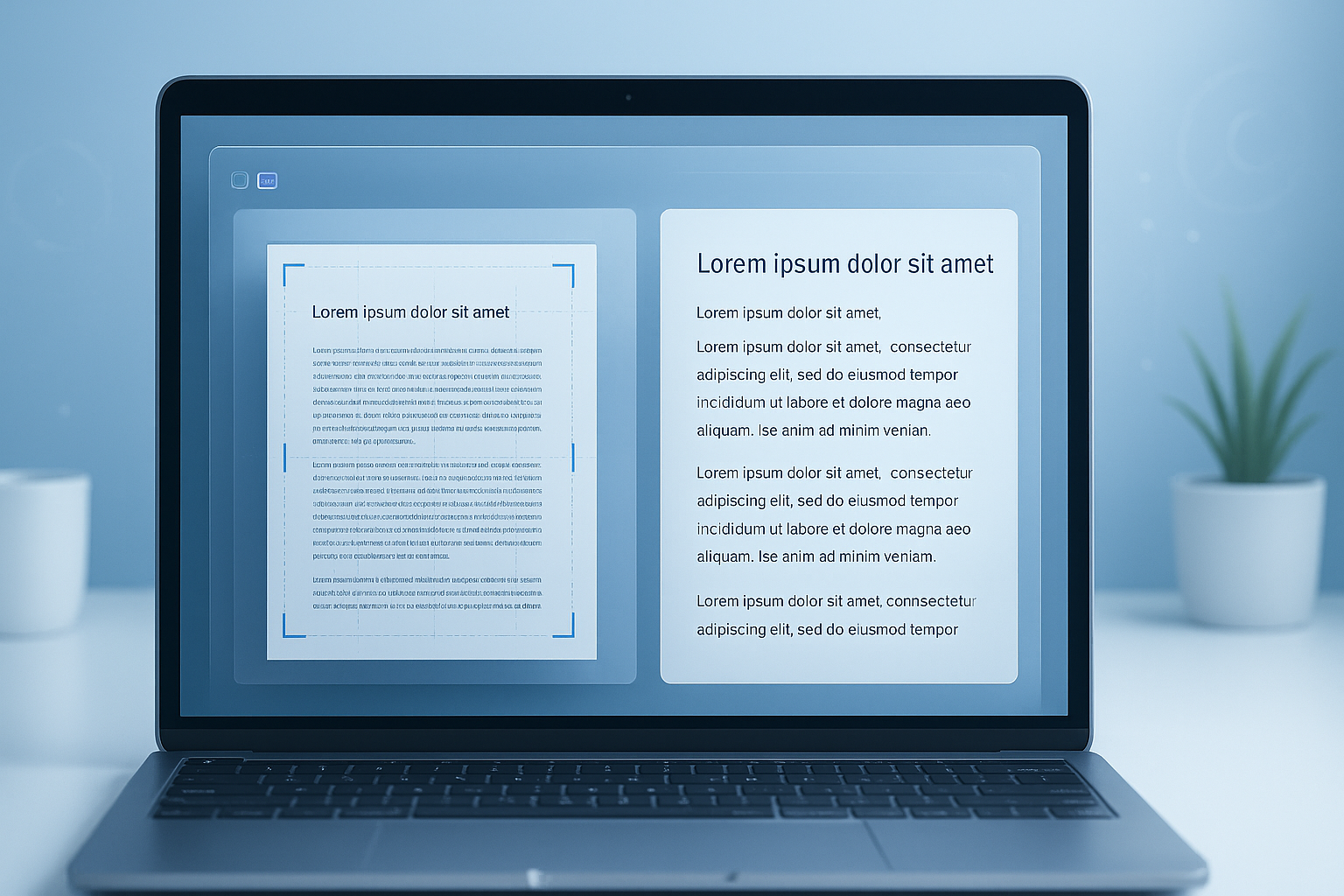
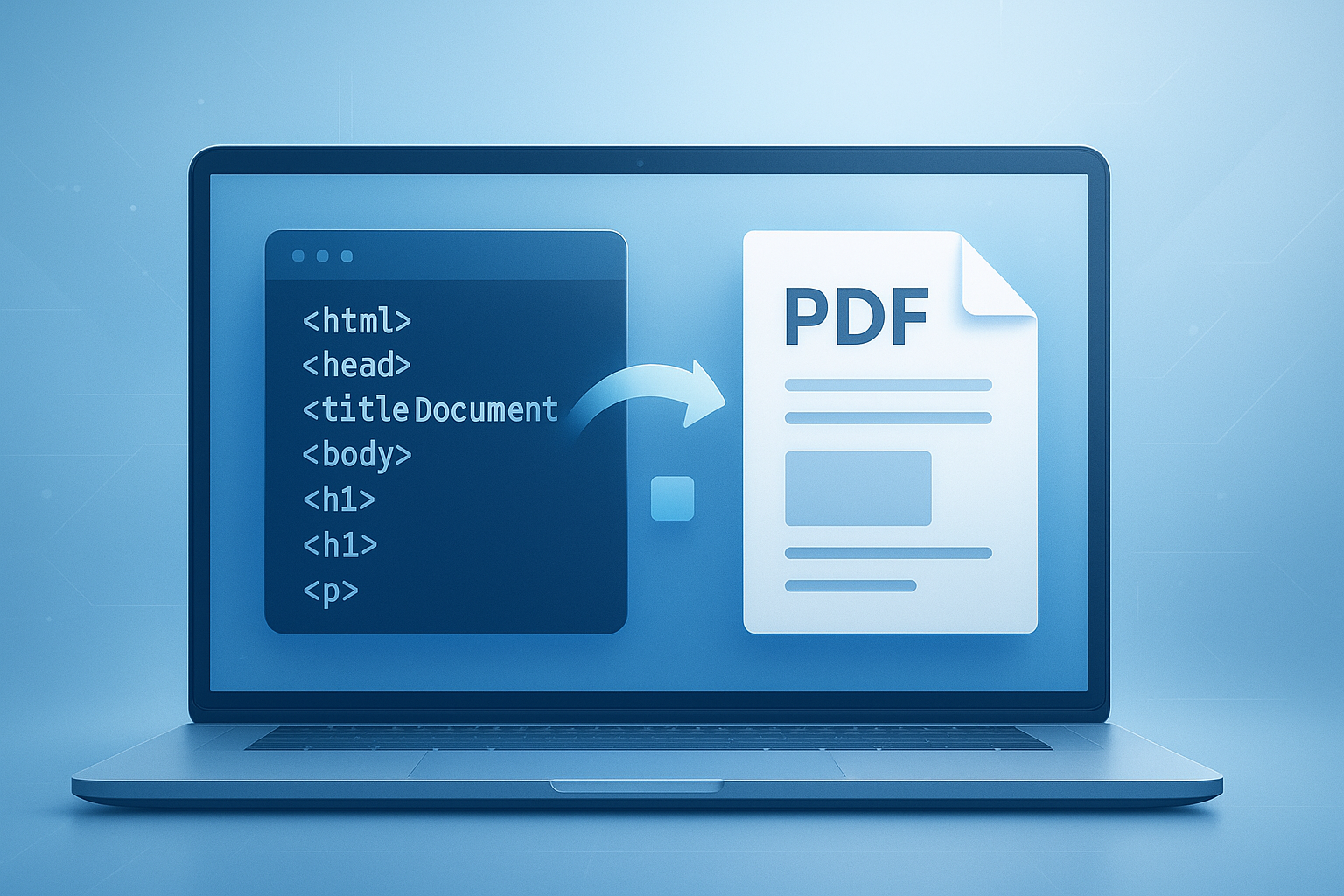
Suggested Image: Technology concept showing a PDF file transforming into structured HTML code on a browser screen
What is a PDF to HTML converter?
A PDF to HTML converter is a tool that extracts text, layout, links, images, and sometimes form elements from a PDF and rewrites them as web-readable HTML. The goal is to turn a fixed document into a browser-friendly page while preserving as much structure as possible.
At a basic level, the conversion process usually tries to identify:
- Paragraphs and headings
- Images and graphic blocks
- Tables
- Hyperlinks
- Lists
- Page order and reading flow
- Fonts, spacing, and alignment
For developers, this matters because HTML content is easier to style, optimize, index, and maintain. If you’re cleaning up output files for performance, a tool like Image Compressor can also help reduce image weight after export.
Why convert PDF to HTML instead of simply embedding the PDF?
Embedding a PDF is faster in the short term, but converting it to HTML usually creates a better web experience. HTML pages load more naturally in browsers, adapt better to different screens, and are easier to update without replacing an entire file.
Here’s the practical difference:
| Factor | HTML | |
|---|---|---|
| Mobile responsiveness | Often limited | Strong when coded properly |
| Search engine readability | Less flexible | Much better for indexing |
| Content updates | Requires document replacement | Edit only the needed section |
| Accessibility | Varies greatly | Better control with semantic markup |
| Styling control | Minimal | Full CSS control |
This is one reason Google continues to emphasize crawlable, accessible page content in its Google Search Central documentation. If the content matters for search visibility, HTML is usually the stronger format.
How does a PDF to HTML converter work?
A PDF to HTML converter reads the PDF’s internal structure, extracts available text and embedded objects, and maps them into HTML elements. The quality of the result depends heavily on how the original PDF was built.
Let’s break this down into the stages most tools follow:
1. Content extraction
The converter identifies text layers, image assets, hyperlinks, vector objects, and page boundaries. If the PDF was created digitally from Word, InDesign, or a browser, extraction is usually cleaner than with scanned files.
2. Layout interpretation
The tool estimates reading order, columns, white space, and block relationships. That’s where many conversions go wrong. PDFs describe visual placement, not true web structure, so the converter often has to guess.
3. HTML generation
Next, the tool outputs HTML, often along with CSS and extracted image files. Some converters create semantic tags like headings and lists. Others only position everything with absolutely placed divs, which can make the HTML hard to maintain.
4. Post-conversion cleanup
This is where experienced professionals do differently. They don’t assume the exported HTML is production-ready. They review the code, fix heading levels, remove redundant inline styles, compress assets, and rebuild tables or forms if needed.
When handling extracted images or visual assets, developers often also need follow-up tools such as an JPG to PNG converter to preserve transparency or improve presentation on the final page.
What kind of PDFs convert well?
Simple, text-based PDFs convert best. Scanned documents, heavily designed brochures, and multi-column layouts are much harder to transform into clean HTML without manual fixes.
In general, these PDFs tend to convert well:
- User manuals with clear headings
- Reports with selectable text
- Invoices and statements with consistent layout
- Documentation exported from office tools
- Forms with minimal visual complexity
These usually require more cleanup:
- Scanned image-only PDFs
- Magazine-style designs
- Files with overlapping objects
- Complex tables spanning multiple pages
- Documents using uncommon fonts or embedded vector diagrams
If you’re unsure whether a PDF contains selectable text or just images, open it and try copying a sentence. If that fails, OCR may be required before conversion. Mozilla’s MDN HTML documentation is a useful reference when rebuilding messy output into proper semantic markup.
Best use cases for a PDF to HTML converter
The best use cases are situations where you already have valuable PDF content but need it to behave like a normal webpage. That usually means better search visibility, easier maintenance, or a better experience on mobile and assistive devices.
Common real-world examples include:
- Product documentation: Converting release notes, setup guides, and technical manuals into searchable help pages
- Knowledge bases: Turning old PDF archives into structured articles
- Government and compliance publishing: Making forms, notices, and public documents easier to access online
- Education: Publishing course handouts and reference documents as responsive pages
- Financial records: Presenting reports and summaries in a web-friendly format
If your workflow includes preparing downloadable supporting files, a related utility such as the Merge PDF tool can help combine sections before converting a final source document.
Benefits of converting PDF to HTML for developers
For developers, the biggest advantage is control. A converted HTML page can be edited, styled, tested, versioned, and optimized much more easily than a static PDF embedded on a site.
- Better SEO: Search engines can interpret headings, body text, internal links, and page hierarchy more effectively
- Responsive design: HTML adapts to phones, tablets, desktops, and embedded web views
- Accessibility improvements: Proper headings, landmarks, labels, and alt text can be added after conversion
- Performance tuning: CSS, lazy loading, minification, and asset compression are easier to apply
- Easier localization: HTML content is simpler to translate and maintain across languages
- Reusable content: Once in HTML, sections can be repurposed in docs, emails, apps, and CMS templates
The W3C Web Accessibility Initiative is especially relevant here. Accessibility is rarely improved by leaving important public-facing content trapped inside a document file when a structured web page would work better.
HTML output types: semantic HTML vs layout-only HTML
Not all conversion results are equally useful. Some tools generate semantic HTML with real headings, paragraphs, and lists. Others mimic the PDF visually using positioned containers, which may look accurate but create poor code quality.
| Output Type | Strength | Weakness |
|---|---|---|
| Semantic HTML | Better for SEO, accessibility, maintenance | May need visual restyling |
| Layout-only HTML | Closer visual match to original PDF | Harder to edit, heavier code, weaker semantics |
If you care about long-term publishing quality, semantic structure should win most of the time. Visual accuracy matters, but readable code matters more once the content becomes part of a living website.
Common conversion problems and how to fix them
Most PDF to HTML converter issues come from one fact: PDFs are built for fixed display, not fluid page structure. The converter often has to reverse-engineer intent from visual coordinates.
Here are the most common problems developers run into:
Broken reading order
Two-column layouts often convert in the wrong sequence. Fix this by manually restructuring the HTML and checking the content flow with keyboard navigation and screen readers.
Too many inline styles
Some tools dump thousands of style attributes into the markup. Move repeated styles into a stylesheet and remove unnecessary positioning rules.
Heading hierarchy loss
Large bold text may appear visually correct but end up as plain div text instead of <h2> or <h3>. Rebuild the heading levels so both users and search engines can understand the page.
Table corruption
Tables are often flattened into disconnected text blocks. When data accuracy matters, rebuild the table manually. If numerical presentation is involved, tools like the Percentage Calculator can help validate figures before republishing.
Image quality problems
Extracted images may be blurry, oversized, or converted to the wrong format. Re-export or optimize them separately if they matter for user experience.
Missing accessibility attributes
Alt text, form labels, table headers, and landmark roles usually need to be added after the conversion.
Suggested Screenshot: Before-and-after example of raw converted HTML code cleaned into semantic, responsive markup
Step-by-step workflow for publishing converted HTML
The safest workflow is not “convert and publish.” It’s “convert, audit, clean, test, then publish.” That extra review prevents broken layouts, poor accessibility, and weak search performance.
- Start with the best source PDF possible. Use a text-based original, not a low-quality scan.
- Run the PDF through a PDF to HTML converter. Export HTML, CSS, and associated assets.
- Check reading order. Compare the output with the source document section by section.
- Replace non-semantic blocks. Turn generic containers into headings, paragraphs, lists, and tables.
- Clean the CSS. Remove unnecessary inline styles and absolute positioning where possible.
- Optimize images. Compress and rename assets clearly for web use.
- Improve accessibility. Add alt text, table headers, language attributes, and clear landmarks.
- Test on mobile. Make sure the page reflows properly on small screens.
- Validate markup. Use standards-based checks and browser testing.
- Publish and monitor. Watch indexing, page speed, and user behavior after launch.
For markup checks, the W3C Markup Validation Service is still useful. For performance reviews, Google Lighthouse documentation helps identify render-blocking CSS, oversized images, and layout issues.
PDF to HTML converter vs OCR: what’s the difference?
A PDF to HTML converter turns existing PDF content into web markup. OCR, or optical character recognition, extracts text from image-based PDFs or scans. If the PDF has no selectable text, OCR usually has to happen first.
| Task | PDF to HTML Conversion | OCR |
|---|---|---|
| Purpose | Creates web markup | Recognizes text in images |
| Best for | Digital PDFs | Scanned PDFs |
| Output quality depends on | Document structure | Image clarity and recognition accuracy |
| Needed for HTML publishing | Usually yes | Only when text is image-based |
If your source files are assembled from separate scanned pages, a utility like PDF to JPG may help with image extraction or review before OCR and restructuring work begins.
SEO and accessibility best practices after conversion
Converting the file is only the first half of the job. If the page is meant for public discovery, developers should treat the output like any other important webpage and optimize it accordingly.
- Use a clear page title and meta description
- Apply a logical heading structure from
<h1>downward - Write descriptive alt text for informative images
- Use real HTML tables for tabular data
- Remove duplicated or hidden text blocks
- Create clean URLs and internal links
- Test keyboard navigation
- Ensure sufficient color contrast
- Compress images and minimize CSS bloat
- Add structured navigation where needed
Google’s advice on creating helpful, people-first content applies here too. Converted HTML should not feel like a machine dump. It should read cleanly, load quickly, and be easy to navigate.
If your content team also generates supporting copy, comparison text, or schema-ready summaries, the AI Paragraph Generator can help draft supporting sections that you then edit for accuracy and tone.
When not to use a PDF to HTML converter
Sometimes conversion is the wrong move. If the PDF is highly visual, legally fixed, or intended mainly for download and printing, rebuilding it as HTML may cost more time than it saves.
You may want to avoid full conversion when:
- The document is a signed or regulated file that must remain unchanged
- The layout is poster-like or design-heavy
- The content is short enough to rewrite directly into HTML
- The PDF is only a downloadable attachment, not a core web page
- The source document quality is too poor for reliable extraction
Here’s the problem many teams miss: not every document deserves one-to-one conversion. In some cases, extracting the main content and rebuilding the page manually is faster and gives a much better result.
What developers should look for in a good converter
A useful PDF to HTML converter should do more than create something that “looks close.” It should preserve content accurately, produce manageable code, and reduce cleanup time.
Look for these features:
- Selectable text preservation
- Support for links, lists, and tables
- Clean HTML output
- Separate CSS and asset exports
- Reasonable handling of multi-page documents
- Fast processing for large files
- Privacy-friendly file handling if documents are sensitive
- Consistent results across browsers
If you’re working with image-heavy documents after conversion, the PNG to JPG converter may also be useful for reducing file size where transparency is not needed.
Frequently asked questions
Is a PDF to HTML converter accurate enough for production websites?
It can be, but accuracy depends on the source PDF and the complexity of the layout. Simple text-based files often convert well. Complex reports, forms, and visual brochures usually need manual cleanup. For production use, developers should always review headings, links, tables, reading order, and mobile behavior before publishing.
Will converted HTML help SEO more than uploading a PDF?
In most cases, yes. HTML gives you better control over titles, headings, internal links, structured layout, responsive behavior, and accessibility. Search engines can process PDFs, but HTML pages are usually easier to crawl, optimize, and integrate into a site’s navigation and content strategy.
Can a PDF to HTML converter handle scanned PDFs?
Not reliably on its own. Scanned PDFs are often just images inside a document wrapper. In that case, OCR is usually needed to detect the text first. Even then, scanned files may contain recognition errors, especially if the original pages are blurry, skewed, or low contrast.
Does converting PDF to HTML preserve the original design?
Sometimes partially, but not perfectly. Converters may preserve fonts, spacing, and images to a degree, yet web pages behave differently from fixed-layout documents. If exact design fidelity is the top priority, the output may become cluttered with absolute positioning. For maintainable websites, clean structure often matters more than exact visual matching.
Is it better to convert the document or rebuild the page manually?
The answer depends on one thing: document complexity. If the PDF is long and mostly text-based, conversion can save a lot of time. If it contains complicated tables, unusual layouts, or interactive elements, manual rebuilding may actually be faster and produce better code.
Are online PDF to HTML converters safe for sensitive files?
Only if you trust the service and understand how files are processed, stored, and deleted. For confidential business, legal, medical, or financial documents, check the provider’s privacy policy carefully. Many teams choose offline or self-hosted workflows when file sensitivity is a concern.
What should I check first after converting a PDF to HTML?
Start with reading order, heading structure, and tables. Those issues cause the most usability and accessibility problems. After that, review links, images, code cleanliness, and mobile layout. A quick browser preview is not enough. You need both visual and structural validation.
What other tools are useful alongside a PDF to HTML converter?
Developers often need image optimization, file merging, format conversion, and content cleanup tools during the workflow. Useful companions include PDF merge tools, PDF-to-image utilities, image compressors, and text formatting helpers. The exact mix depends on whether your document is more code-heavy, image-heavy, or content-heavy.
Final thoughts on using a PDF to HTML converter
A PDF to HTML converter can dramatically speed up web publishing, but only when you treat the output as a starting point rather than a finished page. Good conversion saves effort. Blind conversion creates technical debt.
If the PDF contains valuable content that deserves search visibility, mobile usability, and better accessibility, converting it to HTML is often the right move. Just remember the real work happens after export: cleanup, semantic structure, asset optimization, and testing.
As a next step, review your source PDF and decide whether it’s text-based, scanned, or design-heavy. Then convert a single sample section before committing to the full document. If you continue refining assets and related content, tools like Word Counter, Image Compressor, Merge PDF, and PDF to JPG can help support the rest of the workflow.