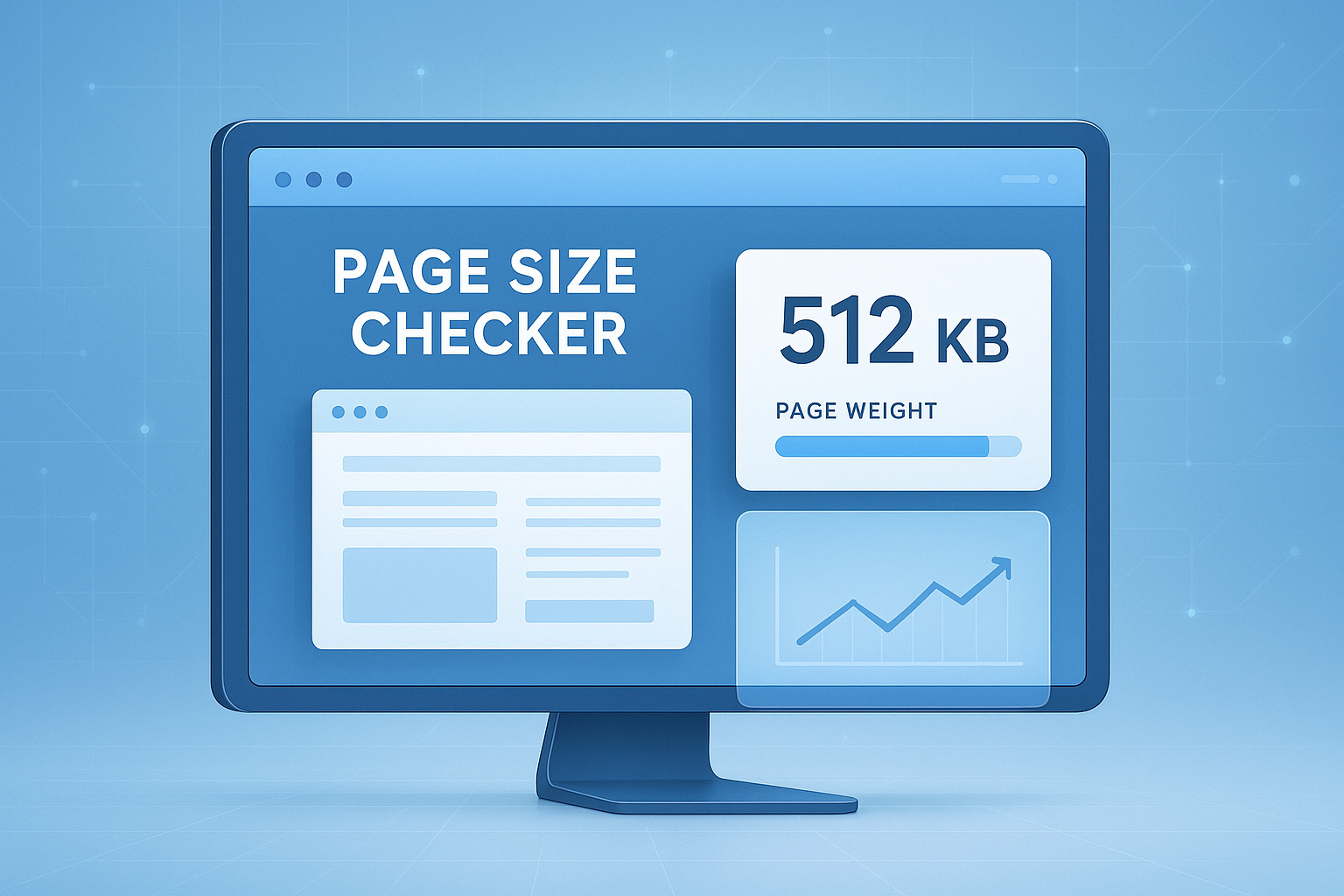
Ever check your site speed, see a vague warning about “large page weight,” and wonder what that actually means? That’s where a page size checker becomes useful. It shows how heavy a webpage is, which files are making it bigger, and why that extra weight can slow down loading.
For marketers, this matters more than it seems. A slow page can reduce conversions, hurt ad performance, and create friction before a visitor even reads your headline. Google has also made it clear that page experience and performance are part of the broader quality picture through resources like Google Search Central documentation.
In this guide, you’ll learn what a page size checker measures, how to interpret the results, what a good page size looks like in 2025, and how to reduce webpage weight without damaging design or content quality.
Suggested Image: Technology concept showing webpage files, load speed, and performance metrics dashboard
What is a page size checker?
A page size checker is a tool that measures the total weight of a webpage, usually in KB or MB, by calculating the size of the HTML, CSS, JavaScript, images, fonts, and other downloaded resources needed to render the page.
Think of it as a quick way to answer a simple question: how much data must a visitor’s browser download before your page becomes usable? A heavy page often means longer load times, more mobile data usage, and a worse user experience.
A page size checker usually helps you identify:
- Total page size
- Individual file sizes
- Large assets slowing the page
- Potential performance bottlenecks
- Opportunities to reduce resource weight
If you’re already reviewing technical SEO tasks, tools like the Website Speed Test can help you connect page weight with actual loading behavior.
Why page size matters for SEO, UX, and marketing results
Page size affects how quickly content appears, how smooth the page feels, and how much patience users need. Bigger pages are not always bad, but unnecessary page weight often harms both usability and search performance.
Here’s the problem. Many teams focus on design polish, extra scripts, and high-resolution visuals, then wonder why bounce rates rise on mobile. In most cases, the issue is not one file. It’s the combined weight of everything loading at once.
SEO impact
A large page does not automatically lower rankings, but it can contribute to slower performance and weaker page experience signals. Search engines want pages that users can access efficiently. Google’s guidance on performance and user-centric metrics is reflected in Core Web Vitals guidance from web.dev.
User experience impact
Visitors notice delay before they notice design quality. If a page takes too long to load, users may leave before seeing your offer, product details, or lead form. This is especially true on slower mobile networks.
Marketing impact
From a marketing perspective, slow and heavy pages can reduce return on ad spend. You pay for the click, but the page weight creates friction after the visit starts. This affects:
- Landing page conversions
- Email campaign traffic quality
- Mobile engagement
- Lead generation forms
- Ecommerce checkout flow
If your files include oversized visual assets, a related tool such as the Image Compressor can often fix one of the biggest contributors to page size.
What does a page size checker actually measure?
A page size checker measures the amount of data transferred when a page loads. Some tools focus on the initial HTML document, while others measure all linked resources required for full page rendering.
This small detail changes everything. “Page size” can mean different things depending on the tool. Some reports show only the base HTML file. Others include every downloaded asset, which is far more useful for performance analysis.
Common elements included in total page size
- HTML: The page structure and content
- CSS: Styling files
- JavaScript: Interactive features, tracking scripts, app behavior
- Images: JPEG, PNG, WebP, SVG, GIF
- Fonts: Webfont files such as WOFF or WOFF2
- Video embeds: Sometimes the heaviest assets on a page
- Third-party scripts: Analytics, ads, chat widgets, tag managers, social embeds
Metrics often confused with page size
| Metric | What it means |
|---|---|
| Page size | Total bytes downloaded for the page and its resources |
| Load time | How long the page takes to become usable or fully loaded |
| Requests | The number of separate files the browser must fetch |
| Core Web Vitals | User-focused performance signals like LCP, INP, and CLS |
If you’re working with code-heavy pages, the HTML Minifier and CSS Minifier can help reduce transfer size without changing visible content.
What is a good page size for a website?
A good page size is one that loads quickly for your audience while delivering the content they need. There is no single perfect number, but leaner pages are usually easier to optimize, especially for mobile users.
Now comes the important part. You should not chase an arbitrary target without context. A homepage, ecommerce category page, and long-form article will naturally vary. Still, practical benchmarks help.
| Page type | Practical target range |
|---|---|
| Simple landing page | Under 1 MB if possible |
| Blog article | Around 1 MB to 2 MB |
| Ecommerce product page | 1.5 MB to 3 MB, depending on images and features |
| Heavy web app page | Can be larger, but should be carefully optimized |
These are not official ranking limits. They are practical performance-oriented ranges. What matters most is whether users can access the page quickly on average devices and networks.
Mozilla’s performance resources at MDN Web Performance are useful if you want to go deeper into how resource size affects rendering and responsiveness.
How to use a page size checker effectively
Using a page size checker correctly means doing more than looking at one number. You need to compare pages, identify the largest assets, and connect file size with business outcomes like bounce rate, conversions, and organic performance.
- Check your most important pages first. Start with the homepage, top landing pages, high-traffic blog posts, and key conversion pages.
- Measure total size and resource breakdown. Look for the biggest groups such as images, scripts, or fonts.
- Compare desktop and mobile impact. A page that feels fine on fast office Wi-Fi may perform poorly on mobile data.
- Review third-party scripts. Marketing tags, chat widgets, and embedded tools often add more weight than expected.
- Recheck after changes. Optimization is not one-and-done. Every redesign, plugin, or campaign asset can increase page size again.
To better understand file transfer volumes, marketers sometimes use simple helpers like the Bytes Converter when comparing KB, MB, and larger asset totals across reports.
A practical example
Imagine a landing page with a total size of 4.8 MB. The copy is short, but the page loads slowly. After checking the breakdown, you discover:
- 2.6 MB from hero images
- 900 KB from unused JavaScript
- 700 KB from third-party tracking and chat scripts
- 400 KB from custom fonts
- 200 KB from HTML and CSS combined
The lesson is simple. The copy was never the problem. The page was heavy because of media and scripts.
Most common reasons a webpage becomes too large
The biggest cause of excessive page weight is usually unoptimized media, followed closely by JavaScript bloat and third-party tools. Many websites grow heavier over time because each small addition seems harmless on its own.
Here’s what experienced professionals do differently. They treat page weight like a budget, not an afterthought.
1. Oversized images
This is the most common issue by far. High-resolution images uploaded straight from a camera or design tool can be far larger than needed for the web.
- Using 4000px-wide images for a 1200px layout
- Saving screenshots as PNG when WebP would be smaller
- Loading full-size images on mobile
- Failing to compress product photos
If image optimization is your main bottleneck, combine a page size checker with the Image Resizer to reduce unnecessary dimensions before publishing.
2. Too much JavaScript
Modern themes, builders, and plugins often load scripts for sliders, animations, popups, forms, A/B testing, and analytics, even when the page uses only part of that functionality.
3. Third-party tags and embedded tools
Ad pixels, chatbots, review widgets, heatmaps, and social embeds can add significant weight and extra requests. Google’s performance recommendations in Chrome Lighthouse guidance on third-party code explain why these scripts often slow pages down.
4. Heavy fonts and icon libraries
Multiple font families, many font weights, and large icon packs can quietly increase transfer size.
5. Uncompressed code files
Large CSS and JavaScript files are often shipped with unnecessary spaces, comments, or unused code. The JavaScript Minifier is useful when script files are part of the problem.
How to reduce page size without hurting conversions
You do not need to strip your page down to plain text. The goal is to remove waste, not value. Good optimization keeps the message strong while making delivery faster and lighter.
Optimize the assets users notice first
Start with above-the-fold visuals, main scripts, and key layout files. Faster visible loading usually creates the biggest UX improvement.
- Compress images before upload
- Use modern formats like WebP when practical
- Resize images to match actual display dimensions
- Lazy-load offscreen media
- Remove decorative assets that do not support the page goal
Cut script bloat
- Remove plugins or widgets you no longer use
- Load scripts only on pages that need them
- Delay nonessential scripts
- Review tag manager containers carefully
- Reduce duplicate analytics or tracking setups
Minify code and reduce requests
Minification trims file size. Combining or conditionally loading resources can also reduce overhead. For technical validation, the PageSpeed Insights tool is one of the best places to confirm whether improvements are helping.
Use fewer fonts and weights
Many brands can maintain visual consistency with one typeface and two or three weights instead of a large font stack.
Be selective with embeds
Embedded videos, maps, social posts, and booking widgets often add major weight. Use them only when they directly support the conversion goal.
Page size checker vs speed test: what’s the difference?
A page size checker tells you how heavy a page is. A speed test tells you how that page performs in real or simulated loading conditions. You often need both to get the full picture.
| Tool type | Best for |
|---|---|
| Page size checker | Measuring webpage weight and spotting large resources |
| Speed test | Measuring load time, rendering, and user-facing performance |
| Core Web Vitals tools | Understanding real-world UX metrics tied to responsiveness and stability |
Use a page size checker when you want to know why a page might be heavy. Use a speed test when you want to know how that weight affects loading behavior.
Best practices for marketers managing page performance
Marketers don’t always control development decisions, but they often influence what gets added to a page. That means they can prevent performance issues before they become traffic and conversion problems.
- Create a page weight review process. Check landing pages before launching campaigns.
- Question every script. If a tool does not support measurement or conversion, it may not belong.
- Set image rules for content teams. Define preferred dimensions and formats for uploads.
- Audit seasonal pages. Old campaign assets and expired scripts often stay live longer than expected.
- Balance persuasion with speed. More animations and widgets do not guarantee better results.
If your team publishes downloadable assets, checking file size matters there too. For document-heavy lead magnets, tools like the PDF Compressor can help reduce friction for users on slower connections.
Suggested Screenshot: Page size report highlighting image, script, and font contribution to total page weight
Common mistakes when interpreting page size reports
A high page size number is not always a disaster, and a low number does not guarantee fast performance. Interpretation matters. This is where many people struggle.
- Looking only at total MB: You also need to know what makes up that total.
- Ignoring mobile reality: A decent desktop experience can still fail on mobile networks.
- Blaming images alone: Scripts and tags are often just as damaging.
- Optimizing one page in isolation: Templates, recurring modules, and shared assets matter.
- Reducing quality too aggressively: Compression should improve efficiency, not make the brand look cheap.
How often should you check webpage size?
You should check webpage size whenever a key page changes and as part of routine site maintenance. For active marketing sites, monthly reviews are a sensible baseline, while high-traffic or ad-driven pages may need more frequent checks.
A smart monitoring rhythm often looks like this:
- Before launching a new landing page
- After installing a plugin or script
- After redesigning templates
- During monthly SEO or CRO reviews
- After noticing rising bounce rates or slower mobile performance
For broader standards around accessible, efficient web delivery, the W3C Web Accessibility Initiative is also worth reviewing, since performance and accessibility often overlap in practical UX work.
Frequently asked questions
1. Is page size the same as page speed?
No. Page size is the amount of data a page transfers, while page speed describes how quickly the page loads and becomes usable. A smaller page often loads faster, but not always. Server response time, caching, script execution, rendering, and network conditions also affect speed. That’s why a page size checker is helpful, but it should be paired with speed and performance testing for a complete picture.
2. What is considered too large for a webpage?
There is no universal cutoff, but many marketing pages start becoming harder to manage once they move well beyond 2 MB to 3 MB, especially on mobile. Some pages legitimately need more, such as feature-rich ecommerce or app interfaces. The better question is whether the page loads quickly for your audience and whether each asset earns its place. If not, the page is probably too large.
3. Do images usually cause the biggest page size problems?
Very often, yes. Large photos, banners, backgrounds, and screenshots can quickly dominate total page weight. But images are not the only issue. JavaScript from plugins, analytics, chat widgets, and embedded third-party content can also be major contributors. The best approach is to review the full breakdown in a page size checker instead of assuming one file type is always responsible.
4. Can a large page hurt SEO directly?
Not in a simple one-to-one way. Search engines do not rank pages based only on page size. However, larger pages often create slower loading, poorer mobile usability, and weaker page experience, all of which can affect user satisfaction and search performance over time. So while page size is not a direct ranking number by itself, it can contribute to broader SEO issues.
5. How can marketers reduce page size without asking developers for everything?
Marketers can make a bigger difference than they think. They can compress images before upload, reduce unnecessary embeds, remove underused scripts, question every tracking tag, and avoid bloated landing page designs. They can also work with design and content teams to create file standards. Developer support helps with deeper technical fixes, but many of the biggest gains begin with publishing habits.
6. Should I remove third-party tools to improve page size?
Only if they are not delivering enough value. Some third-party tools are essential for analytics, lead capture, experimentation, or support. The goal is not to remove everything. It is to keep the tools that support business outcomes and eliminate the ones that add weight without clear benefit. Review each script based on usefulness, page impact, and whether it needs to load immediately.
7. How often should I check landing page size for paid campaigns?
Ideally before launch, after major edits, and during active campaign optimization. Paid traffic makes performance problems expensive because you are paying for every visit. If a landing page becomes heavier due to new creative, extra tags, or A/B test code, conversion rates can slip quickly. For important campaigns, checking page size should be part of standard pre-launch QA, not an afterthought.
8. What tools should I use alongside a page size checker?
A page size checker works best with a speed test, Core Web Vitals reporting, and asset optimization tools. For practical workflow, combine page measurement with image compression, code minification, and file size conversion tools so you can act on the findings immediately. This gives you both diagnosis and execution, which is what actually improves performance.
Conclusion
A page size checker helps you answer a simple but important question: how heavy is your webpage, and is that weight helping or hurting results? For marketers, that answer affects SEO, user experience, paid campaign efficiency, and conversions.
The best next step is to test your highest-value pages first. Focus on image weight, scripts, and third-party tools before changing anything else. Then compare total page size with actual loading behavior to find the biggest wins.
If you want to keep improving performance, practical follow-ups include using the Website Speed Test, Image Compressor, CSS Minifier, and PDF Compressor on the assets your audience interacts with most.