
Need to send a document that looks the same on every device? That’s the main reason people use a word to pdf converter. A Word file can shift fonts, break page spacing, or move images around. A PDF is much more stable.
If you’re new to document conversion, the process is usually simple. But getting a clean result without formatting issues, oversized files, or privacy concerns takes a little know-how. That’s where many beginners get stuck.
In this guide, you’ll learn how a Word to PDF converter works, when to use it, how to keep your layout intact, what mistakes to avoid, and how to convert files quickly and securely in 2026. You’ll also find practical tips, comparisons, and answers to the questions most people ask before uploading a document online.
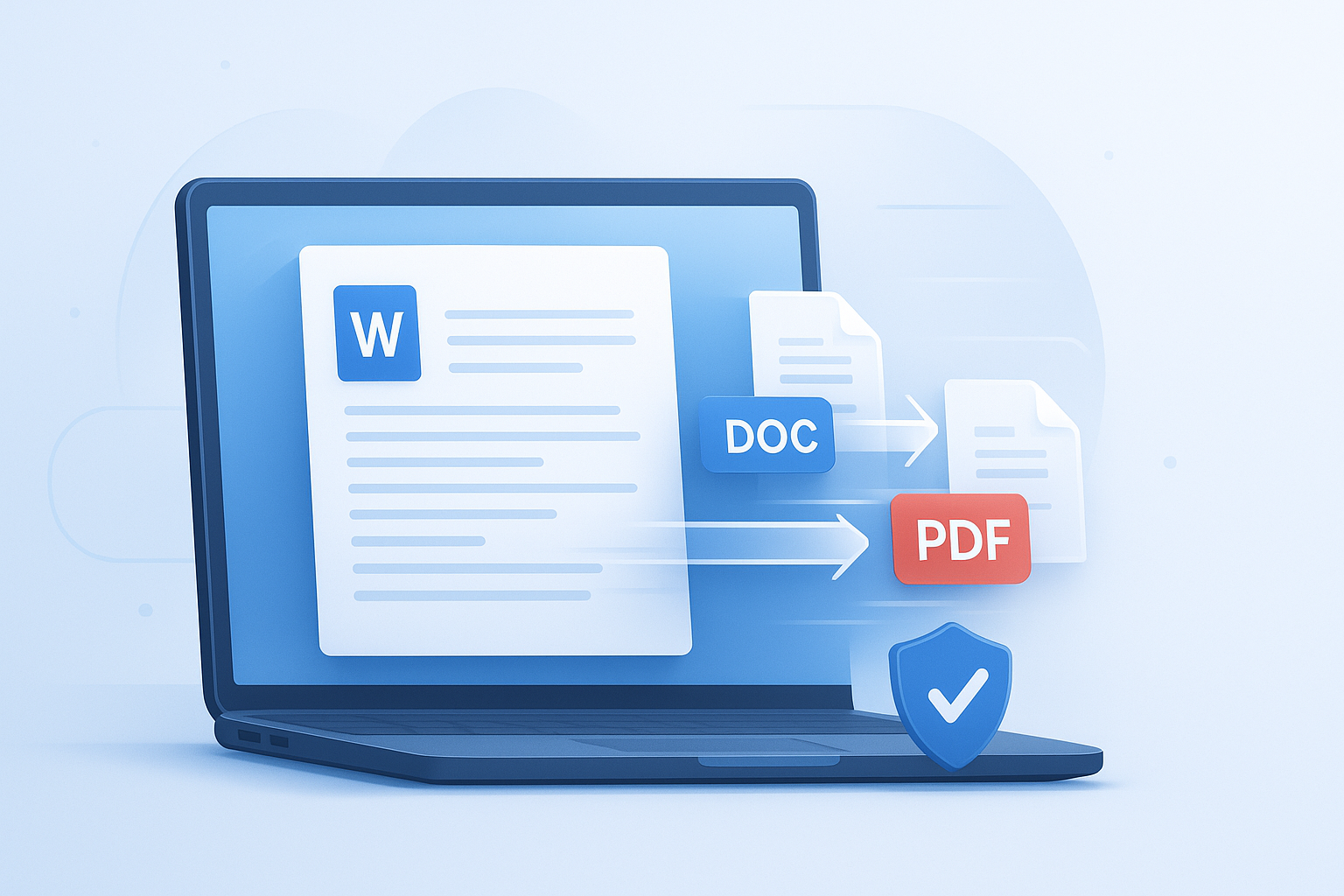
Suggested Image: Modern illustration of a DOCX file transforming into a PDF on a laptop screen
What is a Word to PDF converter?
A Word to PDF converter is a tool that changes a Microsoft Word document, usually in DOC or DOCX format, into a PDF file. The goal is to preserve the document’s appearance so it opens consistently across phones, tablets, laptops, and printers.
PDF stands for Portable Document Format. Adobe explains that the format was designed so files can be viewed and shared reliably across different systems through its official PDF format overview. That reliability is why PDFs are widely used for resumes, contracts, reports, invoices, forms, and academic submissions.
Most converters handle basic elements automatically, including:
- Text formatting
- Headings and paragraph spacing
- Images and tables
- Page orientation
- Embedded links
- Basic document metadata
If you often work with digital files, it also helps to understand related formats. For example, if a document includes visuals that need shrinking before sharing, an Image Compressor can reduce image size before or after conversion.
Why convert Word documents to PDF instead of sharing the original file?
The short answer is consistency. A Word file may look perfect on your computer and completely different on someone else’s. A PDF reduces that risk by locking the layout more tightly than an editable document format.
Here’s why people usually choose PDF over Word:
- Formatting stays more stable: Fonts, margins, and page breaks are less likely to shift.
- Better for sharing: PDF opens on nearly any device without needing Word installed.
- More professional presentation: Useful for resumes, proposals, and official submissions.
- Harder to edit accidentally: Good for final versions of documents.
- More print-friendly: Layout stays predictable when printed.
Microsoft’s own support materials show that saving to PDF is a standard export option in Word, which is one reason the format is so widely adopted for finished documents. You can review the basics in Microsoft Support.
| Format | Best For | Main Limitation |
|---|---|---|
| Word (.docx) | Editing, collaboration, drafting | Layout may change across devices |
| PDF (.pdf) | Sharing, printing, final versions | Less convenient to edit |
How does a word to pdf converter work?
A word to pdf converter reads the content and layout structure inside a Word document, then rebuilds that information in PDF format. The converter tries to maintain visual accuracy while changing the underlying file type.
In simple terms, the tool processes:
- The text and styling in the document
- Page size, margins, and section breaks
- Images, charts, and tables
- Fonts and spacing rules
- Links and some document properties
Good converters do more than change the extension. They render the document so that line breaks, image placement, and pagination remain close to the original. This matters most for files with complex formatting like resumes, brochures, cover letters, and tables.
If you regularly handle structured files and web content, tools like a XML Formatter can also help when working with document-related data in technical workflows.
How to convert Word to PDF step by step
For most beginners, the easiest method is to upload the Word file to an online converter, let the tool process it, then download the finished PDF. The full task usually takes less than a minute for standard documents.
- Open your preferred Word to PDF converter.
- Select or drag in your DOC or DOCX file.
- Wait while the file uploads and converts.
- Download the new PDF.
- Open the PDF and review fonts, spacing, page breaks, and images.
- Rename the file clearly before sending or storing it.
Here’s what experienced professionals do differently: they always review the converted PDF before sending it. Even a good converter can produce small layout changes if the original file uses unusual fonts, text boxes, or overlapping graphics.
Suggested Screenshot: Upload screen of a Word to PDF conversion tool with drag-and-drop area
Quick checklist before you convert
- Save the latest version of your Word file
- Use standard fonts when possible
- Make sure images are fully loaded and not linked from missing sources
- Delete blank pages you don’t need
- Check headers, footers, and page numbers
- Review comments or tracked changes before exporting
If your document contains visual assets that seem too large, use an JPG to PNG Converter when a cleaner image format is needed for logos, screenshots, or graphics before final export.
What types of files can usually be converted?
Most tools support modern Word formats such as DOCX and older DOC files. Some converters also handle rich text formats and related office file types, but support varies by platform.
The most common supported inputs are:
- DOCX
- DOC
- RTF
- Sometimes ODT or text files
If you’re not sure about the file extension, Microsoft offers guidance on Office file formats in its documentation. You can also check whether the document was created in Word, Google Docs export, LibreOffice, or another editor before converting.
When you work with multiple file types, format compatibility matters. A document built from scanned images may need cleanup first. In that case, a related utility like an PNG to JPG Converter can help optimize image-heavy pages for smaller output sizes.
How to keep formatting intact during conversion
This is where many people struggle. The converter may be fine, but the original Word file itself often causes the problem. Complex layouts, missing fonts, and layered objects are common reasons a PDF output looks slightly off.
To improve formatting accuracy, follow these best practices:
- Use common fonts: Arial, Calibri, Times New Roman, and similar fonts are safer.
- Avoid excessive text boxes: They can shift during conversion.
- Anchor images properly: Floating objects may move unexpectedly.
- Check page breaks manually: Don’t rely only on extra blank lines.
- Accept or remove tracked changes: Hidden edits can affect the final file.
- Keep tables simple: Very nested or merged cells may render differently.
Also pay attention to the source of the document. Files copied from the web or pasted from multiple apps often contain messy formatting under the surface. If you’re preparing content that also needs to perform well online, a tool like the Meta Tag Generator can help when publishing the same material to a website after your PDF version is finished.
| Formatting Issue | Likely Cause | What to Do |
|---|---|---|
| Font looks different | Unsupported or missing font | Use a standard font and reconvert |
| Image moved | Floating image alignment | Set image placement more firmly in Word |
| Extra blank page | Manual line breaks or section breaks | Review hidden formatting marks |
| Table breaks across pages badly | Complex table structure | Simplify rows, spacing, and column widths |
Is it safe to use an online Word to PDF converter?
It can be safe, but the answer depends on one thing: the sensitivity of your document. A school worksheet and a signed legal agreement do not carry the same privacy risk. Always judge the file before uploading it anywhere.
For example, documents containing any of the following deserve extra caution:
- Passports or ID scans
- Bank statements
- Employment contracts
- Medical records
- Tax documents
- Passwords or account details
When evaluating safety, check whether the tool clearly explains:
- How long files are stored
- Whether uploads use encrypted connections
- When files are deleted
- Whether files are shared with third parties
- How users can remove uploaded files
The Federal Trade Commission offers general guidance on protecting personal information online, and the OWASP project is a reliable source for understanding common web security risks.
If the document includes confidential client, business, financial, or legal data, an offline conversion method is usually the safer choice.
Online converter vs built-in Word export vs print to PDF
All three methods can create a PDF, but they are not equally useful in every situation. The best option depends on what matters most to you: speed, formatting accuracy, privacy, or convenience.
| Method | Best For | Pros | Cons |
|---|---|---|---|
| Online converter | Fast access from any device | Quick, simple, no software setup | May raise privacy concerns |
| Save as PDF in Word | Reliable output from original app | Often preserves layout well | Requires Word or compatible software |
| Print to PDF | Basic document flattening | Available on many devices | May lose links, tags, or structure |
Here’s the practical rule. If privacy matters most, export directly from Word or another trusted desktop app. If convenience matters most and the document is not sensitive, an online word to pdf converter is often the fastest choice.
For people who also publish documents on the web, a clean PDF title and filename can support better organization and discoverability. If you’re researching page structure and website visibility, the Robots.txt Generator is a helpful companion tool for technical site management.
Common problems after conversion and how to fix them
Most conversion issues fall into a few predictable categories. The good news is that they’re usually fixable by editing the original Word file rather than starting over from scratch.
1. The PDF file is too large
This usually happens because of high-resolution images. Compress images before inserting them, or resize them inside the document. If you need to simplify visuals, a WEBP to PNG Converter may help when preparing images for cross-platform use.
2. Fonts changed or text shifted
Use standard fonts and avoid downloading decorative typefaces unless you know they embed correctly. Review line spacing, headers, and bullet lists after conversion.
3. Links don’t work
Some methods preserve hyperlinks better than others. Exporting directly from Word is often more reliable than printing to PDF when clickable links matter.
4. Images look blurry
The source image was likely low quality, or it was compressed too aggressively. Replace it with a sharper file before reconverting.
5. The PDF includes comments or markup
Turn off tracked changes, resolve comments, and inspect the document before converting.
Suggested Infographic: Common Word to PDF problems and quick fixes
Best practices for beginners using a word to pdf converter
If you want fewer surprises, start with a clean document. Most conversion problems are preventable when the file is prepared properly before upload or export.
- Use one consistent font family
- Keep heading styles uniform
- Insert page breaks instead of pressing Enter repeatedly
- Name your file clearly, such as
resume-jane-doe-2026.pdf - Double-check contact details in resumes and forms
- Preview the final PDF on both desktop and mobile when possible
- Store an editable Word copy separately from the PDF version
This small detail changes everything: always treat the PDF as the final delivery version, not as your working draft. Keep the Word document for edits. Send the PDF when you want the document to look finished and consistent.
If your workflow includes text cleanup, code snippets, or web-ready content, the JSON Formatter can be useful for related technical documentation tasks.
Real-world examples of when PDF is the better choice
Some files should almost always be shared as PDFs. The reason is simple. Readers need a stable, professional version that won’t break when opened on different systems.
- Resumes: Keeps spacing, bullet points, and alignment consistent for recruiters.
- Contracts: Reduces accidental edits and preserves page structure.
- Reports: Maintains charts, tables, and headings for review.
- School assignments: Helps ensure teachers see the same formatting you intended.
- Invoices and receipts: Looks cleaner and prints more reliably.
- Printable forms: Gives a more fixed layout for signatures or records.
For accessibility and document quality, it’s worth reviewing high-level PDF guidance from the W3C Web Accessibility Initiative, especially if you create files for public use or broad distribution.
What to check before sending your converted PDF
Now comes the important part. Conversion is only half the job. A quick review can prevent embarrassing errors, missed job opportunities, or confusing client communication.
- Open the PDF on your device
- Review the first and last pages carefully
- Check page numbers, footers, and headers
- Test hyperlinks if the file includes them
- Zoom in on images and logos
- Confirm names, dates, totals, and contact details
- Make sure no comments or revision marks remain
- Verify the filename is clear and professional
If your document includes calculations, budgets, or estimates, accuracy matters just as much as formatting. That’s where related utility tools on FreeToolr can support the next step in your workflow, especially when preparing polished business or academic documents.
Frequently asked questions
Can I convert Word to PDF without installing software?
Yes. Many online tools let you upload a DOC or DOCX file and download the converted PDF in your browser. This is the easiest option for casual use or when you’re on a shared device. Just be careful with sensitive files. For private or regulated documents, using Word’s built-in export feature or another offline method is usually the safer choice.
Will a Word to PDF converter keep my formatting exactly the same?
Usually it keeps most formatting intact, but not always perfectly. Results depend on the original file. Standard fonts, simple tables, and clean spacing convert well. Complex elements like floating images, custom fonts, text boxes, and unusual margins are more likely to shift. Always open the final PDF and compare it with the original before sending it out.
Is PDF better than Word for resumes?
In most cases, yes. A PDF is often better for resumes because it keeps your layout, typography, and spacing more consistent across devices. Recruiters may open files on different systems, and Word documents can display differently depending on installed fonts and software versions. Keep a Word version for edits, but submit a PDF when you want a polished final version.
Can I edit a PDF after converting it from Word?
Yes, but editing a PDF is often less convenient than editing the original Word file. Small text changes may require PDF software, and layout adjustments can be harder. That’s why it’s best to keep your DOCX file saved separately. Make updates in Word first, then reconvert to PDF so your formatting stays cleaner and easier to manage.
Why is my converted PDF so large?
Large PDFs are usually caused by oversized images, high-resolution graphics, or scanned pages inserted into the Word document. Before converting, resize or compress images and remove anything unnecessary. If you’re including screenshots or product photos, optimizing those files first can make a big difference. A smaller PDF is easier to email, upload, and store.
Are online Word to PDF converters free?
Many are free for standard personal use, especially for basic one-file conversions. Some tools limit file size, daily conversions, or advanced options such as password protection and batch processing. If you only convert occasionally, a free tool is often enough. If you work with many files or sensitive documents, a trusted desktop option may be more practical.
Does converting Word to PDF remove tracked changes and comments?
Not automatically in every case. If tracked changes, comments, or markup are still visible in the Word file, they may appear in the output depending on the export settings and the converter used. Before converting, accept or reject changes, delete comments, and preview the document in final form. This helps prevent accidental sharing of internal notes.
What is the safest way to convert confidential Word documents?
The safest method is usually local conversion using Microsoft Word or another trusted offline application on your device. That way, the file doesn’t need to be uploaded to a third-party server. This is especially important for contracts, medical files, financial statements, and identity documents. If you must use an online tool, review its privacy and deletion policy carefully first.
Conclusion
A good word to pdf converter makes document sharing easier, faster, and more reliable. For beginners, the key is not just converting the file, but preparing the original document well, choosing the right method, and checking the final PDF before sending it.
If the file is simple and non-sensitive, an online tool is often the quickest route. If privacy matters more, export directly from Word on your device. Either way, focus on stable formatting, smaller file sizes, and a clean final review.
As a next step, you may also find these FreeToolr tools useful in related workflows: Image Compressor, Meta Tag Generator, JSON Formatter, and Robots.txt Generator. They can help with file optimization, publishing, and technical cleanup after your PDF is ready.



