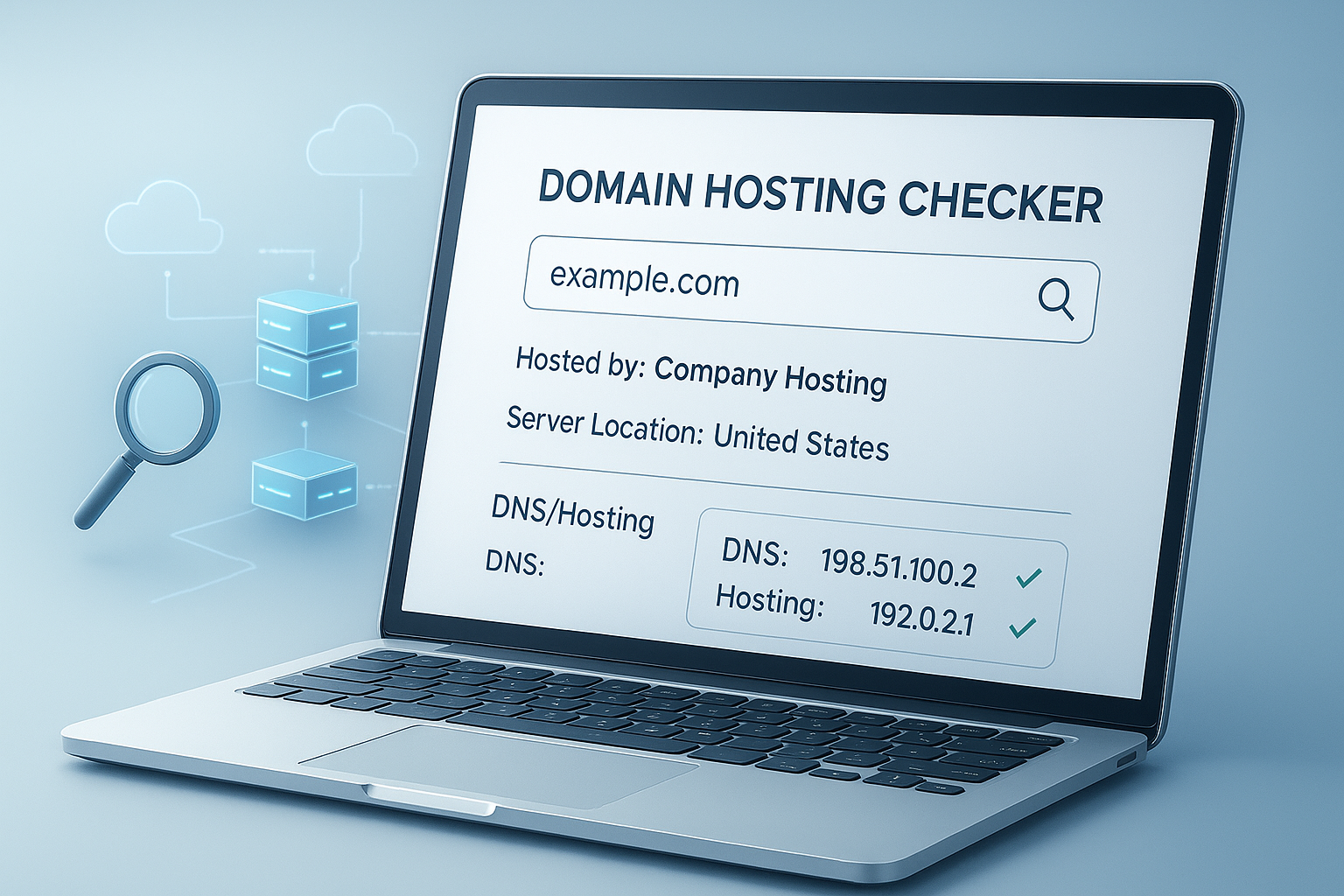
Ever needed to know where a website is hosted, but had no idea where to start? That’s exactly what a domain hosting checker is for. It helps you identify the hosting provider behind a site, along with useful technical details like DNS records, IP information, and sometimes the nameservers in use.
This matters more than most beginners realize. Maybe you’re moving a website, troubleshooting email or DNS issues, researching a competitor’s setup, or trying to understand your own domain better. A hosting lookup can save time and point you in the right direction fast.
In this guide, you’ll learn what a domain hosting checker does, what information it can reveal, where its limits are, and how to use the results wisely. If you’re new to domains and hosting, don’t worry. We’ll keep it simple and practical.
Suggested Image: Technology concept showing domain, DNS, server, and hosting connections
What is a domain hosting checker?
A domain hosting checker is a tool that helps you find which company or infrastructure is serving a website or managing parts of its online setup. It usually works by looking up public records connected to a domain name, such as DNS, IP addresses, and nameserver data.
In plain English, it helps answer questions like:
- Who hosts this website?
- Which nameservers does it use?
- What IP address is connected to the domain?
- Is the site behind a CDN or proxy like Cloudflare?
- Which provider may be handling email or DNS?
These checks rely on public internet data standards. If you want to understand how domain names connect to websites, the ICANN domain ecosystem overview is a useful starting point.
What information can a domain hosting checker reveal?
A good domain hosting checker can uncover several layers of technical information. Not every tool shows the same data, and not every website exposes the same details, but these are the most common results.
1. Web hosting provider
This is the answer most people want. The tool may identify the company providing the server or infrastructure hosting the website. Sometimes this is obvious. Other times, the result may show a cloud platform, CDN, or proxy rather than the final hosting company.
2. IP address
Most websites point to one or more IP addresses. A checker can often reveal the public IP currently serving the domain. That can help when diagnosing website accessibility, DNS propagation, or server migration issues.
3. Nameservers
Nameservers tell the internet where to look for the domain’s DNS settings. Seeing nameservers can help you identify whether the domain uses a registrar DNS service, a hosting company, or a third-party provider.
If you’re also doing broader website research, a simple domain hosting checker is often the fastest place to begin before digging deeper.
4. DNS records
DNS records can reveal how a domain is configured. Common examples include:
- A record: connects the domain to an IPv4 address
- AAAA record: connects the domain to an IPv6 address
- MX record: shows mail server routing
- CNAME record: points one domain or subdomain to another hostname
- TXT record: often used for verification, SPF, DKIM, and security settings
For technical record definitions, MDN’s explanation of domain names and web mechanics is helpful and beginner-friendly.
5. CDN or reverse proxy use
Some websites use services like Cloudflare, Akamai, or Fastly. In these cases, the checker may display the CDN or proxy network instead of the original hosting server. That’s normal, and it’s one reason domain hosting checks are useful but not perfect.
Why someone might need a domain hosting checker
People use hosting lookup tools for many different reasons. The same domain hosting checker can help a business owner, developer, marketer, or complete beginner solve very different problems.
| Use case | Why it helps |
|---|---|
| Website migration | Helps identify current hosting and DNS setup before moving a site |
| Troubleshooting downtime | Shows IP, nameservers, and provider clues when a site stops loading |
| Email delivery issues | MX and TXT records can reveal configuration mistakes |
| Competitor research | Gives a general view of infrastructure choices without invasive methods |
| Agency onboarding | Speeds up discovery when clients don’t know their hosting details |
| Learning and training | Helps beginners understand how domains, DNS, and hosting fit together |
When documenting technical findings for a client or team, many people also pair their notes with simpler reporting tools like a word counter to keep summaries concise and readable.
How a domain hosting checker works
Here’s the important part: a domain hosting checker does not “break into” anything. It reads public signals that domains expose so browsers, email servers, and other internet systems can function properly.
Most tools work through a combination of these methods:
- They query DNS records for the domain.
- They identify the IP address tied to the domain.
- They compare that IP against known hosting company networks.
- They inspect nameservers for provider patterns.
- They may analyze HTTP headers or related server responses.
That’s why results can vary from one tool to another. Some tools rely heavily on DNS. Others are better at mapping IP ranges to cloud vendors or spotting CDN layers.
If you want the technical standards behind DNS lookups, the RFC Editor maintains the foundational internet specifications used across the web.
How to use a domain hosting checker step by step
Using a domain hosting checker is easy, but interpreting the result is where many beginners get stuck. Follow this process and the output will make much more sense.
- Enter the domain name
Use the root domain, such asexample.com. In most cases, you don’t need to includehttps://orwww. - Run the lookup
The tool checks available DNS and network data and returns the visible technical details. - Review the hosting clue first
Look for the company name associated with the IP address, nameservers, or network. - Check nameservers
If the nameservers say Cloudflare, Bluehost, GoDaddy, AWS, or another provider, that often tells you who manages DNS, even if web hosting is elsewhere. - Look at the IP result
If the IP belongs to a cloud provider, the website may be running on infrastructure such as AWS, Google Cloud, or Microsoft Azure. - Review DNS records if needed
MX, TXT, and CNAME records can reveal email services, verification records, and external platform connections. - Compare findings before making assumptions
One result alone can be misleading. Use nameservers, IP, and DNS together.
Suggested Screenshot: Example of a hosting lookup result showing IP address, nameservers, and DNS records
Domain registrar vs DNS provider vs web host: what’s the difference?
This small detail changes everything. Many beginners assume the company where a domain was purchased is also the hosting company. Sometimes that’s true. Very often, it isn’t.
| Service type | What it does | Example |
|---|---|---|
| Domain registrar | Lets you register and renew a domain name | Namecheap, GoDaddy |
| DNS provider | Hosts the DNS records that direct domain traffic | Cloudflare, Route 53 |
| Web host | Stores website files and serves the site to visitors | SiteGround, Hostinger, DigitalOcean |
| Email provider | Handles business email for the domain | Google Workspace, Microsoft 365 |
A domain hosting checker may show one, two, or all of these roles indirectly. That’s why context matters. If you’re auditing website ownership details alongside page setup, a quick HTML to Markdown tool can also help convert technical notes into clean documentation.
When the results are confusing
Here’s the problem. Modern websites often use multiple services at once. That can make hosting checks look inconsistent even when the site is configured correctly.
Common reasons for confusing results include:
- The website is behind Cloudflare or another reverse proxy
- The domain uses one company for DNS and another for hosting
- The website runs on a cloud platform instead of a traditional shared host
- The hosting provider resells infrastructure from a larger network
- The site uses separate services for email, CDN, and application hosting
For example, you might see:
- Nameservers from Cloudflare
- IP range associated with AWS
- MX records pointing to Google Workspace
That doesn’t mean the tool is wrong. It means the domain is using multiple providers for different jobs.
Practical examples of using a domain hosting checker
Let’s break this down with real-world scenarios. These examples show how beginners and professionals actually use hosting lookup results to solve problems.
Example 1: A client doesn’t know where their site is hosted
An agency gets login details for WordPress but no hosting information. The domain hosting checker shows nameservers tied to a known hosting company and an IP linked to the same network. That gives the team a strong starting point for finding the hosting account.
Example 2: A site migration is planned
Before moving a site, the technical team checks nameservers, A records, MX records, and provider clues. This helps avoid breaking email or pointing the domain to the wrong server during the transfer.
If you’re tracking migration tasks, structured checklists written with help from a text summarizer can make handoffs easier for non-technical stakeholders.
Example 3: Email stops working after a DNS change
The website still loads, but company email fails. A lookup reveals that the A record points correctly to the website host, but MX records were removed during a DNS update. The fix is no longer guesswork.
Example 4: You’re researching a website’s setup
A marketer wants to understand the technical stack behind a high-performing site. The checker reveals a CDN, cloud IP, and outside email provider. That won’t show every tool in use, but it gives helpful infrastructure context.
What a domain hosting checker cannot tell you
A domain hosting checker is useful, but it has limits. Knowing those limits prevents bad decisions and false confidence.
It usually cannot reliably tell you:
- The exact hosting plan the site uses
- The account owner’s identity if privacy protections are in place
- The CMS or plugins with full certainty
- The private origin server if a strong proxy or CDN hides it
- Why a website is slow without additional performance testing
- The exact registrar account credentials or internal setup
For site performance analysis, infrastructure data is only one piece of the puzzle. Tools and documentation from Google PageSpeed Insights and web performance resources are better suited for diagnosing speed issues.
Best practices when checking domain hosting details
Experienced professionals don’t stop at the first result. They compare signals, document findings, and verify changes before taking action.
- Check more than one clue
Match the IP, nameservers, and DNS records together before deciding who hosts the site. - Know the role you’re trying to identify
Ask yourself if you need the registrar, DNS provider, website host, or email provider. They may all be different. - Be careful during migrations
Changing nameservers affects more than the website. Email, subdomains, and verification records may be tied there too. - Document the current setup first
Before making changes, save the current DNS details and visible provider information. - Expect cloud or CDN complexity
Modern setups often hide direct server details by design.
When preparing migration notes, a clean copy of the records can be formatted with a case converter if you need standardized labels for technical documentation.
Common mistakes beginners make
This is where many people struggle. The tool gives useful information, but the wrong interpretation can lead to incorrect changes, downtime, or unnecessary support tickets.
- Assuming the registrar is always the web host
- Thinking Cloudflare is the origin host in every case
- Changing nameservers without backing up DNS records
- Ignoring MX and TXT records during website moves
- Using one tool result as final proof
- Confusing a CDN provider with the actual server environment
Google’s official guidance on crawling and site infrastructure can also help you understand what search engines actually see when a site sits behind modern delivery layers. See the Google Search Central documentation.
How to choose a good domain hosting checker
Not all tools are equally helpful. A good domain hosting checker should be fast, clear, and easy for beginners to understand without hiding important details.
Look for these qualities:
- Simple input and easy-to-read results
- Visible IP address and nameserver data
- Basic DNS record visibility
- Clear provider hints
- No confusing clutter for beginner users
- Useful output for troubleshooting and research
| Feature | Why it matters |
|---|---|
| IP lookup visibility | Helps identify network ownership and troubleshoot routing |
| Nameserver detection | Useful for finding the DNS manager quickly |
| DNS record display | Important during migrations and email troubleshooting |
| Beginner-friendly layout | Makes the data understandable without advanced networking knowledge |
If you’re creating technical guides from your findings, a companion tool like a Markdown to HTML converter can help turn plain notes into a shareable handoff document.
FAQ: domain hosting checker questions beginners ask
Can a domain hosting checker tell me exactly who owns a website?
No. A domain hosting checker usually identifies public infrastructure details, not private ownership information. You may see hosting clues, nameservers, and DNS records, but that does not guarantee you can identify the individual or business behind the site. Privacy protections, proxy services, and cloud platforms often limit what’s publicly visible.
Is a domain hosting checker the same as a WHOIS lookup?
Not exactly. A WHOIS lookup focuses on domain registration data, while a domain hosting checker looks at where the website appears to be hosted and how its DNS is configured. There’s some overlap, but they serve different purposes. WHOIS is about registration. Hosting checks are about infrastructure and delivery.
Why does the result show Cloudflare instead of the real host?
Because many websites use Cloudflare as a reverse proxy or CDN. In that setup, the public-facing IP often belongs to Cloudflare rather than the origin server. That means the checker may correctly show Cloudflare even though the website’s actual files are hosted elsewhere. This is common and not a sign of an error.
Can I use a hosting checker before migrating my website?
Yes, and you should. It helps you record your existing setup before making changes. Look at nameservers, A records, MX records, and any TXT records tied to email or verification. This reduces the risk of accidental downtime, especially if your website, DNS, and email are handled by different providers.
Are domain hosting checker tools safe to use?
In general, yes. They query public domain and DNS information that is already exposed for the internet to function. You are not granting account access just by checking a domain. That said, use trusted tools, avoid entering sensitive credentials anywhere, and don’t assume a public tool can verify private account ownership.
Can a domain hosting checker help fix website problems?
It can help narrow down the cause, but it won’t fix the problem by itself. For example, it may reveal a wrong IP address, missing MX record, or changed nameserver. That gives you a clearer path to resolution. The actual fix still happens inside your hosting, DNS, or registrar account.
Does every website have only one hosting provider?
No. A site may use one company for domain registration, another for DNS, a cloud provider for hosting, a CDN for delivery, and a separate email platform. That’s why hosting lookup results can look mixed. Modern websites often rely on several providers at the same time.
What should I do after I find the host?
The next step depends on your goal. If you’re troubleshooting, compare the host with your DNS records and current settings. If you’re preparing a migration, document everything before changing anything. If you’re learning, review how the domain, DNS, and IP work together. For data cleanup and notes, a tool like the remove duplicate lines tool can help organize copied DNS outputs.
Final thoughts on using a domain hosting checker
A domain hosting checker is one of the simplest ways to understand how a website is connected behind the scenes. It helps you identify likely hosting providers, review nameservers, inspect DNS records, and make smarter decisions during troubleshooting, audits, and migrations.
The key is to treat the result as a starting point, not the whole story. Compare the IP, nameservers, and DNS records together. Watch for CDNs and cloud platforms. And always document the current setup before making changes.
If you want to keep exploring, useful next steps include checking a JSON formatter for API response cleanup, using a Base64 encoder/decoder for technical data handling, reviewing text with a paraphrasing tool for cleaner client communication, or starting directly with a domain hosting checker for your next website lookup.