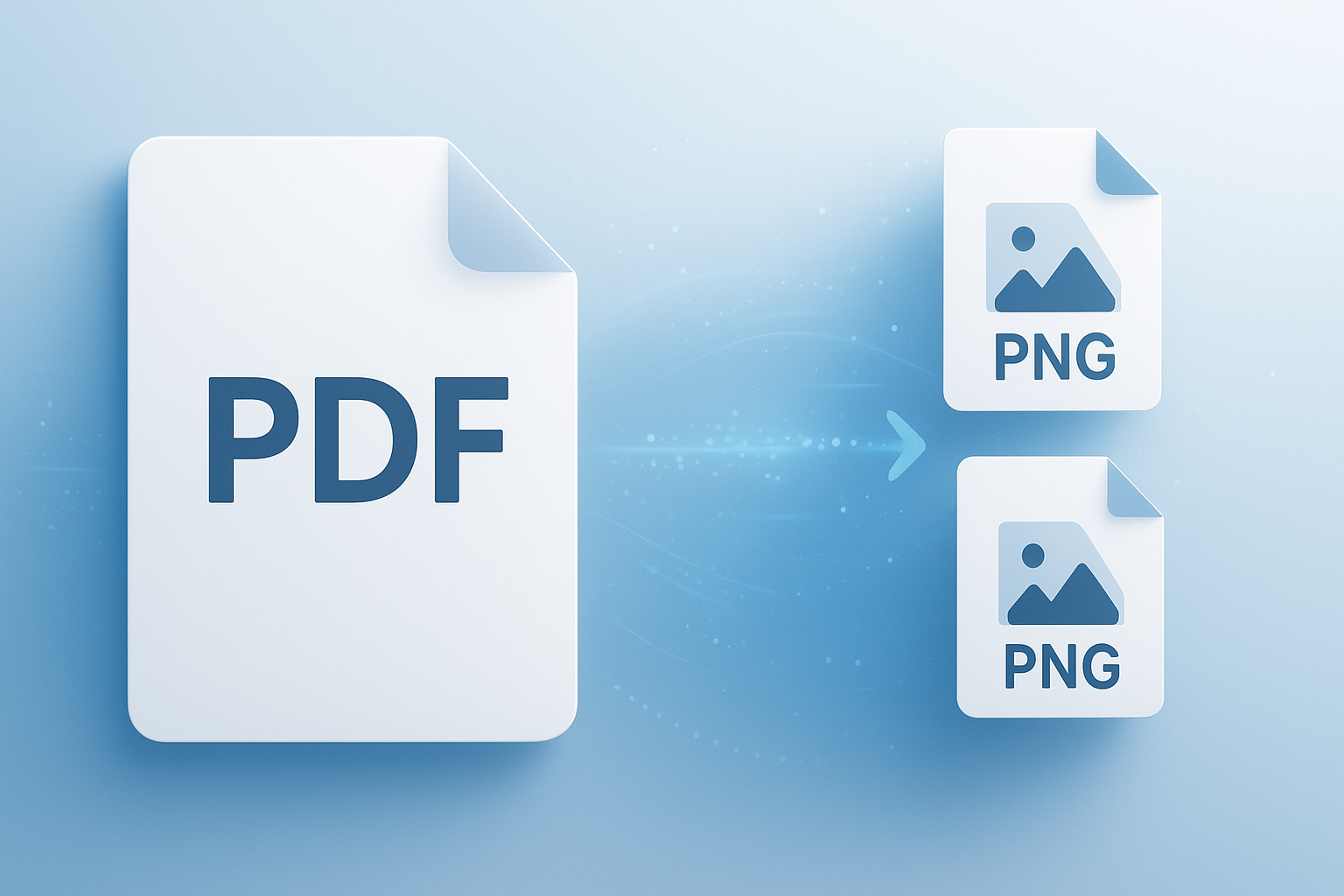
Need a quick way to turn a document into clear, shareable images? A good pdf to png converter solves that in minutes. It takes each PDF page and saves it as a PNG file, which is ideal when you want to post a page online, add it to a slide deck, mark it up, or send it to someone who doesn’t need the original PDF.
Here’s the problem. Many beginners convert a PDF without thinking about image quality, file size, or transparency support. The result is often blurry text, oversized files, or images that don’t look right on the web.
This guide explains how a pdf to png converter works, when PNG is the right choice, how to get clean results, and what mistakes to avoid. If you also work with other file formats, tools like an Image Compressor can help after conversion by reducing file size without ruining readability.
Suggested Image: Technology concept showing a PDF document splitting into multiple PNG image files on a desktop screen
What is a PDF to PNG converter?
A PDF to PNG converter is a tool that changes one PDF page or multiple PDF pages into PNG image files. Each page becomes its own image, making the content easier to use in websites, presentations, chat apps, design projects, and documentation.
PNG stands for Portable Network Graphics. It is a widely supported image format known for sharp edges, lossless compression, and good readability for text-heavy visuals. The W3C PNG specification explains why PNG is especially useful when image clarity matters.
- PDF is best for preserving document structure and printing
- PNG is best for sharing pages as images
- Page-by-page export makes screenshots unnecessary
- Lossless output helps keep text and lines sharp
If you regularly need to switch the other way, a JPG to PDF Converter can be useful when you want to rebuild a document from image files.
Why convert PDF pages to PNG instead of using screenshots?
Converting PDF pages to PNG usually gives cleaner, more consistent results than taking screenshots. Screenshots depend on screen size, zoom level, and display scaling. A proper conversion uses the document data directly, which often produces sharper output.
Here’s where a converter helps most:
- Sharing a single page on social media or messaging apps
- Uploading visuals to a CMS that doesn’t handle PDF previews well
- Adding a document page into a presentation or report
- Sending a non-editable image version for quick review
- Using a page in design mockups or product documentation
For websites, image dimensions also matter. If you need to adjust exported images for layout or responsive use, a free image resizer can help prepare them properly.
When is PNG the right format?
PNG is the right choice when clarity is more important than the smallest possible file size. It works especially well for PDFs that contain text, charts, diagrams, UI screens, forms, and line-based graphics.
Let’s break this down. PNG is usually a better option than JPEG when:
- You need crisp text
- You want to preserve sharp lines and icons
- The page includes transparent areas
- You plan to edit or annotate the image later
- You want to avoid compression artifacts
JPEG may produce smaller files for photo-heavy pages, but it can introduce blur around letters and interfaces. If you are deciding between different image outputs, MDN’s image format guide gives a solid technical overview.
| Format | Best For | Main Strength | Main Limitation |
|---|---|---|---|
| PNG | Text, diagrams, UI, forms | Sharp, lossless quality | Larger file sizes |
| JPEG | Photos and scanned images | Smaller file sizes | Compression can reduce text clarity |
| Printing and document sharing | Keeps original document structure | Not always convenient for image-based use |
How to use a PDF to PNG converter
Most tools follow the same basic process: upload the PDF, convert each page, then download the PNG files. The steps are simple, but one small detail changes everything: output quality settings.
- Upload your PDF file
- Choose whether to convert all pages or selected pages only
- Set image quality or resolution if the tool offers that option
- Start the conversion
- Download individual PNG pages or a ZIP archive
- Review text sharpness before sharing or publishing
If your document contains image-based pages from scanners or cameras, cleanup may help afterward. For example, a crop image tool can remove extra margins and improve presentation.
What resolution should you choose?
For web use, moderate resolution is usually enough. For printing, zooming, or presentations on large screens, you may need a higher setting. The goal is to keep text readable without creating unnecessarily heavy files.
- Low resolution: quick previews and simple sharing
- Medium resolution: websites, email, slide decks
- High resolution: detailed review, print support, large displays
If you later need to understand pixel dimensions, file scaling, or display sizing, a Pixels to Inches Converter can help you work out the right output for screens and print layouts.
Best use cases for PDF to PNG conversion
A pdf to png converter is most useful when you need visual access to document content without asking someone to open a PDF reader. It turns formal documents into flexible image assets.
Common real-world examples include:
- Teachers: sharing worksheet pages in chat groups or LMS platforms
- Marketers: posting brochure pages as image carousels
- Designers: using PDF mockup pages in presentations
- Developers: turning UI specs into page images for reference
- Students: extracting lecture slides or notes for quick review
- Support teams: sharing step-by-step guides as images in tickets
This is also helpful for teams documenting interface work. If your workflow includes markup, colors, or front-end visuals, resources from Google Developers and MDN Web Docs are excellent references for image and web-display best practices.
Suggested Screenshot: Example of a multi-page PDF converted into separate PNG thumbnails
How to keep PNG output sharp and readable
The difference between a useful PNG and a frustrating one often comes down to source quality and conversion settings. If the original PDF is clean, text-based, and properly exported, the PNG result is usually much better.
Here’s what experienced professionals do differently:
- Start with the original digital PDF when possible, not a scanned copy
- Use higher resolution for pages with small text
- Convert only the pages you need to limit file clutter
- Check margins, orientation, and cropping after export
- Compress the final PNGs only after reviewing clarity
When working with scanned documents, text can already be fuzzy before conversion. In those cases, improving the image after export may help more than repeating the conversion. If file size becomes a problem, you can reduce it later with an Image to Base64 tool for embedding use cases or compression tools for normal uploads.
Common problems and how to fix them
Most conversion issues are easy to solve once you know the cause. Blurry text, giant file sizes, and wrong page orientation are the most common complaints beginners run into.
Blurry text
This usually happens when the output resolution is too low or the source PDF is already poor quality. Try a higher export setting and start from the original file if possible.
Files are too large
PNG is lossless, so large dimensions can create heavy files. Resize the images, convert only selected pages, or compress them after export.
Background looks wrong
Some pages may include transparent or layered elements. A different export setting or flattening the original PDF can help.
Pages are rotated incorrectly
Check the PDF orientation before conversion. If the source page metadata is unusual, manual rotation afterward may be needed.
The converter struggles with scanned documents
Scanned PDFs are image-based already, so the tool is not “extracting” clean vectors or live text. It is converting an image within a PDF into another image format. Quality may not improve much.
If you’re dealing with web uploads or performance issues after export, reviewing web performance guidance from web.dev can help you make smarter decisions about image size and delivery.
PDF to PNG vs PDF to JPG: which should beginners choose?
If your PDF contains text, interface elements, tables, or diagrams, PNG is usually the safer choice. If it contains mostly photographs and you care more about smaller files, JPG may be better.
| Scenario | Choose PNG | Choose JPG |
|---|---|---|
| Text-heavy report | Yes | No |
| Brochure with many photos | Maybe | Usually yes |
| UI screens and wireframes | Yes | Not ideal |
| Fast-loading gallery previews | Sometimes | Often yes |
If you need a different output later, a PNG to JPG Converter can help you create lighter versions for websites or email attachments.
Is it safe to use an online pdf to png converter?
It can be safe, but only if you pay attention to the type of file you’re uploading and the provider’s handling of data. Sensitive PDFs should never be treated casually.
Before using any online converter, check:
- Whether the file contains personal, financial, legal, or medical information
- Whether the service explains deletion practices clearly
- Whether the site uses HTTPS
- Whether you really need cloud conversion for that file
For privacy and security basics, the FTC’s online privacy guidance is worth reading. If the document is confidential, local offline tools may be a better fit than a browser-based converter.
Tips for better results in 2026
In 2026, people expect image content to work across phones, desktops, collaboration tools, and AI-powered search experiences. That means your converted PNG files should be clean, readable, and reasonably lightweight.
- Use PNG for charts, text pages, and instructional visuals
- Resize for the exact platform instead of exporting huge files by default
- Name files clearly, especially for multi-page documents
- Compress only after checking readability
- Keep an archive copy of the original PDF
- Use selected page export to avoid unnecessary downloads
If your workflow includes text extraction or metadata cleanup, related utilities such as a Word Counter can help with content prep, while formatting tools can support publishing and documentation tasks beyond basic conversion.
Frequently asked questions
1. Does a pdf to png converter reduce quality?
Not always. Quality depends on the source PDF and the export settings. If the original PDF is a digitally created document with clean text and vector graphics, PNG output can look very sharp. Problems usually happen when the PDF is scanned, blurry to begin with, or exported at low resolution. Choosing the right quality setting matters more than most beginners expect.
2. Can I convert just one page instead of the entire PDF?
Yes, many tools let you select specific pages. This is useful when you only need a cover page, a chart, a certificate, or one section of a longer document. Converting only the required pages saves time, reduces storage use, and makes your downloads easier to manage. It also helps avoid creating dozens of images you’ll never use.
3. Is PNG better than JPG for document pages?
For most document pages, yes. PNG is usually better for text, forms, presentations, diagrams, and screenshots because it keeps edges clean and avoids heavy compression artifacts. JPG is often better for photo-heavy pages when smaller file sizes matter more than perfect sharpness. If readability is the priority, PNG is generally the safer option.
4. Why are my converted PNG files so large?
PNG uses lossless compression, which preserves quality but can produce bigger files, especially at high resolutions. Large page dimensions, complex graphics, and multi-page exports all increase size. To fix this, convert only the pages you need, resize the images, or compress them after export. The key is to balance clarity with practical file size for your intended use.
5. Can I use converted PNG pages on a website?
Yes, and that is one of the most common reasons people use a pdf to png converter. PNG pages work well for previews, documentation, guides, and downloadable visual references. Just remember to optimize them first. Large images can slow page loading, especially on mobile devices. Use sensible dimensions, clear file names, and compression when needed.
6. Are online converters safe for confidential documents?
They may be safe for basic public files, but confidential documents deserve extra caution. If your PDF contains personal records, contracts, internal business data, or health information, it is usually smarter to use an offline tool. Before uploading anything sensitive, review the site’s privacy policy, deletion practices, and connection security. Convenience should not outweigh data protection.
7. What happens to multi-page PDFs during conversion?
Each page is typically exported as a separate PNG image. Some tools let you download them one by one, while others package them into a ZIP file. This page-by-page approach is useful because it makes it easy to share, rename, reorder, or insert individual pages into other projects. It also helps when you only need part of a larger document set.
8. What should I do after converting PDF pages to PNG?
Review the images before using them anywhere important. Check text sharpness, orientation, margins, and file size. Then decide whether you need to resize, crop, compress, or convert them again for a different platform. A clean post-conversion workflow saves time later, especially if the images are going into websites, training materials, sales presentations, or support docs.
Final thoughts on choosing the right PDF to PNG converter
A reliable pdf to png converter makes document pages easier to share, reuse, and publish. For beginners, the biggest priorities are simple controls, readable output, and sensible file sizes. If your pages contain text, charts, forms, or UI elements, PNG is often the best format because it keeps details clear.
The next practical step is simple: convert one short PDF, review the results at normal and zoomed sizes, then optimize the images for where they’ll be used. If you want to continue refining your files, tools like the Image Compressor, free image resizer, crop image tool, and PNG to JPG Converter can help you finish the job cleanly.