Ever opened a PDF report, invoice, or bank statement and realized you needed the numbers inside Excel, not trapped in a fixed document? That’s exactly where a PDF to XLSX converter becomes useful. It saves you from copying rows by hand, fixing broken columns, and wasting time on data cleanup.
The challenge is that not every PDF behaves the same way. Some contain clean digital text. Others are scanned images. Some have simple tables, while others mix charts, notes, and awkward formatting. That small detail changes everything.
In this guide, you’ll learn what a PDF to XLSX converter does, when it works well, where it struggles, and how to get a cleaner Excel file with less manual editing. If you regularly work with PDFs, you may also find file cleanup tools like an Image Compressor useful when documents include large embedded images.
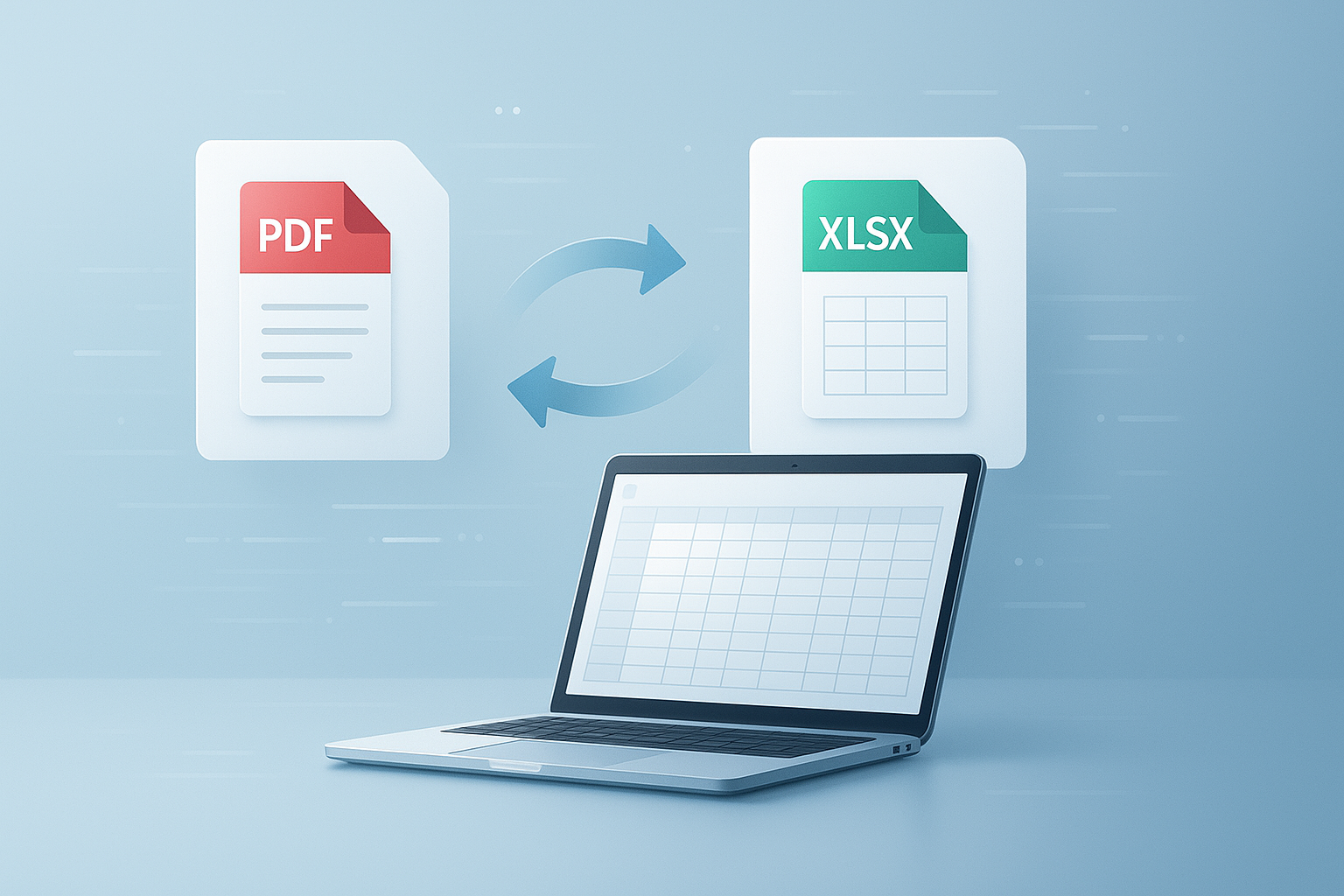
Suggested Image: Technology concept showing a PDF document transforming into an Excel spreadsheet on a laptop screen
What is a PDF to XLSX converter?
A PDF to XLSX converter is a tool that extracts tables, numbers, and text from a PDF file and turns them into an editable Microsoft Excel spreadsheet in .xlsx format. Its main goal is to make static data usable for sorting, formulas, filtering, and analysis.
This matters because PDF files are designed for consistent viewing, not for editing structured data. Microsoft documents the Excel platform and workbook features, while Adobe explains the purpose of the PDF format. They solve different problems. A converter bridges that gap.
- PDF is best for sharing fixed layouts
- XLSX is best for calculations and editable tables
- Conversion helps move from reading data to working with data
For example, if you receive monthly sales summaries as PDFs, converting them into XLSX lets you total quarterly revenue, build charts, and compare trends without retyping every value. If you later need to work with other structured files, a XML to JSON Converter can help with data transformation in a similar workflow.
Why people convert PDF to Excel in the first place
Most people use a PDF to XLSX converter because they need editable data fast. The real value is not the file conversion itself. It’s the time saved after the file becomes usable inside Excel.
Here are common situations where conversion helps:
- Turning invoices into spreadsheet records
- Extracting financial statements for analysis
- Reusing product lists or pricing tables
- Pulling survey results into a sortable format
- Converting bank statements for bookkeeping
- Copying academic or research tables into Excel
Many beginners try to paste data directly from a PDF into a spreadsheet. Here’s the problem. Pasted content often breaks into the wrong columns, merges cells, or loses numerical formatting. A proper converter usually does a better job preserving table structure.
If your workflow involves repeated number checking after conversion, simple utility pages like a Percentage Calculator can help verify totals, growth rates, or discount figures during spreadsheet cleanup.
How a PDF to XLSX converter works
A converter reads the content inside a PDF and tries to recognize which parts belong in spreadsheet rows and columns. If the source file contains actual digital text, conversion is usually faster and more accurate than with scanned files.
Digital PDFs vs scanned PDFs
This is where many people struggle. Not all PDFs contain machine-readable text.
| PDF Type | How It Converts | Typical Accuracy |
|---|---|---|
| Digital PDF | Reads embedded text and table structure | Usually high |
| Scanned PDF | Uses OCR to detect letters and numbers from images | Varies widely |
OCR stands for optical character recognition. It converts text in an image into machine-readable characters. The Microsoft Learn platform includes documentation across Office and data workflows, while OCR quality in practice depends on scan clarity, skew, font quality, and page noise.
What the converter tries to preserve
- Column order
- Row boundaries
- Numbers and decimal points
- Dates
- Basic table spacing
- Separate worksheets in some cases
What it usually does not preserve perfectly:
- Complex merged cells
- Charts and diagrams
- Footnotes tied to table cells
- Color-based meaning
- Multi-layer layouts
When conversion works well and when it does not
A PDF to XLSX converter works best when the PDF has clear tables, simple formatting, and selectable text. It becomes less reliable when the document is image-heavy, poorly scanned, or designed more like a brochure than a data table.
Here’s a simple comparison:
| Works Well For | Often Causes Problems |
|---|---|
| Invoices with neat tables | Scans with shadows or blur |
| Financial statements with fixed columns | Multi-column magazine-style layouts |
| Exported system reports | Tables split across pages |
| Price lists | Handwritten notes or stamps over table cells |
If you deal with dimensions, page layouts, or print scaling before conversion, a mm to px converter can help when translating document sizing into screen-based workflows.
How to convert PDF to XLSX step by step
The easiest way to convert PDF to Excel is to use a dedicated tool, then review the output carefully. Even good conversion results often need a few cleanup steps before the spreadsheet is ready for serious work.
- Choose the PDF file. Start with the cleanest version available. If you have both a scan and the original exported PDF, use the exported file.
- Upload or import the document. Most converters let you drag and drop the file.
- Select XLSX as the output format. This gives you an Excel workbook you can edit.
- Run the conversion. The tool will analyze text, columns, and table boundaries.
- Download the spreadsheet. Open it in Excel or another compatible spreadsheet app.
- Review every sheet. Check column alignment, dates, decimal places, headers, and missing rows.
- Clean and standardize the data. Fix split cells, remove blank rows, and format numbers consistently.
Suggested Screenshot: PDF upload screen followed by converted XLSX preview with highlighted columns
For online file workflows, it also helps to understand browser-based handling and uploads. The MDN Web Docs library is a useful technical reference for how files are handled on the web.
What to check after converting a PDF to Excel
The conversion is only half the job. The important part comes after download: checking whether the extracted spreadsheet is actually reliable enough to use.
Review these areas first:
- Headers: Make sure column names stayed in the right places
- Numbers: Confirm negatives, decimals, and currency symbols were not altered
- Dates: Watch for switched day and month formats
- Blank cells: Some missing values are accidental, not real empty data
- Merged cells: They may create shifted columns
- Multi-page tables: Confirm rows were not duplicated or skipped
A quick quality check can save a lot of trouble later. If you are validating extracted values from reports or business sheets, utility pages like a Average Calculator can help spot obvious data issues when a converted table looks suspicious.
A simple post-conversion review workflow
- Compare the first 10 rows with the original PDF
- Check totals against the source document
- Sort one key column to find broken values
- Filter blanks and accidental duplicates
- Apply correct number and date formatting
- Save a cleaned version separately from the raw export
Common problems with PDF to XLSX conversion
Most conversion errors come from layout complexity, not from the spreadsheet format itself. The better you understand the source PDF, the easier it is to predict what might break.
1. Columns shift out of place
This usually happens when the original PDF has narrow spacing, merged cells, or text that wraps across lines.
2. Numbers turn into text
Excel may import values like 1,250.00 or 03-04-2025 as text strings instead of usable numbers or dates.
3. Multi-line cells split into several rows
Addresses, product descriptions, and notes often create row breaks where they shouldn’t.
4. OCR reads characters incorrectly
Common scan mistakes include:
0becomingO1becomingI8becomingB
5. Tables lose structure across pages
Repeated headers or page footers may get inserted into the middle of your data.
If your files are scans or screenshots before becoming PDFs, image optimization can improve readability. Tools such as a Image to Base64 are more technical in nature, but they show how image-based files differ fundamentally from structured data files.
Best practices for better conversion results
If you want cleaner Excel output, focus on the source file first. A high-quality PDF with clear table structure almost always converts better than a messy scan.
- Use the original digital PDF whenever possible
- Prefer sharp, high-resolution scans for OCR-based files
- Crop unnecessary borders or dark scanner shadows
- Avoid tilted pages
- Split very large files when only a few pages matter
- Check whether the PDF contains selectable text before converting
- Review formulas and totals after export
For official information about document accessibility and machine-readable content, the W3C provides broad standards guidance that helps explain why structured digital documents are easier for software to interpret.
PDF to XLSX vs manual data entry
Beginners often wonder whether conversion is really worth it for smaller files. The answer depends on one thing: how much accuracy checking you still need after conversion.
| Method | Best For | Main Drawback |
|---|---|---|
| PDF to XLSX conversion | Large tables, repeat work, financial data extraction | May require cleanup |
| Manual entry | Very short documents or highly irregular layouts | Slow and error-prone |
| Copy and paste | Quick one-off extraction from simple text PDFs | Often breaks table formatting |
As a rule, once your file includes dozens of rows or recurring monthly reports, conversion usually beats manual typing.
Is it safe to use an online PDF to XLSX converter?
It can be safe, but only if you treat document privacy seriously. Before uploading a file, think about what the PDF contains. Financial records, legal contracts, medical details, and personal identifiers deserve extra caution.
Here are practical safety checks:
- Read the site’s privacy policy
- Look for secure HTTPS connections
- Avoid uploading highly sensitive documents unless you trust the provider
- Check whether files are deleted automatically after processing
- Use local or offline tools when confidentiality matters most
The Federal Trade Commission offers consumer guidance on data privacy and safe online practices. That advice applies here too. If a document contains bank data, payroll records, customer lists, or tax details, caution is not optional.
Who benefits most from using a PDF to XLSX converter?
Almost anyone who works with tabular data can save time with the right converter. The biggest gains usually come from repeated reporting tasks.
- Students: Extracting tables from research material
- Accountants and bookkeepers: Pulling figures from statements and invoices
- Office teams: Reusing vendor lists, schedules, and reports
- Researchers: Moving published data into analysis sheets
- Operations teams: Turning PDF exports into sortable spreadsheets
If you also handle scheduling, duration, or reporting intervals after exporting data, a Time Duration Calculator can be useful for spreadsheet-based planning and timesheet checks.
Practical examples of PDF to XLSX conversion
Let’s break this down with real-world scenarios so the use case feels more concrete.
Example 1: Monthly expense statement
You receive a PDF statement with 150 transactions. After converting to XLSX, you can sort by category, total spending by month, and identify duplicate charges in minutes.
Example 2: Supplier price catalog
A vendor sends a product list as PDF. Converting it to Excel lets you compare item prices, update margins, and merge data into your internal inventory sheet.
Example 3: Research table extraction
An academic paper includes a valuable comparison table. With conversion, you can bring the data into Excel for filtering, charting, and side-by-side analysis.
Example 4: Team performance report
A manager gets PDF summaries from another system. Converting to XLSX makes it easier to calculate averages, detect trends, and prepare presentations.
If you later need to clean special formatting in web-facing content, tools such as an HTML Encoder can help when moving processed data into websites or online systems.
How to choose a good PDF to XLSX converter
The best converter is not always the one with the most features. For beginners, usability and output quality matter more than advanced settings you may never use.
Look for these qualities:
- Clear support for PDF to XLSX output
- Good handling of tables
- OCR support for scanned files
- Fast processing without confusing steps
- Reasonable privacy practices
- Clean spreadsheet formatting after export
Google’s helpful content guidance is written for web content, but the principle applies here too: choose tools that actually help solve the user’s task rather than simply adding friction.
Frequently Asked Questions
Can a PDF to XLSX converter keep the same formatting as the original PDF?
Usually, it keeps some structure, but not everything. Basic rows, columns, and text often transfer well, especially from digital PDFs. Complex formatting such as merged cells, visual spacing, custom fonts, side notes, and charts may not carry over cleanly. Think of conversion as data extraction first and design preservation second. Always review the output before using it in reports or calculations.
Why does my converted Excel file have broken columns?
Broken columns usually happen when the source PDF has inconsistent spacing, wrapped text, merged areas, or weak scan quality. A converter has to guess where one cell ends and the next begins. If the layout is unclear, the output can shift. Using a cleaner source PDF, especially one with selectable text, improves results. After conversion, use sorting and filtering in Excel to spot misaligned rows quickly.
Are scanned PDFs harder to convert than regular PDFs?
Yes. Scanned PDFs are image-based, so the converter must use OCR to recognize text and numbers before placing them into spreadsheet cells. That adds another layer where mistakes can happen. Clear scans with straight pages and readable fonts convert much better than blurry or shadowed scans. Digital PDFs generated from software are usually easier and more accurate because the text is already machine-readable.
Is PDF to XLSX better than PDF to CSV?
It depends on what you need next. XLSX is better when you want worksheets, formatting, formulas, and richer spreadsheet features. CSV is simpler and works well for plain tabular data moving between systems. For beginners opening files in Excel, XLSX is usually easier because it preserves more structure. If your goal is importing raw data into another platform, CSV may be more practical.
Do I still need to check the data after conversion?
Absolutely. Even strong conversion tools can misread dates, split rows, drop symbols, or import numbers as text. A quick review is essential, especially if the spreadsheet will be used for accounting, reporting, or decision-making. Compare a sample of rows with the original PDF, verify totals, and test sorting or formulas. Those small checks help catch errors before they spread into your workflow.
Can I convert password-protected PDFs to XLSX?
Only if you have authorized access and the tool supports encrypted files. Some protected PDFs must be unlocked before conversion. Others may restrict copying or extraction entirely. If the document is yours or you have permission, remove restrictions using approved software first. Avoid bypassing document security without authorization. Document permissions exist for legal, privacy, and compliance reasons.
Are free PDF to XLSX converters good enough for beginners?
For simple documents, yes. Many beginners only need to extract a clean table or a short report, and a free tool can handle that well. The limitations usually appear with scanned files, complex layouts, or larger batch jobs. Start with a free option for easy tasks, then judge the result by accuracy, not by price alone. The best tool is the one that saves time without creating more cleanup work.
What should I do if the converted spreadsheet looks messy?
Start by checking whether the PDF was digital or scanned. If it was scanned, look for a better-quality version. Then clean the sheet in stages: remove extra blank rows, fix headers, convert text numbers into numeric format, and compare totals with the source. If only one table matters, extract just that section instead of converting the whole document. A smaller, cleaner input often produces a much better output.
Conclusion
A good PDF to XLSX converter can turn a frustrating manual task into a quick, repeatable workflow. The biggest advantage is simple: it helps you move data out of a fixed PDF and into an editable Excel file where you can analyze, sort, and calculate properly.
The results depend heavily on the source file. Clean digital PDFs usually convert well. Scanned or heavily formatted documents need more caution and more review. If you remember one best practice, make it this: always check the converted spreadsheet before relying on it.
As your workflow grows, related tools can help with the next steps too. For example, you might use the Word Counter for text-heavy exports, the Percentage Calculator for validating figures, the Average Calculator for quick checks, or the Time Duration Calculator for schedule-based spreadsheets. Start with one PDF, review the output carefully, and build a process you can trust.