Have you ever clicked a website and seen a warning that says the page may be unsafe? That moment is enough to make most people leave instantly. If you run a site, it can also damage trust, traffic, and sales faster than almost anything else.
A Google malware checker helps you find out whether Google sees a website as dangerous, suspicious, or compromised. That matters because Google warnings can appear in search results, browsers, and security reports long before many site owners realize there is a problem.
In this guide, you’ll learn how Google malware checker tools work, how to scan a website safely, what Google’s warnings really mean, and what to do next if a site gets flagged. If you’re a beginner, don’t worry. We’ll keep this simple and practical.
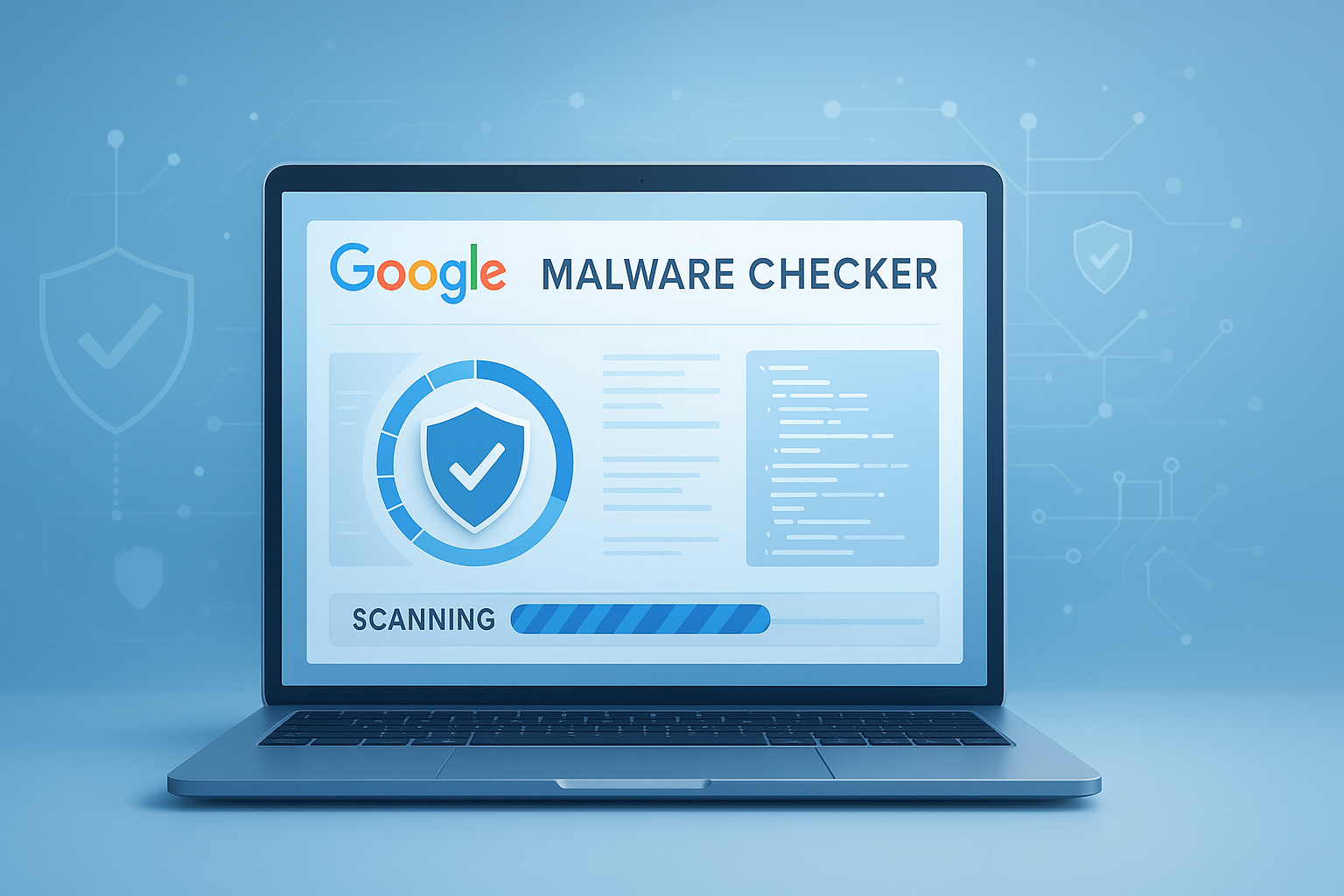
Suggested Image: Technology concept showing a browser security warning, website scan dashboard, and shield icon
What is a Google malware checker?
A Google malware checker is any tool or method that uses Google’s security signals to help you check whether a website has been reported for malware, phishing, unwanted software, or unsafe behavior. It doesn’t always clean the site for you, but it can quickly show whether Google has concerns.
In plain terms, it helps answer questions like:
- Has Google marked this website as unsafe?
- Could visitors see security warnings before loading the page?
- Is the site associated with phishing or harmful downloads?
- Does the site need further investigation?
Google’s public safety signals often come from services such as Google Safe Browsing site status. Google also explains security issues and site quality expectations in Google Search Central documentation.
If you’re checking multiple web assets, keeping records organized helps. Some site owners also use utility pages like the Word Counter to document cleanup notes, warning text, and reconsideration drafts before submitting fixes.
Why Google flags websites as unsafe
Google usually flags a website when it detects behavior that could harm users. That harm might be direct, like malware downloads, or indirect, like deceptive login forms designed to steal passwords.
Here are the most common reasons:
- Malware infection: Harmful code is injected into pages, scripts, ads, or downloadable files.
- Phishing: The site imitates a trusted brand or login page to steal personal data.
- Unwanted software: Downloads change browser settings, inject ads, or install programs users did not clearly agree to.
- Hacked content: Attackers add spam pages, redirects, hidden links, or malicious scripts.
- Compromised third-party resources: A hacked plugin, ad script, or tracking code causes unsafe behavior.
This is where many people struggle: they assume a warning means the entire website was intentionally built to scam users. Sometimes that is true. But often, a legitimate site has simply been compromised.
Google’s broader browser protections rely on Google Safe Browsing, while browser security behavior can also be influenced by standards and safe coding practices documented by MDN Web Docs.
How to use a Google malware checker to scan a website
The easiest way to run a Google malware checker scan is to check a site’s public safety status using Google’s Safe Browsing lookup. This won’t replace a full malware audit, but it gives you a reliable first answer in seconds.
- Copy the full website URL you want to check.
- Open Google’s Safe Browsing site status page.
- Paste the URL into the checker.
- Review whether Google considers the site dangerous, suspicious, or currently not unsafe.
- If there is a warning, inspect the website further before visiting or logging in.
For site owners, that’s only step one. You should also:
- Verify the domain in Google Search Console
- Check security issues and manual actions
- Review recent file changes on the server
- Scan plugins, themes, scripts, and downloads
- Look for hidden redirects and injected JavaScript
If you need to clean up suspicious code snippets before replacing files, simple helper tools like the HTML Minifier can make it easier to inspect page source in a more compact, readable way after you compare original and compromised versions.
What a quick scan can and cannot tell you
A Google-based scan is useful, but limited. It can tell you whether Google currently sees a safety risk. It cannot always tell you where the infection lives, when it started, or whether every page is affected.
| What the scan helps with | What the scan does not fully do |
|---|---|
| Shows whether Google has flagged the URL or domain | Does not remove malware from the server |
| Reveals if visitors may see browser warnings | Does not identify every infected file automatically |
| Helps confirm whether a site appears risky before visiting | Does not guarantee a clean site if no warning appears |
| Useful for fast first checks in 2026 and beyond | Cannot replace a full security review |
How to check whether a website is safe before visiting it
If you’re unsure about a website, the safest approach is to check it before you interact with it. That means before entering a password, downloading a file, or clicking pop-ups.
Use this checklist:
- Search the URL in Google Safe Browsing
- Look closely at the domain spelling
- Avoid pressing browser override buttons unless you fully trust the site owner
- Do not download software from unexpected pages
- Check whether the page uses HTTPS, though remember HTTPS alone does not prove safety
- Look for poor design tricks like fake update prompts and urgent account alerts
Here’s the problem. Many scam websites look polished. A clean layout, padlock icon, or modern design means very little if the underlying page is malicious. If you’re comparing suspicious URLs or checking if a domain was copied with hidden character changes, a utility like the Text Diff Checker can help you compare legitimate and suspicious versions side by side.
Google malware checker vs full website security scanners
A Google malware checker is ideal for a quick reputation check. A full website security scanner goes deeper by analyzing files, scripts, server behavior, blacklists, and known malware signatures. You usually need both for a proper assessment.
| Tool type | Best use | Main limitation |
|---|---|---|
| Google malware checker | Fast visibility into Google safety warnings | Limited forensic detail |
| Remote web scanner | Checks public pages for malware and blacklist status | May miss hidden server-side infections |
| Server-side malware scanner | Deep analysis of files, databases, and permissions | Usually requires hosting access or technical setup |
| Browser security tools | Warn users during browsing | Reactive rather than investigative |
Experienced site owners often pair Google’s warning data with hosting logs, file integrity checks, and CMS security plugins. If you manage page assets manually, the Base64 Decoder can also help inspect suspicious encoded strings that sometimes appear in injected scripts.
What to do if Google flags your website
If Google flags your website, act quickly but don’t panic. The right response is to confirm the issue, isolate the source, clean the infection, patch the vulnerability, and then request review if required.
- Confirm the warning. Check Google Safe Browsing and Google Search Console security reports.
- Take a backup. Save a copy before changing files, so you preserve evidence and recovery options.
- Put the site in maintenance mode if needed. This reduces user exposure while you investigate.
- Scan the whole environment. Review website files, databases, plugins, themes, uploads, and cron jobs.
- Remove malicious code. Delete injected files, spam pages, unauthorized users, and suspicious scheduled tasks.
- Patch the weakness. Update core software, plugins, themes, passwords, and access rules.
- Recheck the site. Confirm the infection is gone and pages behave normally.
- Request a review. If Google provides a review option through Search Console, submit it after cleanup.
Google explains review and recovery steps through its security issue guidance inside Search Console, and broader website hardening practices are well covered by resources like OWASP Top 10.
Suggested Screenshot: Example of a Google Safe Browsing status result and Search Console security issues section
Signs your site may be infected even if you haven’t seen a warning
This small detail changes everything: some infections stay hidden until enough evidence triggers a public warning. So a clean-looking site is not always a clean site.
- Unexpected redirects to gambling, pharmacy, or adult pages
- Sudden SEO spam pages appearing in search results
- New admin accounts you didn’t create
- Browser pop-ups or fake update prompts
- Files modified at unusual times
- Traffic drops with no clear ranking reason
- Hosting provider abuse notices
When documenting affected URLs, exported scans, or remediation notes, the PDF Merger can help combine reports into one file for your developer, host, or security consultant.
Common mistakes beginners make when checking malware warnings
Most mistakes happen because people treat a warning as either nothing or everything. The better approach is to verify carefully and respond based on evidence.
- Mistake 1: Assuming HTTPS means safe. Encrypted does not mean clean.
- Mistake 2: Ignoring a warning because the site looks normal. Many infections are invisible on first view.
- Mistake 3: Cleaning one file only. Malware often exists in several locations.
- Mistake 4: Reusing old passwords. Attackers often return through unchanged credentials.
- Mistake 5: Requesting review too early. If the issue remains, the flag may stay in place longer.
- Mistake 6: Forgetting backups and logs. Those records help identify how the breach happened.
If you are checking whether hidden code changed visible page performance, utilities like the JavaScript Minifier can help compare trusted scripts with suspicious versions after you isolate injected code.
Best practices to keep your website from being flagged again
Once a site has been compromised, prevention matters even more than cleanup. The goal is not just to remove malware once. It is to close the gap that allowed it in.
- Update your CMS, plugins, themes, and server software regularly
- Use strong unique passwords and enable multi-factor authentication
- Limit admin accounts and file permissions
- Remove unused plugins, themes, and scripts
- Run regular backups and test restoration
- Monitor file changes and login activity
- Use a web application firewall when appropriate
- Review third-party scripts, ads, and embeds carefully
Google’s security guidance for site owners and browser safety protections are valuable references, but practical workflow matters too. If you publish downloadable content, media, or documents, review them before upload. For image-heavy sites, the Image Compressor can help optimize legitimate assets while you rebuild pages after a cleanup, reducing the temptation to reinstall questionable plugins just to improve performance.
How Google warnings affect SEO and user trust
A malware warning can hurt more than rankings. It can stop clicks entirely. Even loyal visitors may leave immediately if they see a red screen or “deceptive site ahead” notice.
Here’s what can happen:
- Lower click-through rates from search results
- Reduced conversions and contact form submissions
- Loss of returning visitors
- Damage to brand trust
- Temporary deindexing of infected pages in severe cases
- Delays in ad approvals or campaign performance
Now comes the important part. Recovery is not just a technical fix. You may also need to restore user confidence. That can include checking page speed, reviewing damaged URLs, and simplifying your post-cleanup message. If you are repairing content and want to tighten wording on notice pages or support messages, the Paragraph Rewriter can help you rewrite awkward draft text into clearer, more readable explanations.
Quick example: checking a suspicious website safely
Let’s break this down with a simple scenario. You receive a link by email claiming your account is locked and you must log in immediately. The domain looks almost correct, but something feels off.
- Do not click the login button.
- Copy the URL without visiting additional pages.
- Check the domain in Google Safe Browsing.
- Compare the domain with the official one letter by letter.
- Search for the company via a trusted source instead of using the email link.
- If the site is flagged, close it and report the email as phishing.
- If it is not flagged, still verify independently before entering any credentials.
The answer depends on one thing: whether you trust the source and can independently confirm the destination. A Google malware checker is a strong first filter, but not your only line of defense.
Frequently asked questions
1. Is a Google malware checker completely accurate?
No tool is perfect. A Google malware checker is highly useful because it reflects Google’s security assessments, but it should be treated as an early warning system, not a full forensic scan. A site may be unsafe before it gets flagged, and a clean result does not guarantee that every page or file is harmless. For important decisions, combine Google’s result with a deeper server-side or remote malware scan.
2. Can I check any website without owning it?
Yes, you can usually check a public site’s safety status through Google Safe Browsing without being the owner. That’s helpful if you want to avoid scams, phishing, or risky downloads. However, you won’t get private diagnostic details like infected file paths or Search Console security reports unless you control the website. Public checks are good for visitors. Full investigation requires owner access.
3. What does it mean if Google says a site is “not currently listed as suspicious”?
It means Google does not currently show a public Safe Browsing warning for that URL or domain. That is a positive sign, but it is not a guarantee of total safety. New threats may not be detected yet, and some attacks are highly targeted or temporary. You should still use common sense, especially before downloading files, entering passwords, or trusting unfamiliar payment pages.
4. How long does it take for Google to remove a warning after cleanup?
The timing varies. If you fully remove the harmful content, fix the underlying vulnerability, and submit the correct review request in Search Console, the warning may be lifted relatively quickly. But if the issue is only partially cleaned, or if malicious code returns, the review can fail or take longer. The fastest path is complete remediation first, review second.
5. Does Google flag only malware, or also phishing and scams?
Google warnings cover more than malware. A website can be flagged for phishing, deceptive content, harmful downloads, social engineering, and unwanted software behavior. In other words, a site does not need to install a virus to be considered dangerous. Fake login pages, misleading “update your browser” prompts, and disguised downloads can all trigger safety concerns.
6. Is Google Search Console necessary if I own the website?
Yes, for most site owners it is one of the most important free tools available. A public Google malware checker tells you whether a problem may exist, but Search Console can provide more direct details about security issues affecting your verified property. It also helps you monitor indexing, search visibility, and other signals that may reveal a compromise earlier than users report it.
7. Can a plugin or theme cause my website to be flagged?
Absolutely. Outdated or poorly maintained plugins and themes are common entry points for attackers. Even a legitimate add-on can become dangerous if the developer stops updating it or if a vulnerability is discovered. This is why regular updates, removing unused extensions, and limiting third-party code are such important prevention steps for WordPress and other CMS platforms.
8. What should I do first if I accidentally visited a flagged site?
Close the page immediately and do not download anything or enter personal information. Then run an antivirus scan on your device, clear suspicious downloads, and change passwords if you typed them into the site. Watch for strange browser behavior, pop-ups, or account alerts. If you manage important accounts, enable multi-factor authentication right away to reduce the chance of follow-on abuse.
Final thoughts on using a Google malware checker
A Google malware checker is one of the simplest ways to check whether a website may be unsafe before you trust it or visit it further. For beginners, it offers a fast first answer. For site owners, it’s an important early warning signal, but not a complete cleanup solution.
The smart next step is simple: check the URL, verify the warning, and investigate deeper if anything looks wrong. If you manage a website, combine Google’s safety status with Search Console, file reviews, software updates, and regular backups.
To support that workflow, related FreeToolr tools that may help include the Word Counter for cleanup notes, the Text Diff Checker for comparing suspicious URLs or content, the PDF Merger for compiling reports, and the Image Compressor for rebuilding optimized pages after recovery.