Have you ever reused the same password because creating a new one felt like a chore? Most people do it at least once. That small shortcut is exactly what attackers count on.
Password managers solve a very simple but serious problem: humans are bad at remembering dozens of strong, unique passwords. Instead of asking you to memorize everything, they store your logins securely and help you use better credentials on every site.
In this guide, you’ll learn how password managers keep you safe online, what they can and cannot protect you from, and how to choose and use one without making common mistakes. If you want stronger online security without making life harder, this is where to start.
What is a password manager, and how does it work?
A password manager is a tool that stores your login credentials in an encrypted vault. You unlock that vault with one master password, and the manager can then generate, save, and autofill strong passwords across websites and apps.
Here’s the basic idea:
- You create one strong master password.
- The password manager encrypts your saved logins.
- It remembers unique passwords for each account.
- It autofills credentials on trusted login pages.
- Many tools sync across phone, laptop, and tablet.
This removes the temptation to reuse weak passwords. If you need help creating a stronger master password, a secure password generator can give you a solid starting point.
Suggested Image: Password manager vault unlocked with one master password
Why are password managers safer than remembering passwords yourself?
Password managers are usually safer because they let you use long, random, different passwords for every account. Most people, left on their own, choose short, predictable, or repeated passwords. That creates a chain reaction when one account is breached.
Let’s look at why.
- Unique passwords stop credential stuffing: If one site gets hacked, attackers often try the same email and password on other platforms.
- Random passwords are harder to crack: A tool can generate strings far stronger than most people would create manually.
- Autofill reduces typing errors: This makes it easier to use long passwords consistently.
- Organized storage lowers risky habits: People stop keeping passwords in notes apps, emails, or spreadsheets.
You can also test whether an existing password is weak by using a password strength checker. That gives you a quick sense of whether your current habits are protecting you or exposing you.
How does encryption protect your saved passwords?
Encryption converts readable data into unreadable text that can only be unlocked with the correct key. In a password manager, this means your stored passwords are scrambled before they are saved, so outsiders cannot easily read them even if they intercept the data.
Now comes the important part. Not all security claims are equal, but reputable password managers typically use strong, modern encryption and a zero-knowledge design. That means the service provider should not be able to read your vault contents.
Key security concepts include:
- End-to-end or client-side encryption: Your data is encrypted on your device before it reaches the provider.
- Master password: This is the main secret used to unlock your vault.
- Encryption key derivation: Your password is transformed into a secure cryptographic key.
- Zero-knowledge architecture: The provider stores encrypted data without seeing the plain text.
If you want a simple way to understand how protected text differs from plain text, you can explore a password encryption utility. It helps make the concept less abstract.
For a technical overview of modern encryption standards, the National Institute of Standards and Technology is one of the most trusted public sources.
What threats can a password manager help prevent?
Password managers reduce several common online risks, especially those tied to weak password habits. They are not a magic shield, but they do close some of the biggest gaps attackers use every day.
Here are the main threats they help reduce:
- Password reuse attacks: One leaked password no longer puts all your other accounts at risk.
- Brute-force guessing: Random, long passwords are far harder to crack.
- Credential stuffing: Attackers cannot easily reuse credentials stolen from another service.
- Phishing in some cases: Many password managers only autofill on the correct domain, which can reveal fake login pages.
- Unsafe storage habits: You avoid keeping passwords in browsers, sticky notes, or plain documents.
Phishing deserves special attention. A fake website may look real, but the domain often gives it away. Before entering credentials on a site that feels off, a suspicious domain checker can help you investigate it.
What can a password manager not protect you from?
A password manager improves security, but it does not make you invincible. If your device is infected, if you approve a fake login prompt, or if your master password is weak, you can still be compromised.
This is where many people struggle. They install the tool and assume the job is done. It is not.
- Malware on your device: Keyloggers, spyware, or remote-access malware can still steal data.
- Phishing that tricks you into approving access: If you hand over a one-time code or approve a bad login, the password manager cannot stop that.
- Weak master passwords: Your vault is only as strong as the password that protects it.
- Unlocked devices: If someone has physical access to an open session, they may gain access.
- Compromised email accounts: Password reset links often go to email first.
Before signing into a less familiar website, it can help to verify if the domain has a bad reputation through a domain blacklist lookup tool or review it with a Google malware checker.
Password managers vs browser password saving: what is the difference?
Browser password saving is convenient, but dedicated password managers usually offer stronger protections, better organization, and more advanced security features. The difference matters if you care about protecting multiple accounts across multiple devices.
| Feature | Browser Saved Passwords | Dedicated Password Manager |
|---|---|---|
| Password generation | Basic in some browsers | Usually stronger and more customizable |
| Cross-platform support | Often tied to one ecosystem | Works across browsers, apps, and devices |
| Security auditing | Limited | Often includes breach alerts and password health reports |
| Secure notes and extras | Rare | Common |
| Phishing awareness | Basic | Usually better domain matching and controls |
If you want to know whether your setup itself may expose you to compatibility or privacy issues, a What is my Browser tool can help you identify the browser and environment you’re relying on.
Are password managers safe if the company gets hacked?
In many cases, yes, they can still be safe if the provider is breached, because properly designed password managers store data in encrypted form. A breach of company systems does not automatically mean attackers can read customer vaults.
The answer depends on one thing: how the product is built.
Strong password manager design should include:
- Zero-knowledge encryption
- Encrypted vaults that cannot be read without your master password
- Independent security audits
- Bug bounty programs
- Strong multi-factor authentication options
That said, you should still pay attention to a provider’s incident history and public transparency. The Cybersecurity and Infrastructure Security Agency offers practical cybersecurity guidance that aligns well with this mindset.
How do password managers help against phishing?
Password managers can make phishing easier to spot because they often fill credentials only on the correct website. If your saved password does not autofill, that can be a warning sign that the site is fake, misspelled, or built on the wrong domain.
Here’s what experienced professionals do differently. They do not treat autofill as blind trust. They use it as a signal and still verify the website.
- Check the domain name carefully.
- Look for odd wording, poor design, or pressure tactics.
- Confirm whether autofill appears on the expected site only.
- Avoid entering credentials manually on suspicious pages.
- Use multi-factor authentication even after login.
If you are unsure who owns a domain, a WHOIS checker for domain ownership can give useful context. You can also review official phishing advice from the FTC phishing scam guide.
What makes a strong master password?
A strong master password is long, unique, and difficult for anyone else to guess. It should not be reused anywhere else, and it should not rely on common words, birthdays, pet names, or predictable substitutions.
This small detail changes everything. Your master password protects the vault that protects everything else.
Best practices for a master password:
- Use a long passphrase rather than a short password.
- Make it unique and never reuse it.
- Avoid personal information.
- Store a recovery plan safely if your manager supports it.
- Enable multi-factor authentication on the account.
A practical approach is to create a long passphrase with a password generator for secure passphrases and then review it with a password strength checker for master passwords. A second major layer is protecting your email account, since resets and alerts often go there. Good email privacy practices matter more than many people realize.
How to start using a password manager safely
The safest way to start is to move in a controlled order: secure your email account first, create a strong master password, turn on multi-factor authentication, and then begin updating your most important logins one by one.
Let’s break this down.
- Secure your primary email account. This is often the key to account recovery.
- Choose a reputable password manager. Review its security model and recovery options.
- Create a strong master password. Make it long and unique.
- Enable multi-factor authentication. Prefer authenticator apps or hardware keys where possible.
- Import or add passwords carefully. Start with banking, email, cloud storage, and social accounts.
- Replace weak or reused passwords. Use generated passwords for each site.
- Review autofill settings. Keep convenience balanced with caution.
- Update recovery details. Save backup codes securely.
Suggested Screenshot: Step-by-step password update checklist inside a password manager
Common mistakes that make password managers less effective
Password managers work best when paired with smart behavior. Many failures come from setup mistakes, not from the tool itself. A good system can still be weakened by convenience shortcuts.
- Reusing the master password elsewhere
- Skipping multi-factor authentication
- Ignoring breach alerts or duplicate-password warnings
- Saving passwords on fake or typo-filled websites
- Leaving devices unlocked
- Using insecure recovery questions
- Failing to update old, weak passwords already stored in the vault
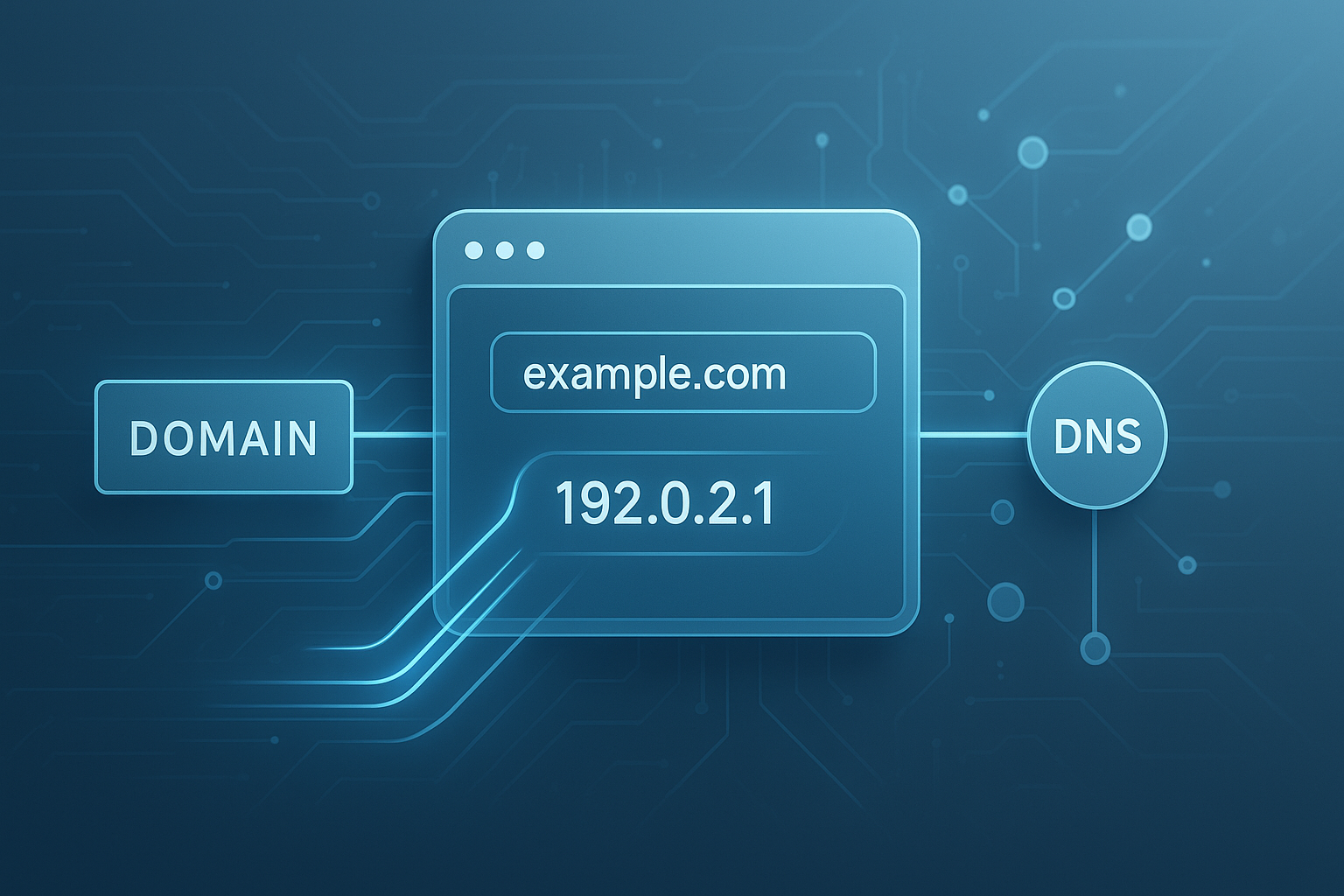
If you want to verify where a questionable website is hosted or inspect its network details during a security check, a domain to IP lookup tool can add another layer of context.
Best practices for getting the most security from a password manager
The best results come from layering protections. A password manager is strongest when combined with multi-factor authentication, device security, email protection, and careful browsing habits.
Use this checklist as a baseline:
- Use a long, unique master password.
- Turn on multi-factor authentication.
- Update your most sensitive accounts first.
- Replace reused passwords immediately.
- Review security alerts from your manager.
- Keep your operating system and browser updated.
- Avoid entering credentials on links from unexpected emails or messages.
- Audit old accounts you no longer use.
For broader password guidance, the NIST digital identity guidelines remain one of the best references on authentication and credential security.
Frequently asked questions
1. Do password managers really keep you safe online?
Yes, they significantly improve online safety when used correctly. Their biggest benefit is making it practical to use a different strong password for every account. That limits damage when one website is breached. They also reduce the need to remember login details and can help spot fake login pages when autofill fails on the wrong domain. They are not a complete security solution, but they are one of the most effective upgrades most people can make.
2. Can password managers be hacked?
Like any software, password managers can be targeted. The key question is whether a breach exposes readable customer data. Reputable tools use encrypted vaults and zero-knowledge designs, which means attackers should not be able to read stored passwords without your master password. Even so, no tool removes all risk. You still need a strong master password, multi-factor authentication, and a clean device to get the full security benefit.
3. Is using one master password too risky?
It can sound risky at first, but the alternative is usually worse: weak or repeated passwords across many accounts. A strong master password paired with multi-factor authentication is generally much safer than memorizing dozens of poor passwords. The master password should be long, unique, and not used anywhere else. If you choose it carefully and protect your device and email account, the single-vault model is a net security gain for most users.
4. Are free password managers safe?
Some free password managers are safe, but you need to evaluate them carefully. Check whether they use strong encryption, support zero-knowledge storage, offer multi-factor authentication, and have a clear track record of security transparency. Free plans may limit device syncing or advanced alerts, but that does not automatically make them unsafe. What matters most is the provider’s security design and your own habits, not simply whether you pay for the service.
5. Should I store banking passwords in a password manager?
For most people, yes. Banking passwords are exactly the kind of credentials that should be long, unique, and never reused. A password manager makes that realistic. If you do store banking logins, protect the vault with a strong master password and multi-factor authentication. Also secure the email account connected to your bank. The biggest risk usually comes from poor overall security habits, not from storing the banking password in a reputable encrypted vault.
6. Can a password manager protect me from phishing emails?
It can help, but it cannot fully protect you from phishing. Many password managers will not autofill credentials on a fake domain, which can warn you that something is wrong. That is useful, but phishing often succeeds through urgency, fake support messages, or stolen one-time codes. You still need to check the domain, avoid clicking random links, and verify suspicious messages through official channels before signing in.
7. What if I forget my master password?
What happens depends on the provider. Many password managers cannot reset your master password because they do not know it, which is part of what makes them secure. Some offer recovery methods, emergency contacts, or recovery keys. Before committing to a tool, review its recovery process carefully. Store backup codes securely and make sure your email account is protected, since recovery workflows often depend on it.
8. Is a browser password manager good enough?
For light use, browser-based password saving is better than reusing weak passwords. But dedicated password managers usually provide stronger security controls, better cross-device support, password health checks, and more reliable organization. If you have many accounts, use multiple devices, or care about privacy and phishing resistance, a dedicated password manager is usually the better choice. Convenience matters, but so does the strength of the underlying security model.
9. Do I still need multi-factor authentication if I use a password manager?
Yes. A password manager and multi-factor authentication solve different problems. The manager helps you create and store strong unique passwords, while multi-factor authentication adds a second barrier if a password is stolen. Combining both gives far better protection than using either one alone. If possible, use an authenticator app or hardware key instead of relying only on SMS codes, which can be more vulnerable in some situations.
10. How often should I change passwords stored in a password manager?
You do not need to change every password on a fixed schedule if they are already strong and unique. Instead, change passwords when there is a breach, when you reused a password, when an account seems suspicious, or when the service recommends a reset. Focus on risk-based changes rather than routine changes. Using a password manager makes these updates much easier because you can generate a new strong password and store it instantly.
Final thoughts
Password managers keep you safe online by fixing one of the most common security weaknesses: human password habits. They help you create strong, unique passwords, store them in encrypted form, and reduce the damage caused by breaches and password reuse.
But the tool works best when paired with good judgment. Protect your email. Use a long master password. Turn on multi-factor authentication. Be careful with login pages and suspicious domains.
If you want to take the next step, start small. Generate a stronger password, check its strength, and review the safety of the websites where you use it. Tools like a password generator, password strength checker, and suspicious domain checker can help you build better habits right away.